User Roles
- The User Roles allows you to limit a user’s access to the SmartShopFloor modules. When creating a new user, the admin can assign an appropriate user role based on the access required by the user.
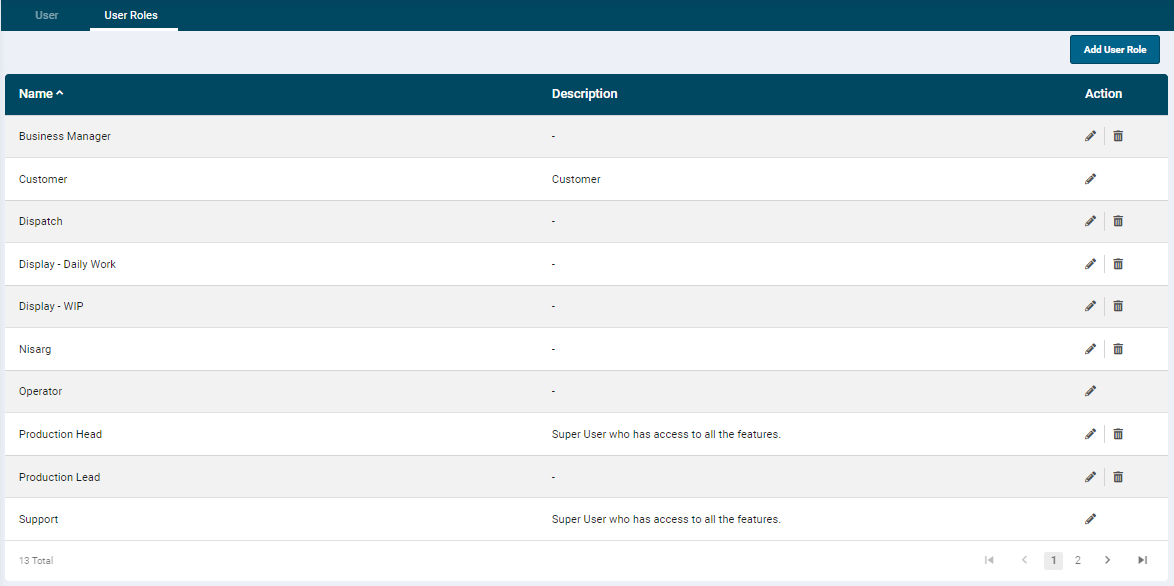
Add New User Role
-
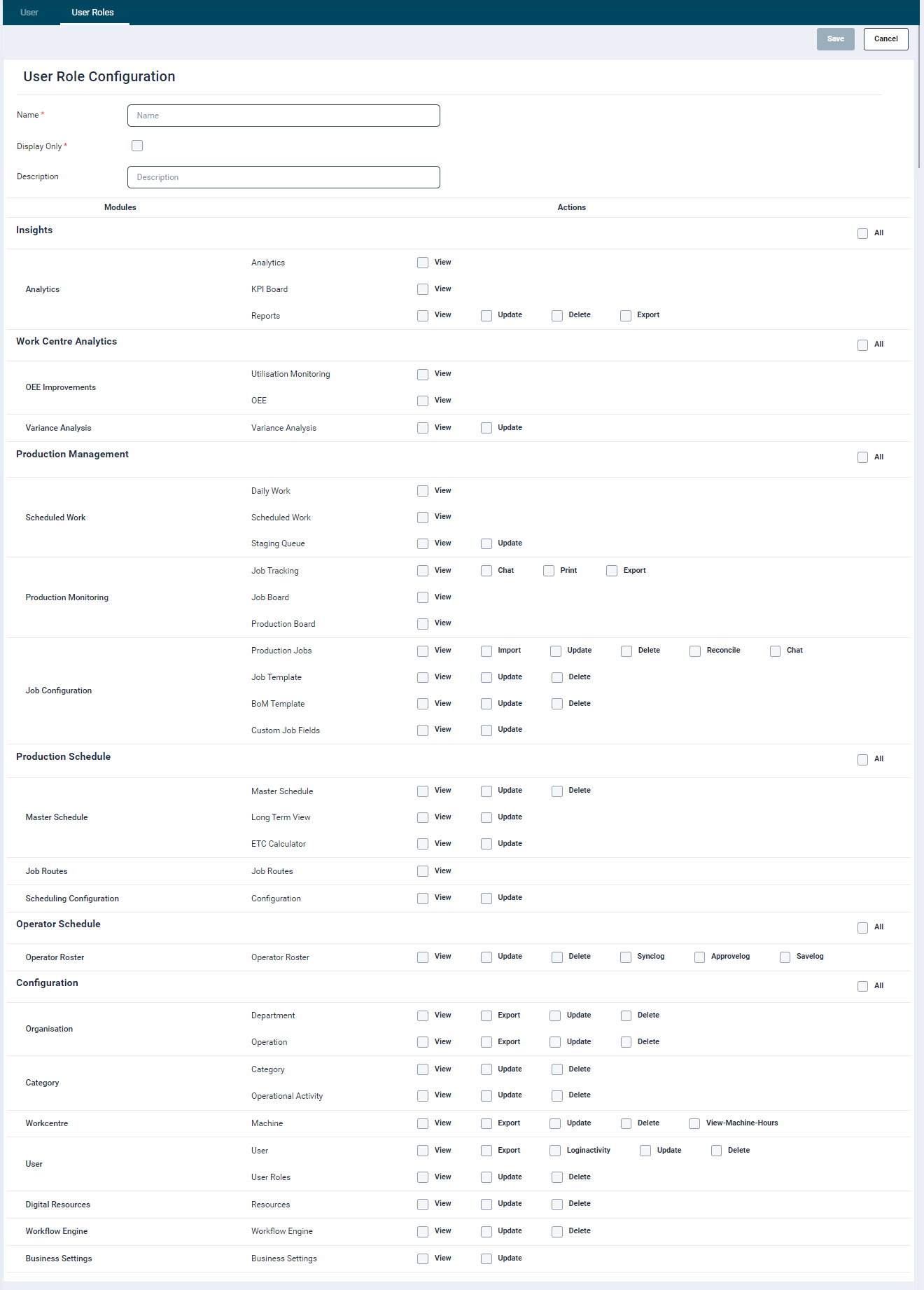
To configure a user role, click the Add User Role button. On click, the User Role Configuration screen will open.
-
Provide the following information:
- Name: User role name
- Display only: This option can be used for creating a user for TV/display screen.
- Description: Description of the user role
- The table below the basic configuration displays the following.
- Modules: List of modules and sub modules.
- Actions: : List of actions with checkbox, which can be checked or unchecked to give access or revoke access to this function.
- Each user role can have varying access levels based on the actions/operations available for the modules. Below is a list of actions/operations:
- View: View module/data
- Update: Update data
- Delete: Delete data
- Export: Export data
- Reconcile: Allow to reconcile job details
- Chat: Allow chat feature
- Synclog: Allow to sync timesheet
- Approvelog: Allow to approve timesheet
- Savelog: Allow to save timesheet
- View-Machine-Hours: Allow access to view machine hours
- Loginactivity: Allow viewing user login logs
- Click the required check box to enable it. Clicking the option 'All' will enable all the features of the module at one go.
Delete a Role
Before deleting a role make sure all the users of that role have been assigned a new role, or have been removed.
Update a Role
Once a role has been updated, make sure all the users of that role re-login to the portal once for the changes to reflect.