Settings
- This section permits the user to configure system settings such as business hours and API Key.
- To access Settings, click on Configurations → Settings in the menu.
Business Hours
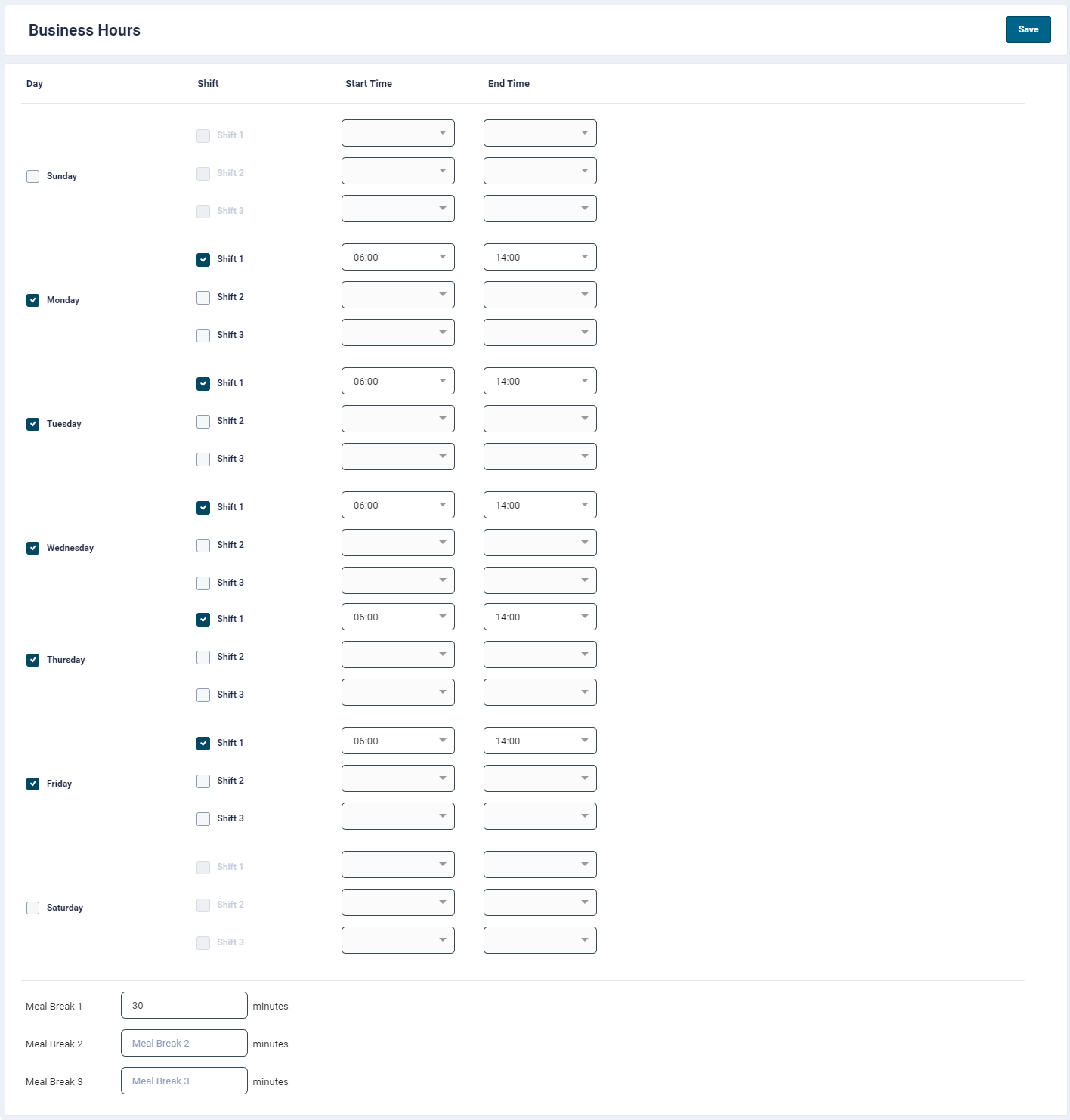
- This section allows user to add operational hours on day to day basis.
- Currently user can add upto 3 shift timings.
- Based on the shift timings, the machine utilisation as well as OT hours will be calculated.
Meal Break
- This feature enables configuring meal breaks.
- Each break can be of 60 minutes duration.
- Upto three meal break configurations are available.
When a user clocks out, the app will ask a confirmation if he has taken the regular breaks or not. If the answer is yes, then the total minutes of all the meal breaks will be deducted from the total clock out duration. If he answers no, there will be no deduction.
Public Holiday
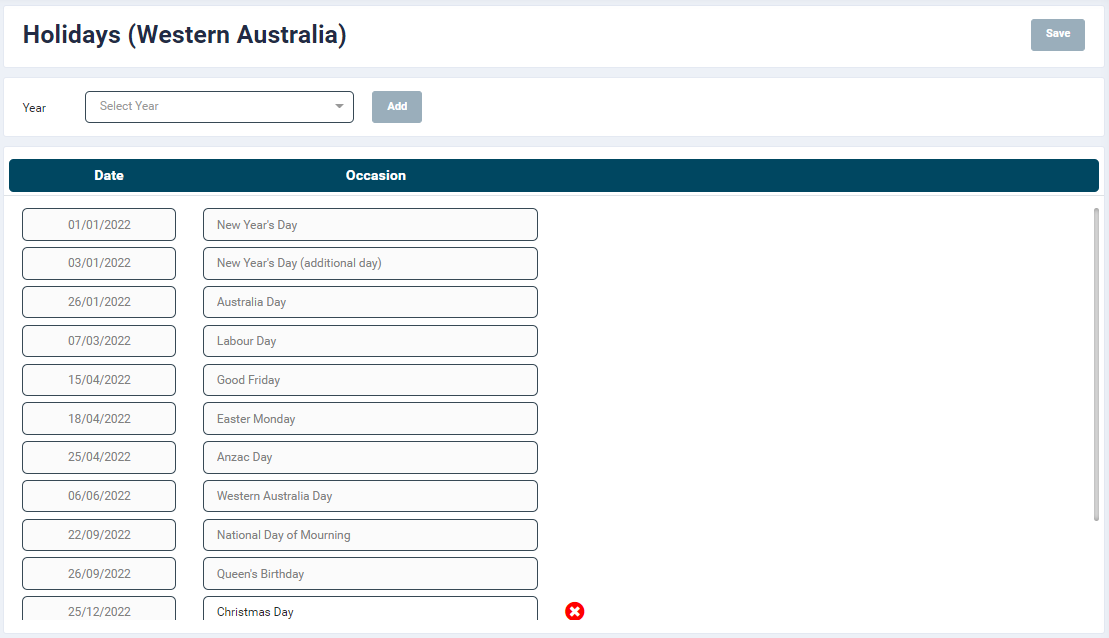
- This section allows users to add state holidays.
- To add a new holiday:
- Select a year from the Year dropdown, then select a province from the Province dropdown and click the Add button.
- Go to the bottom of the holiday list, click on the Date field and select a value from the date picker.
- Enter the holiday name in the Occassion field. Maximum 50 characters can be added.
- Click on the Save button at the top right-hand side of the screen.
- The new holiday will get added to the list as per its chronological order.
- To delete a holiday, simply click the cancel icon provided against the recort. Please note that the user will not be allowed to add/delete past holidays.
Holiday types
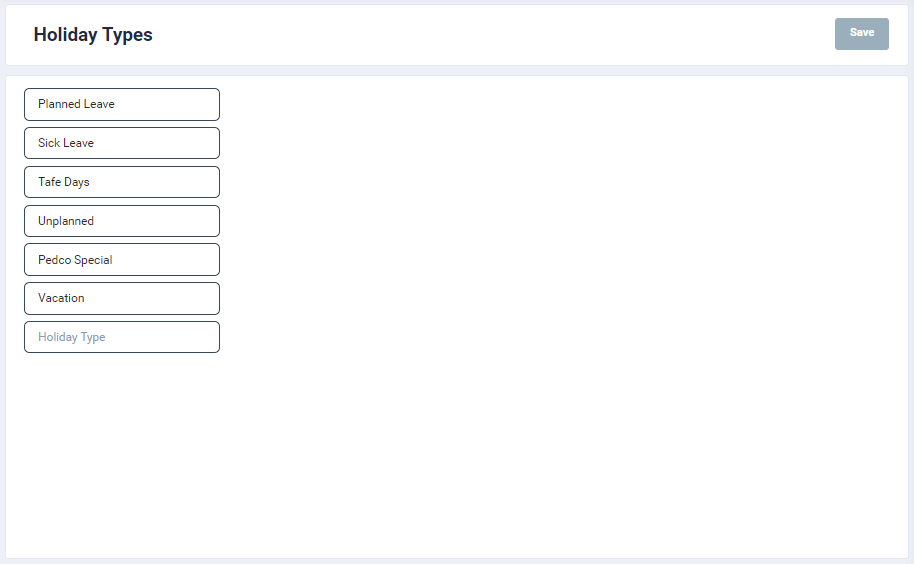
- This section allows user to setup holiday types based on their busines for personnel planning leaves.
- To add a holiday type, simply enter a relevant a name in the Holiday Type text field.
- Currently the user is not allowed to update / delete the holiday types.
- Once added, these types would be available in the Personnel planning section.
Security & API
Setting API key
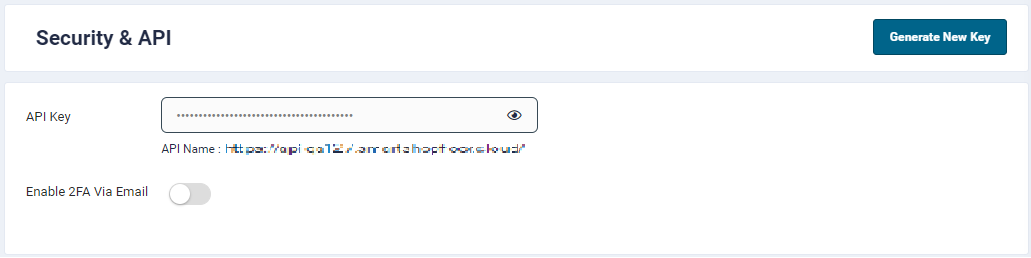
API Key: The API Key allows the user to create jobs programmatically in the SSF portal and export the data when the job is completed.
2-factor Authentication
- This feature allows you to enable Two-factor Authentication.
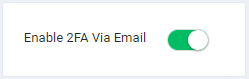
- By default, the 'Enable 2FA Via Email' switch is disabled. Toggle the switch to the right to enable it.