Scheduling Configuration

- Auto-scheduling will run at:
- Configure the time that auto schedule will run and will schedule the jobs i.e., Schedule will clear and schedule jobs at that specific time
- This setting is allowed to be configured three times a day at various 30-minute time intervals HH:MM
- Allow auto-scheduling for next day(s).
- If auto-scheduling is set for 14 days, the scheduling slots will be opened from current date to the next 14 days and the user will be allowed to schedule jobs. E.g. The current date is 18/04/2022, the auto-scheduling will be from 18/04/2022 to 01/05/2022, weekends included. The next auto-scheduling will start from 02/05/2022 to 15/05/2022, so on and so forth.
- Set schedule locking for next day(s).
- The system will not run new schedules on these days, including the current day.
- Weighting priorities____days:
- Apply weighting to balanced out clash between priority and due date.
| Due Date | Priority | |
|---|---|---|
| J6 | 13-Feb-24 | 1 |
| J1 | 13-Feb-24 | 2 |
| J2 | 13-Feb-24 | 2 |
| J3 | 18-Feb-24 | 1 |
| J4 | 26-Feb-24 | 1 |
| J5 | 24-Apr-24 | 1 |
- If the set number of days is 5+ then the output for the above jobs will schedule accordingly: J6, J3, J1,J2,J4,J5.
- When the gap in due days between 2 jobs is of X number of configured days or less days in such case the priority will be considered to schedule job first. Here in this above example if the configured days is 7 then J3 will be scheduled first and then J2
- However, if the configured days is 4 or less then J3 is outside the range of J2 so no change will take place and schedule will be J6, J1, J2, J3, J4, J5 just based on due date.
- Schedule capacity____% shift
- So, for 80% work capacity means we will schedule 80% shift for Machine and operator.
- So, for 8 hours shift we schedule 8 X 60 X 0.80 = 384 minutes out of 480-minute shift.
Note: We will be turning off individual work center level capacity and keeping the capacity control at the scheduling level for the entire business. * Turned on operator skill based scheduling * If this flag is enabled the operators are scheduled based on an operator skill matrix. * Keep missed schedules for previous day(s). * If 7 days are configured, then from current date minus 7 seven days the operations with missed schedules are not considered for when clear and schedule is run again. Typically used in smaller workshops or for initial implementation for in progress jobs. * Auto schedule will only work on jobs having due dates within [] day(s). * Allow schedule for jobs within the configured number of days. * E.g., Today's date is the 1/05/2024. If the configured number of days for this setting is 120 then we will schedule jobs whose due dates fall within the next 120 days.01/05/2024 + 120 days = 29/08/2024. Any job with a due date between these dates will be considered for scheduling * Allow due date to extend for __ days * This setting allows to extend the ETC to x number of days if the job scheduling can’t be performed within the specified number of days. Here for Schlam base number of days is 120 and extends days can be set to 30 days. Scheduling tries to fit everything within due date but then extends if it cannot Select departments to setup strict sequencing: * Strict Sequencing in dept.- what it meant is only schedule the following seq tasks after previous tasks * Not strict Sequencing is like having an identical predecessor and doing parallel scheduling Note: NOT RELEVANT FOR SCHLAM * Dispatch Buffer Time * While setting job Etc Date we are calculating job etc and them adding dispatch buffer time in etc. Currently only configured for First-In First-Out (FIFO) scheduling, however once done with Just-In-time (JIT)s it will add the set time or days to complete that job before the due date. I.e., Dispatch buffer time 2 days and due date 20th of May. The schedular will aim to complete job by 18th of May to give 2-day buffer. * > Note: Currently Turned off for Schlam. * Allow to schedule for past_days * To consider unscheduled operations from current date to X number of past days as defined in settings. This is used at first time data load to bring in-floor jobs. * Move jobs ahead of schedule if current jobs complete [] minutes earlier. * If any job gets completed early by x minutes, then the succeeding jobs will be moved ahead to that available time slot. * Move scheduled downtime ahead of schedule when current job completes earlier than schedule. * This option is enabled only when the one above is selected. The above rule will be applied here as well. E.g. In the above field, the duration mentioned is 30 mins. On a given day the time slot for a job is 9:00-12:00, and downtime is scheduled between 12:00-13:00. If this job gets completed 30 mins before the schedule i.e. by 11:30, then the downtime will move ahead of it's schedule by 30 minutes. * If this option is not enabled, then any job preceeding the downtime will move up by 30 mins, but the downtime and succeeding jobs will continue as per their configured schedule. In this case there will be a 30 mins empty slot of between the downtime and the preceeding job i.e. 11:30-12:00.
Downtime Setup
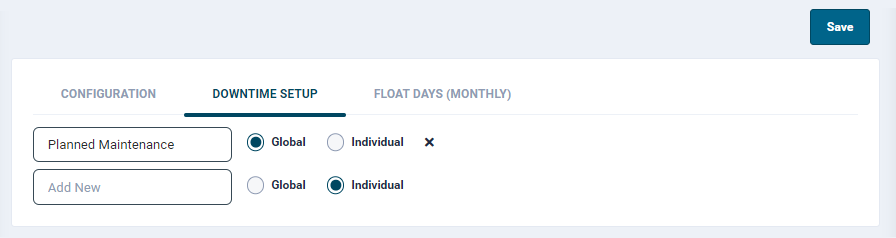
- User can set downtime duration for the machine(s) or system.
- The downtime is categorised as Global and Individual.
- The Global downtime affects the entire unit at large. E.g. Power outage, Public holiday
- Individual downtime is specific to a work centre and its machines. E.g. planned maintenance
- To configure a downtime:
- Enter a downtime name in the text field
- Assign its category by selecting either Global or Individual radio button and click Save.
- To delete a downtime, simply click the cross mark against the required record and click Save.
Float Days (Monthly)
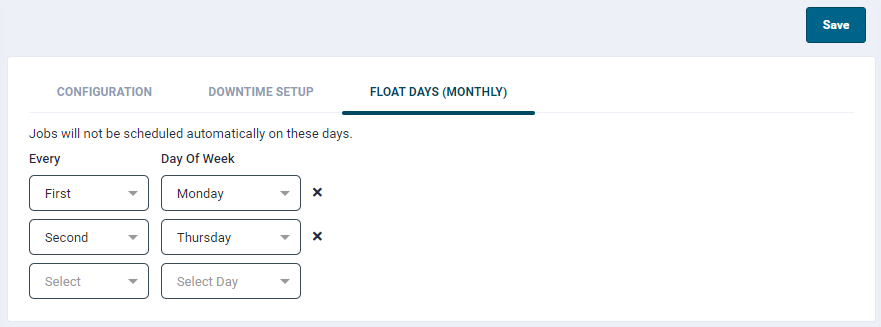
- This feature allows you to setup float days where the auto-scheduling is paused.
- At these selected days, autoscheduling wont take place, although the users can manually schedule jobs.