Resources
-
Resources allow to upload files such as Bill of Materials,instructions, operation manuals etc.
-
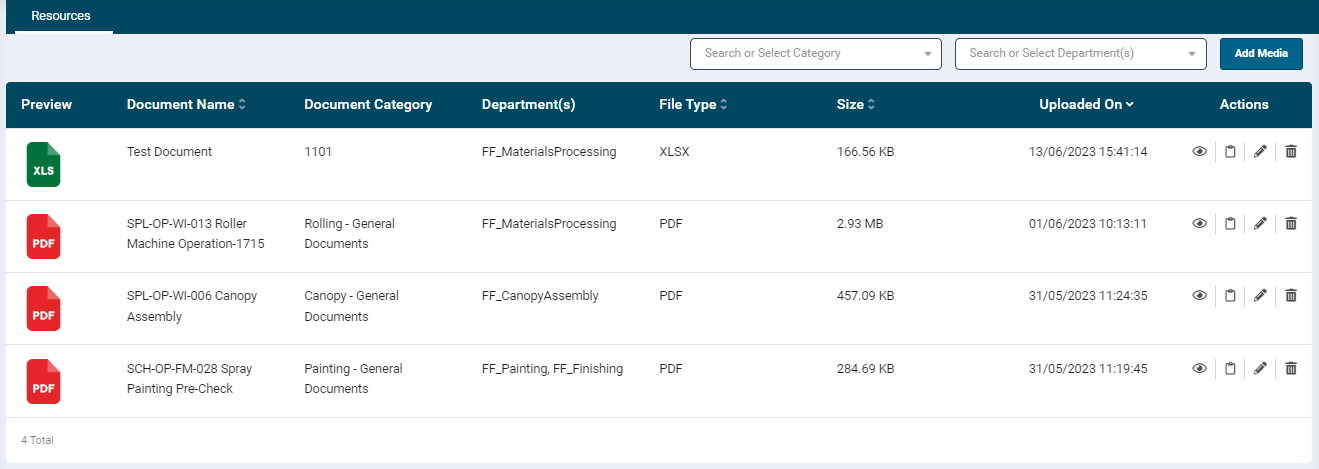
The data can be filtered by selecting the required valued in the Category and Department filter selection.
- The listing grid displays the following resource information:
- Preview: Displays the file format icon
- Document Name: Displays the document name as configured
- Document Category: Displays the selected document category
- Department(s): Displays the selected department names
- File Type: Displays the file format names
- Size: Displays the file size
- Uploaded On: Displays the file upload date and time stamp
- Actions: Allows the user to View, Copy, Edit and Delete the file record
- The Copy option allows you to copy the document URL and view it in a new browser. Depending on the file type, the file will either open in the browser (e.g. PDF, Images) or get downloaded to your system (e.g. xlsx).
Add Resources
-
To add new resource click the Add Media button at the top right-hand side of the screen.
-
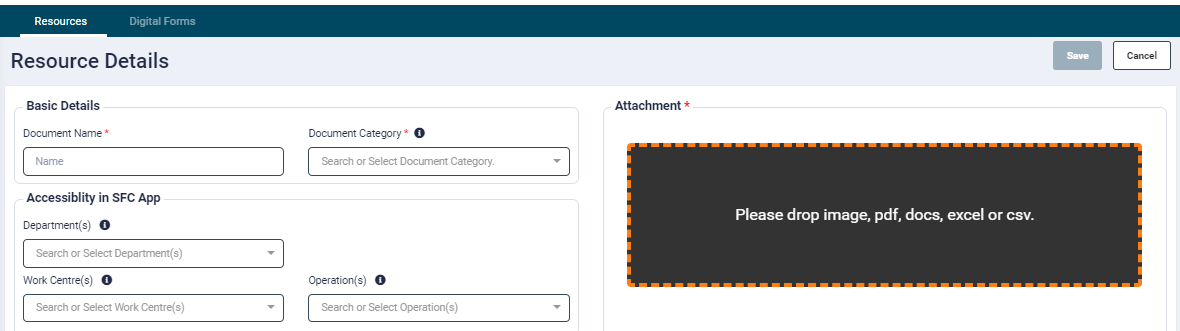
In the Resource Details screen, provide the following input:
- Document Name
- Document Category
- Document categories if not available can be created when you start typing in the category section
- Simply enter a name and click create
- Department(s)
- If only a department is selected then the resource will be available for every Smart Shop Control app assigned with a Work Centre under that category.
- Uploaded resources will appear in the resource tab on the Shop Floor Control app
- Work Centre(s)
- If a Work Centre is applied then only that specific Work Centre will show the uploaded resource in the resources tab in the Shop Floor Control app. Other Work Centre’s part of the same department will not see the resource unless they too are selected
- Operation(s)
- If specific operations are selected, then the resource will only appear when you are in progress of that operation on the Shop Floor Control app. The resource will not be available in the resource tab on the Shop Floor Control app unless that specified operation is in progress.
- Following file formats are permitted:
- Images
- Word
- Excel
- CSV
- Max file size allowed is upto 100MB.
- A notification is shown when user selects an invalid file type.
- The drop box will display the file name once it is added to the screen.
- The next two fields will display data relevant to the uploaded file.
- File Type
- File Size (KB)
- Now click the Save button to save the record.
- The last two fields will display information once the record is saved. To view, open the record in View or Edit mode from the Actions column in the listing grid.
- Uploaded On
- Uploaded By