PrimeCut Integration
PrimeCut Integration
The data for BoM is imported from PrimeCut.
- In PrimeCut, a service uses the PrimeCut API. The service decodes data and sends it to the SSF API.
- API: http://XXXX:8080/primecut-rest/v1/workorders/apikey=XXX&GetLineItems=true&ExtraInfo=NestDetails
- The SSF API matches the part number and item number in the database and updates the details if a match is found against the matched job code.
- Only those data where the part numbers and item numbers are matching will be displayed in SmartShopFloor portal.
- The barcode used for scanning the BoM materials is formed with the combination of Job Code, Process Code, Part Number and Serial Number.
Configuration
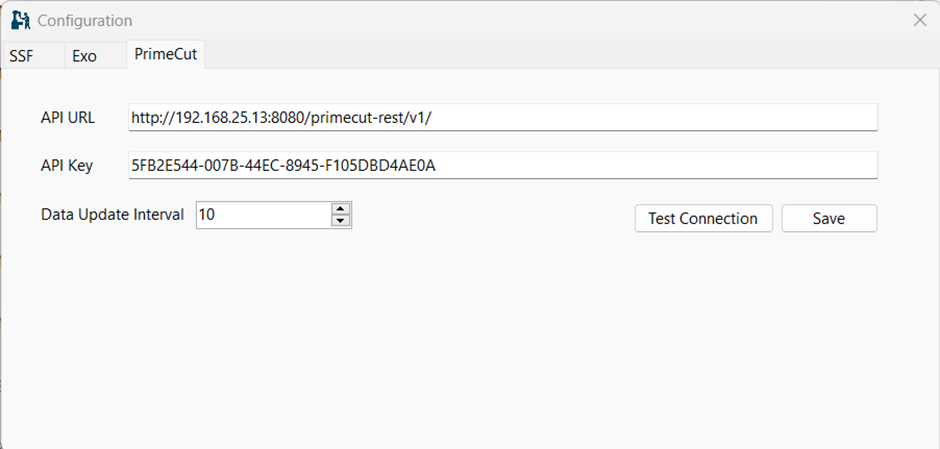
Provide the following input to configure PrimeCut:
- API URL: Provide the PrimeCut API URL
- API Key: Provide PrimeCut API Key
- Data Update Interval: Specify the interval at which you want to import data from PrimeCut
- Test Connection: Once all the input is provided, click the Test Connection to check if the configuration is working
- Save: Click the Save button to save the configuration
NOTE: Once the configuration is changed/updated, restart the service "SSFIntegrationService"
Data Integration Frequency
- The integration service will fetch data from the PrimeCut at regular intervals of every 10 minutes.
- The EPrimeCut API detail and fetch data frequency can be changed from config utility, placed at “C:\Program files\COREIOT\Config“
Notification
- If no match is found, an email notification is sent to the relevant parties.
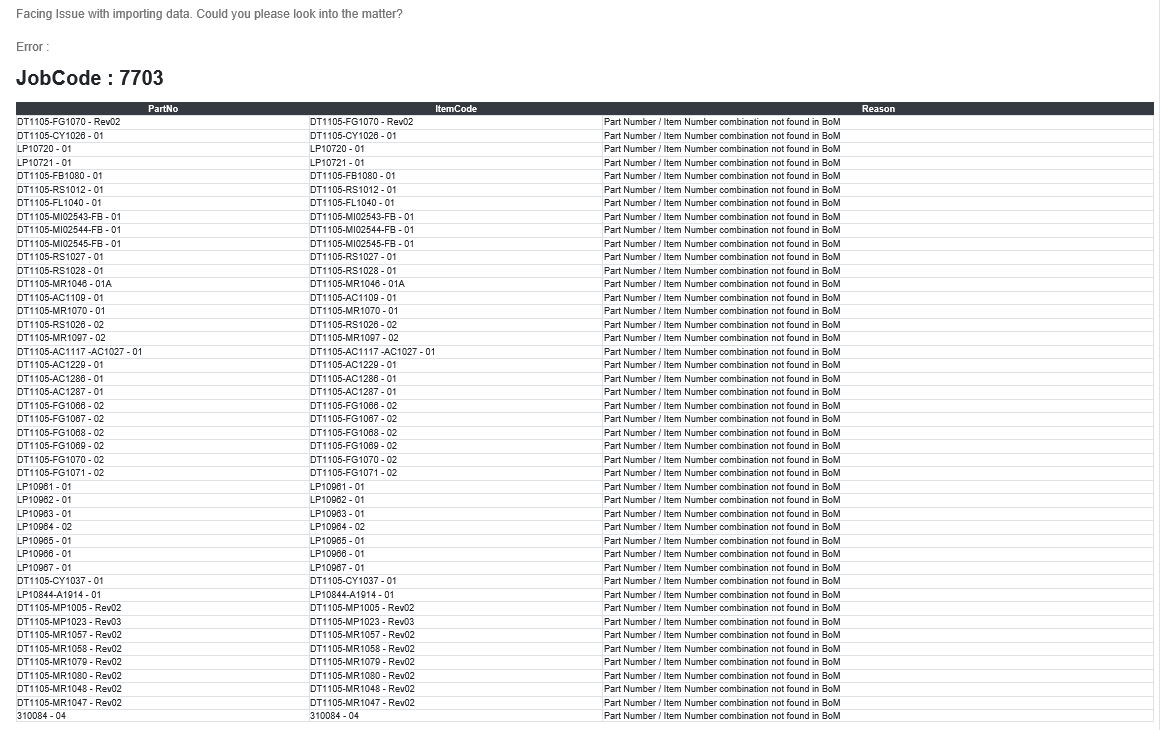
- The email will display a related reason provided by SmartShopFloor API. For example: PrimeCut api is not connecting.
NOTE: The system will not send duplicate mails for the same error event. A subsequent error email will be sent only when there is an import failure after modifying the data in EXO or PrimeCut or the service is restarted.
PrimeCut Field Mapping with SmartShopFloor
| PrimeCut | SmartShopFloor Field Name |
|---|---|
| Header.InvoiceNumber | EXO Job |
| LineItems.Part.Name | partNo |
| LineItems.PieceMark | itemNo |
| LineItems.Part.Material.Name | MATERIAL |
| LineItems.Part.Weight | UNITWEIGHT |
| LineItems.Part.Revision | REVISION |
| LineItems.Part.Material.Thickness | THICKNESS |
| WOItemID | SERIALNUMBER |
| LineItems.Part.Material.ProductCode | SteelStockCode |
| if in NestedDetails PlateState != CUT NumberNested | QuantityNested |
| if in NestedDetails PlateState == CUT NumberNested - NumberRejected | QuantityCut |
| If the part is cut before the integration of PrimeCut and SmartShopFloor, the "DATE OF PART CUT" will be the date when the data is imported. If not, the "DATE OF PART CUT" will be the date when PrimeCut sends the status "Cut" for the first time. | DATE OF PART CUT |
NOTE: This logic has been applied as the date of part cut is not provided by PrimeCut
PrimeCut Field Mapping with Bill of Materials
| PrimeCut | BoM Field Name |
|---|---|
| Part Name | PartNumber |
| Piecemark | Item Number |
Operator Import * Operator Import runs at every 24 hour * Staff code is pin no for App login
ShopFloorControl App * The QR used for scanning the BoM materials is formed with the combination of Job Code, Process Code, Part Number and Serial Number. * The operator can scan the QR code when an operation is running on a machine. * Once scanned, the serial number will get updated in the Scanned Serial Number column for the said job will get updatated on the SmartShopFloor portal. * If a wrong item gets scanned, then a new BoM entry will get created on the SmartShopFloor Portal. The user can edit or delete the old BoM item if required.