Operators
-
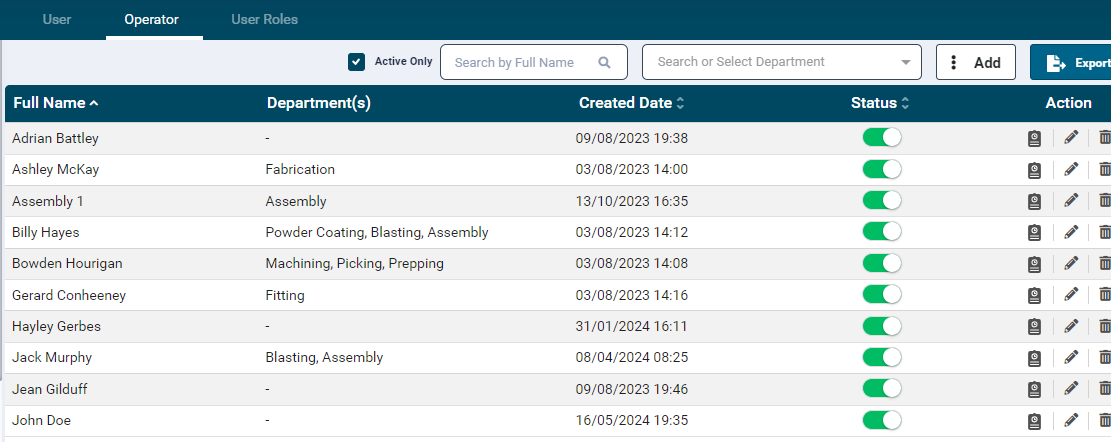
The operator list provides the following information of the operators:
- Full Name
- Department(s)
- Created Date: This column displays Operator's created date.
- Status: This button allows you to enable or disable an operator. Toggle the button to the right to set the status as active/enabled. This action can be performed in the configuration section as well.
- Action: This column allows you to view an operator's Form Submission, Login Activity, Edit and Delete the user record.
-
Add Operator
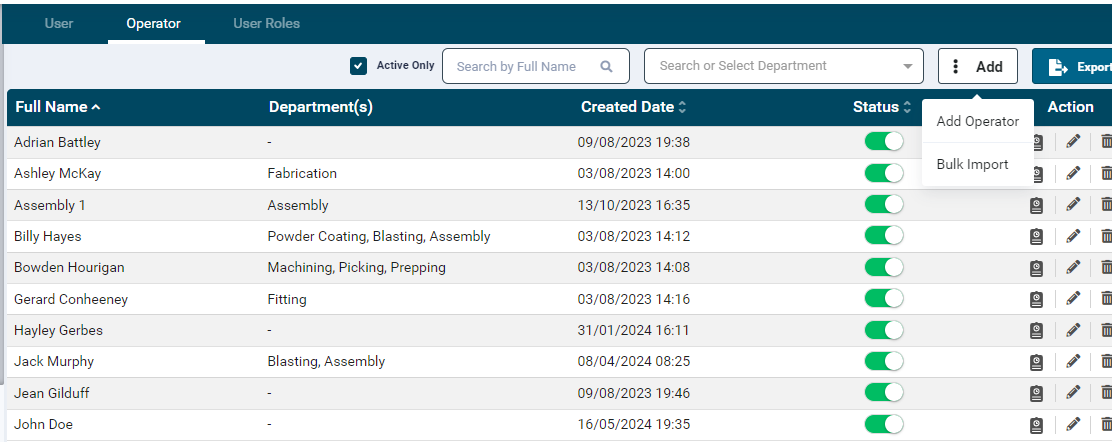
- Click on the Add
 button on the top right-hand side.
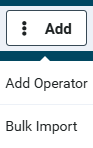
- To add a single operator, select Operator from the dropdown list.
- Upon selection the Operator Details screen will open.
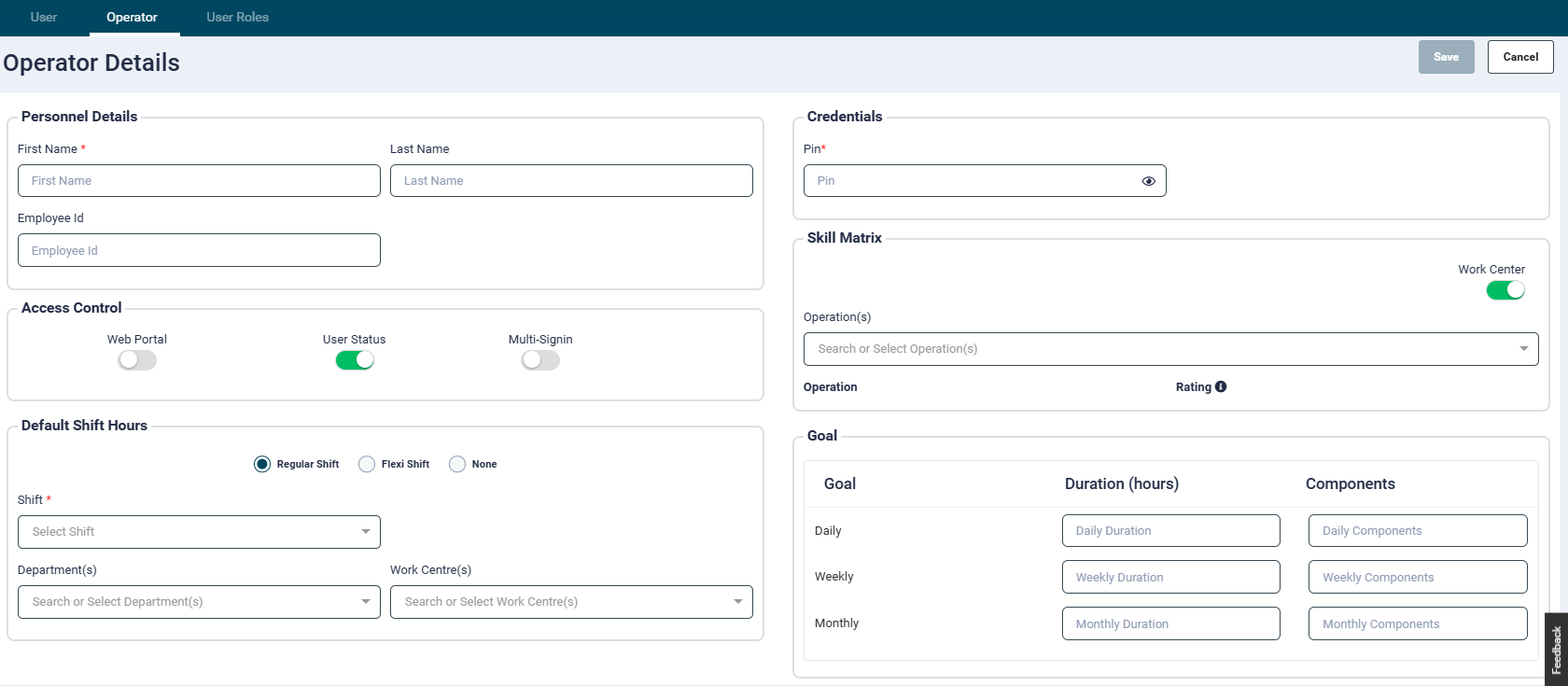
- Enter operator details in appropriate textbox
Fields marked with red asterisk are mandatory.
Personnel Details
Follow the below mentioned steps for basic configuration
- First Name: Enter the user's first name
- Last Name: Enter the user's last name
- Employee Id: Enter an employee Id. Alphanumeric values are permissible.
Operator Access
- Operators can access the Web Portal if the Web Portal toggle is enabled. This will prompt a new detail section to enter username, email address and password.
- By default they will have the operator User Role assigned
- Enter a 4-digit PIN number which will be used by the operator to login to the SFC app.
- User Status: This button allows you to enable or disable a user. Toggle the button to the right to set the status as active/inactive:
- If an Operator is inactive the following applies:
- Any future jobs having this user assigned should be removed.
- This operator’s data will not be considered in future for capacity utilisation widget. (next month)
- This operator won’t be shown in manual attendances and timesheet report in future. (next day)
- Multi-Signin: Multi-signin enabled operators would be able to login on multiple SFC app and their session would remain valid on all the tablet apps.
Default Shift Hours
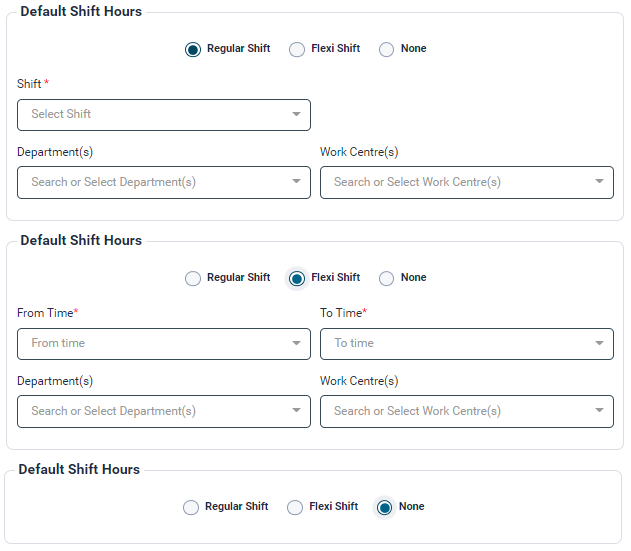
- This feature allows you to set a default shift for the user.
- There are three options available: Regular Shift, Flexi Shift and None.
- Select the required radio button and provide the relevant input.
- Regular Shift:
- Shift: Select the shift (as defined in Business Hours) the employee will be working on from the Shift dropdown field.
- Department(s): Select/search the Department the employee works on.
- Work Centre(s): Select/search the Work Centre the employee will be working on.
- Flexi Shift:
- Shift Time: Select the shift From Time and To Time. On any given day, the selected user will be available only as per the timings defined here. The Department and Work Centre field are as described above.
- None: Having no shift will mean the operator is not considered for scheduling or has any capacity allocated to them.
- Regular Shift:
Skill Matrix
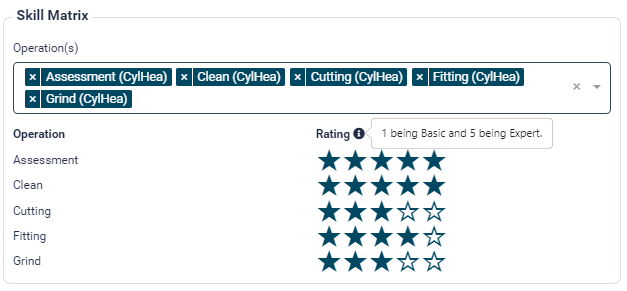
- Assigning a department for users with Regular or Flexi shift allows you to give rating to their skills in its various operations.
- Select operations for the assigned department and give ratings for each of them.
- Operation: All the operations associated with the departments are provided in a dropdown list. Select as many valued as required. Selected operations will get listed under the selection box.
- Rating: Select the required number of stars to rate the proficiency level (1 being the lowest and 5 being the highest) and click Save.
Assigning Operators During Scheduling/Autoscheduling
- If Skill Matrix scheduling is enabled, operators will have tasks assigned to them based on what skills are highest. Scheduling will look at the highest rated operator and try to assign them with that particular operation over other operators that have less qualification in that operation
- If there are multiple operators for a required operation, then the rating would be considered for selecting the highest rated operator for that job.
Bulk Import Operator
- Click on the Add button on the top right-hand side.
- To add multiple operators in one go, select Bulk Operators from the dropdown list.
-
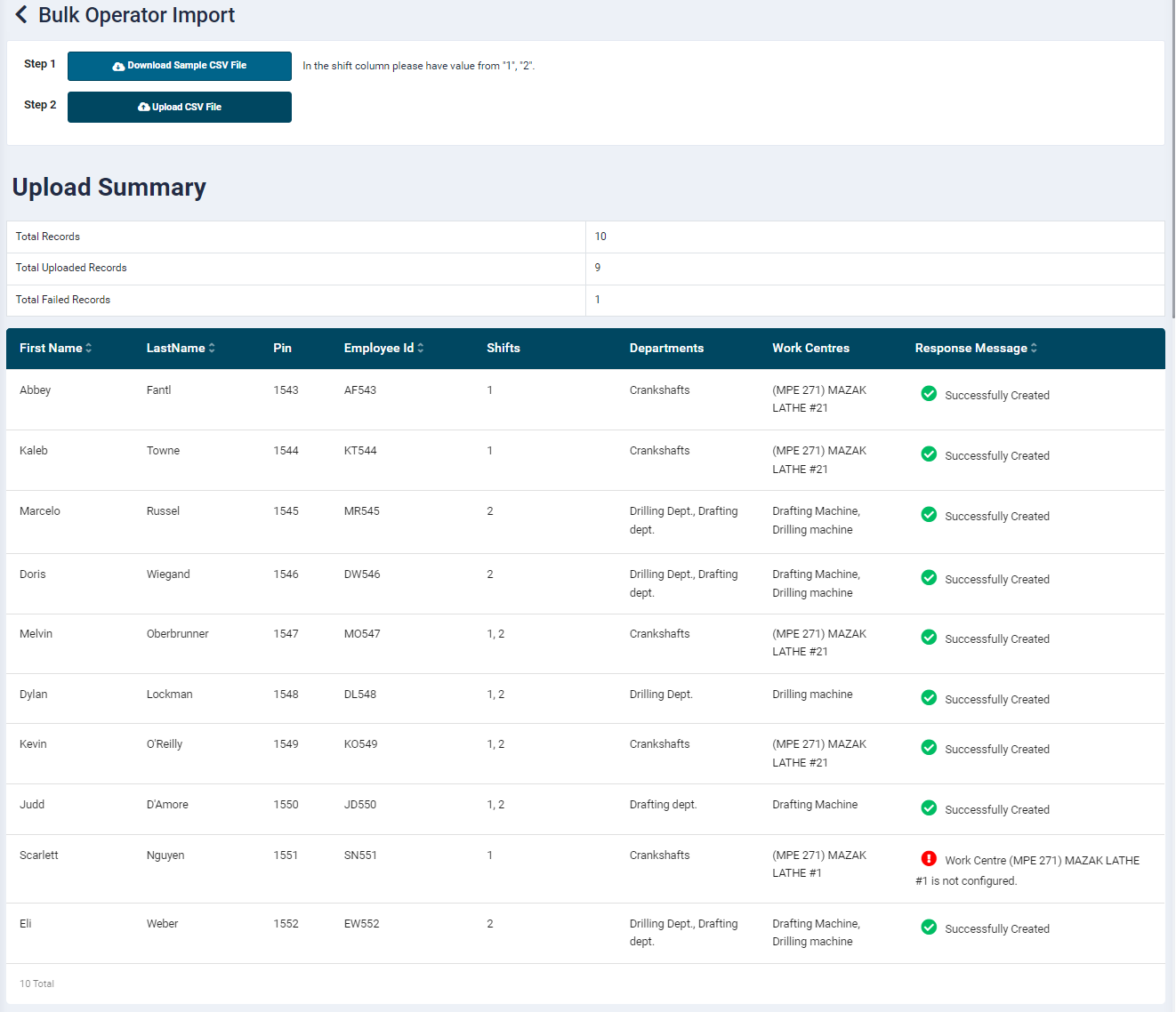
Upon selection the Bulk Operator Import screen will open.

-
Click the "Download Sample CSV file" button to download the import CSV file.
- The CSV file would have the columns as mentioned below:
- First Name: Enter the operator first name (mandatory field only alpha-numerical values are allowed)
- Last Name: Enter the operator last name
- Pin: Enter a unique 4-digit PIN number for the Shop FLoor Control tablet app (mandatory field)
- Employee Id : Enter the operator employee ID
- Shift: In this column please enter values 1, 2 etc as per the shifts set in the Business hours section on the portal. The values should be in single digit numbers (separated by comma when multiple shifts are to be assigned).
- Departments: Enter the departments assigned to the operator. This field would be mandatory when values are provided in the Shift column. Please ensure that the department names exist on the portal. Multiple departments separated by comma can be entered.
- Work Centres: Enter the work centres assigned to the operator. Please ensure that the work centres belong to the departments entered in the Department column. Multiple work centres separated by comma can be entered.(non-mandatory field).
- Once all the required data is filled in, save the file.
- Now click the "Upload CSV file” button. In the pop-up window, select the saved import file and click Open.
- On click the import process will start. Once the process is done an import summary with succes and fail records will be displayed on the screen.
View Users digital form submissions
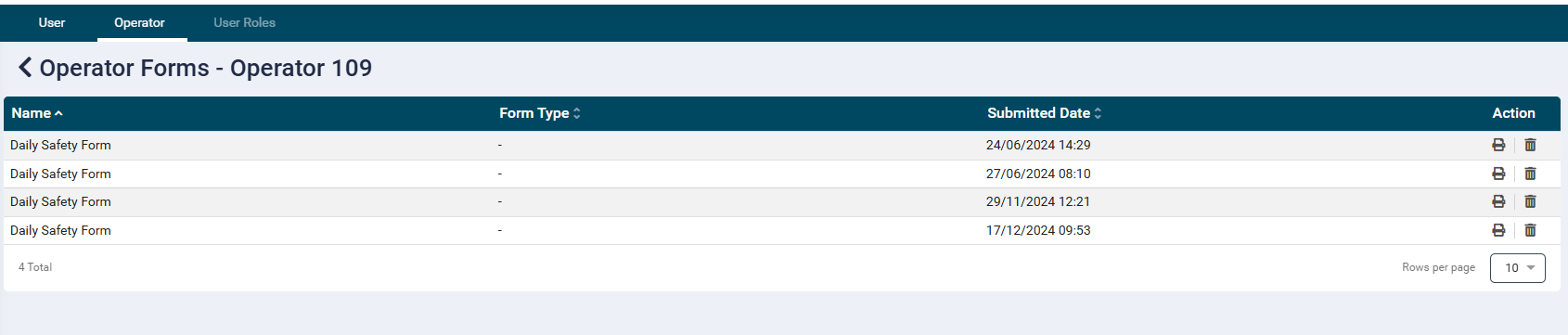
- Clicking on the calendar icon will open the digital form submissions tab.
- Here you will be able to see any safety or user/operator level forms that have been successfully submitted by the Operator.
- You can view the form by clicking the printer icon
- You can delete the record by clicking the trash can icon
View Operator Login Activity
-
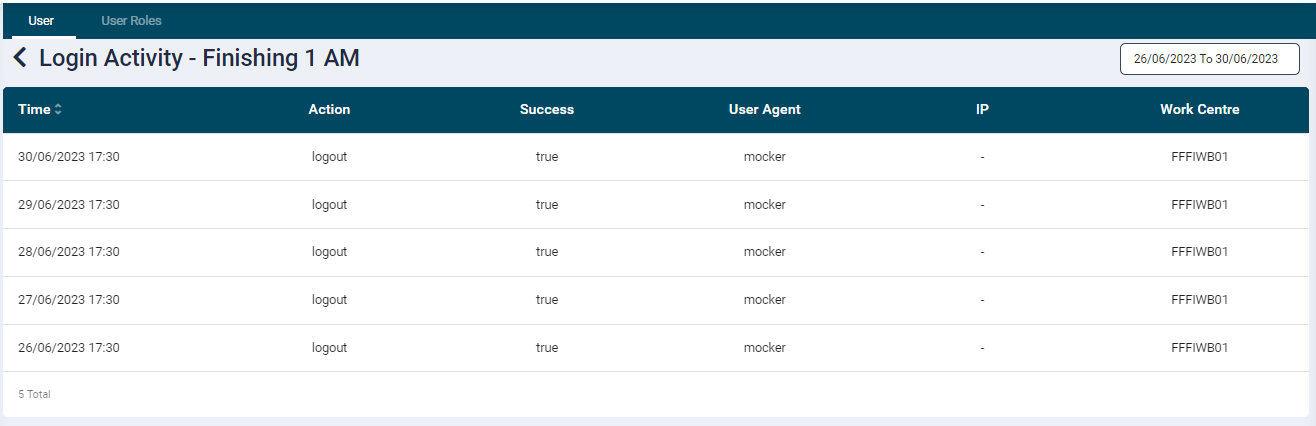
On the listing screen the Login Activity button under the Action column provides access to the operator's login activity on the Shop Floor Control tablet app.
-
Upon click, a screen with the following login details will be displayed.
- Time: Displays the date and time stamp
- Action: displays whether action was Login or Logout
- Success: displays whether the Login or Logout action was successful
- User Agent: Displays the information of system used to access the app
- IP: displays the device's IP address
- Work Centre: Displays the name of the work centre viewed/worked on from the app
Modify Operator Record
Edit an Operator
- To edit a record click the Edit icon
 under the Action column of the required operator.
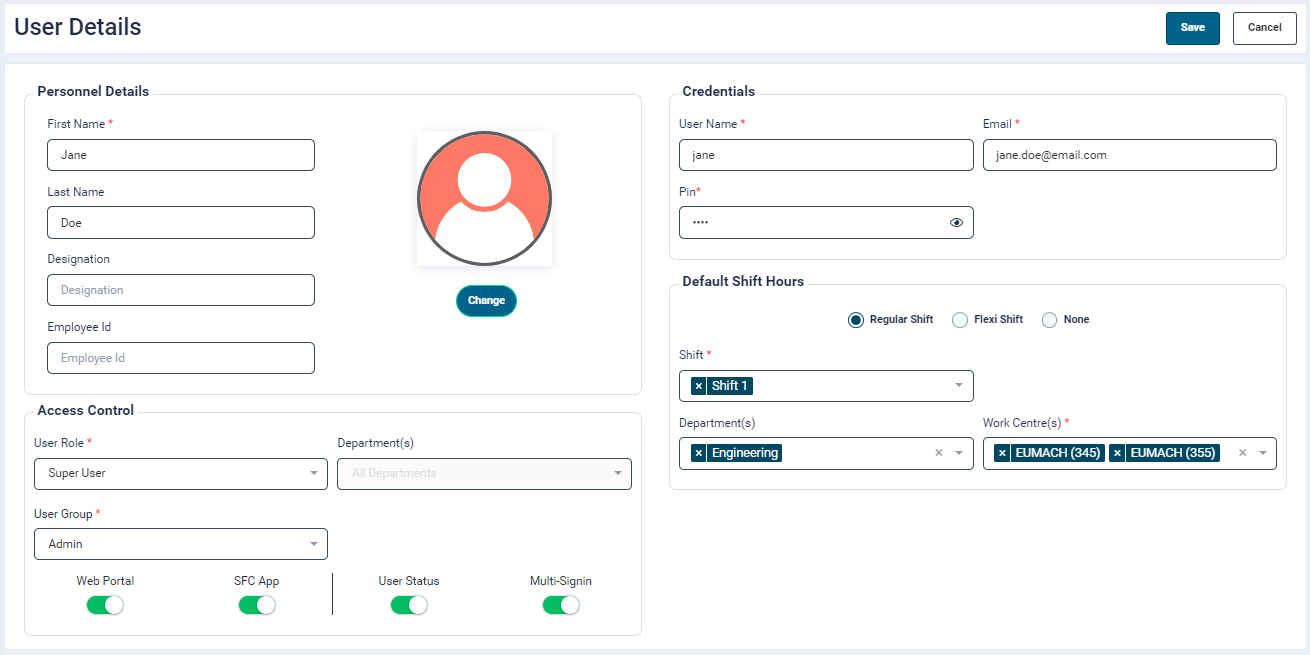
- On click, the details page will open for editing.
- Update the fields as per requirement.
- Click on save button to update the profile.
Delete an Operator
- To delete a record, click on the Delete icon
 under the Action column of the required operator.
 - Click Confirm in the pop-up to proceed with the delete action.