Operation
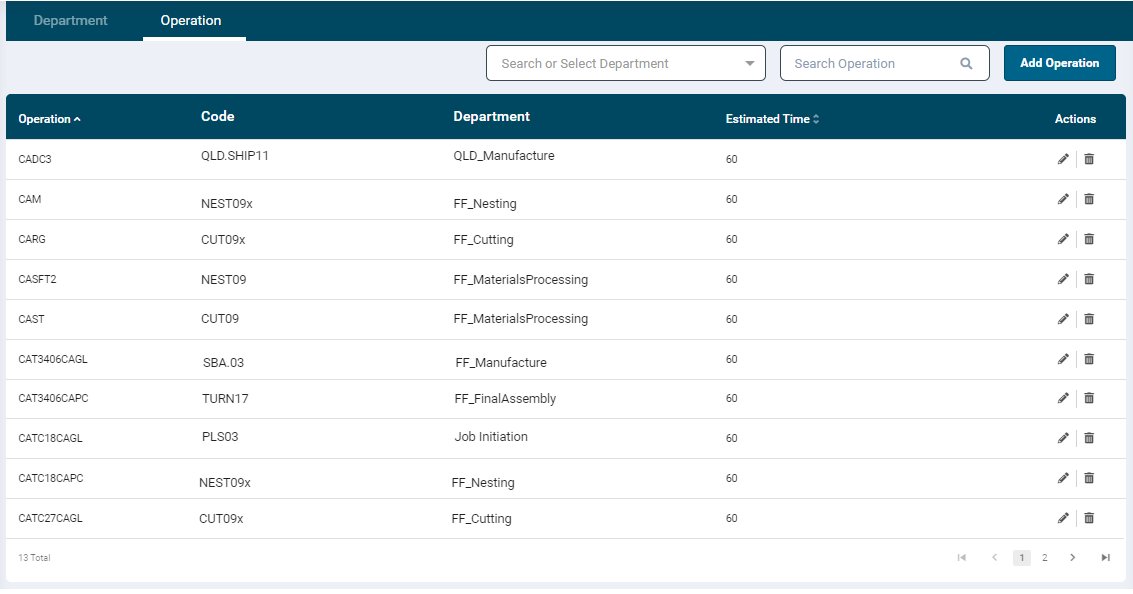
- To create operations that are being performed on the produce in a department, go to Configuration → Organisation → Operation section.
- This page lists all the configured operations linked to the departments and estimated time (Min). The Actions column allows you to edit and delete the records.
Add Operation
-
To add a new operation, click the Add Operation button
 on the top right-hand side.
-
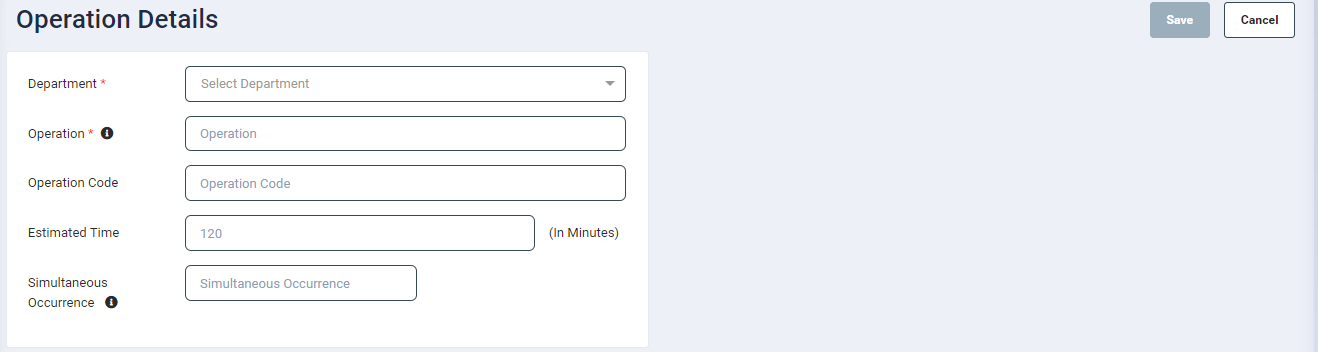
In the Operation Details page, provide the following input:
-
Department: Select a department from the dropdown list
- Operation: Enter an operation name
- Operation Code: This can be used as an identifier for the operation
- The identifier will either be used to send status updates back to the integrated ERP/Business system or can be used to assign Bill of Material items as uploaded by users
- Estimated Time: Define the estimated duration expected of the operation
- Note that this can be changed manually when creating templates or manually creating jobs. It just acts as a default value when selecting the operation.
- Simultaneous Occurrence: Simultaneous occurrence restricts the number of times the schedule can assign this operation at the same time. E.g., If you have 2 for Operation A then the schedule will only be able to schedule Operation A twice at the same occurrence. It will need one Operation A to be completed before scheduling another instance of the same operation
- Click Save
- The configured operation will get listed in the Operation table.
Edit or Delete an Operation
- To edit an operation, click the
 icon under the Action column of the required operation. In the next page, edit the information and Save.
 - To delete an operation, click the
 icon under the Action column of the required operation.
 - Click confirm in the pop-up notification to proceed with the action.
Please note that deleting an operation would result in cancelling the unworked operations.
Filter
- To filter the data on the listing screen, search or enter a required value in the Department dropdown box.
- The user can search configured operations by entering key letters in the Search text box on the top right-hand side of the screen.