Kanban Board
- The Kanban Board provides a component wise queue of jobs and their operations across your factory or individual work centres.
- Data on this page is refreshed at every 15 minutes.
- The Expand or Collapse button on the top right-hand side of the screen allows the user to resize the data screen.
- If the Staging & Dispatch is at Job Level:
- The cards displayed would be of job level i.e. component information will not be shown on the cards
- All components of the job should have the same status in order to be displayed in the card.
Kanban Board Setup
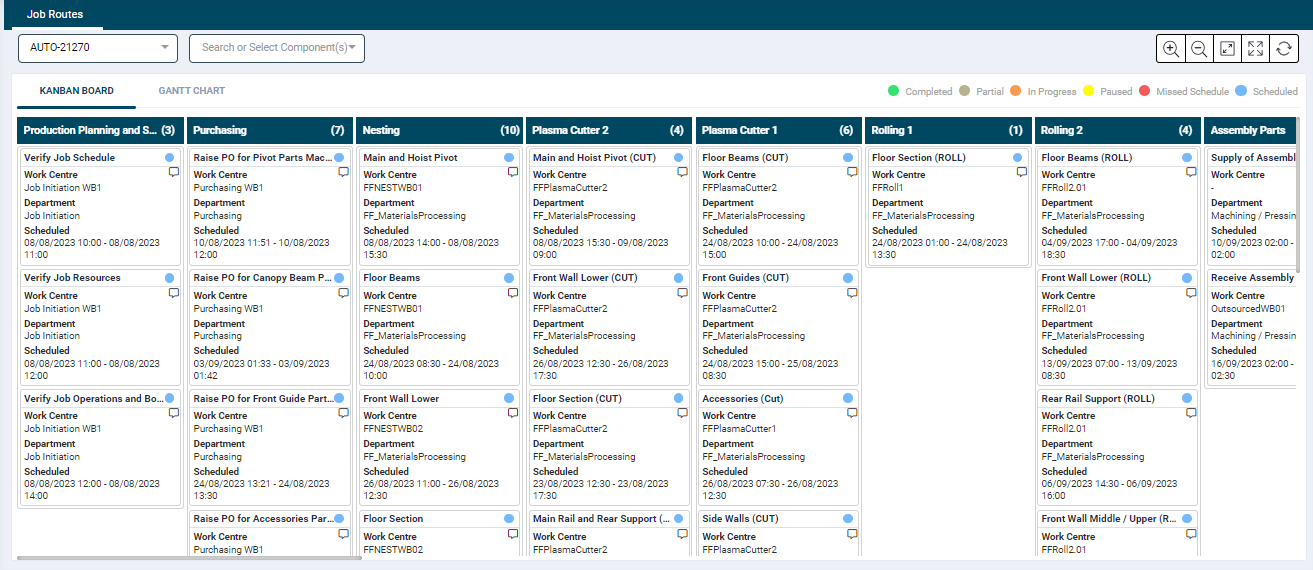
- The board setup can be modified by using the job and component filters at the top of the screen.
- Each column header represents a component name along with the number of operations.
- All the operations are listed as individual tiles under the respective component columns.
- These operation tiles provide the following information:
- Operation name with its current status, the legends for which is provided above the board.
- Work Centre name
- Department name
- Scheduled from and to time
- Clicking on the column headers, will navigate the user to the detail page, where it lists all the operations scheduled for the component.
- Clicking on the operation tile will open up a panel. This panel can be accessed from the listing page as well.
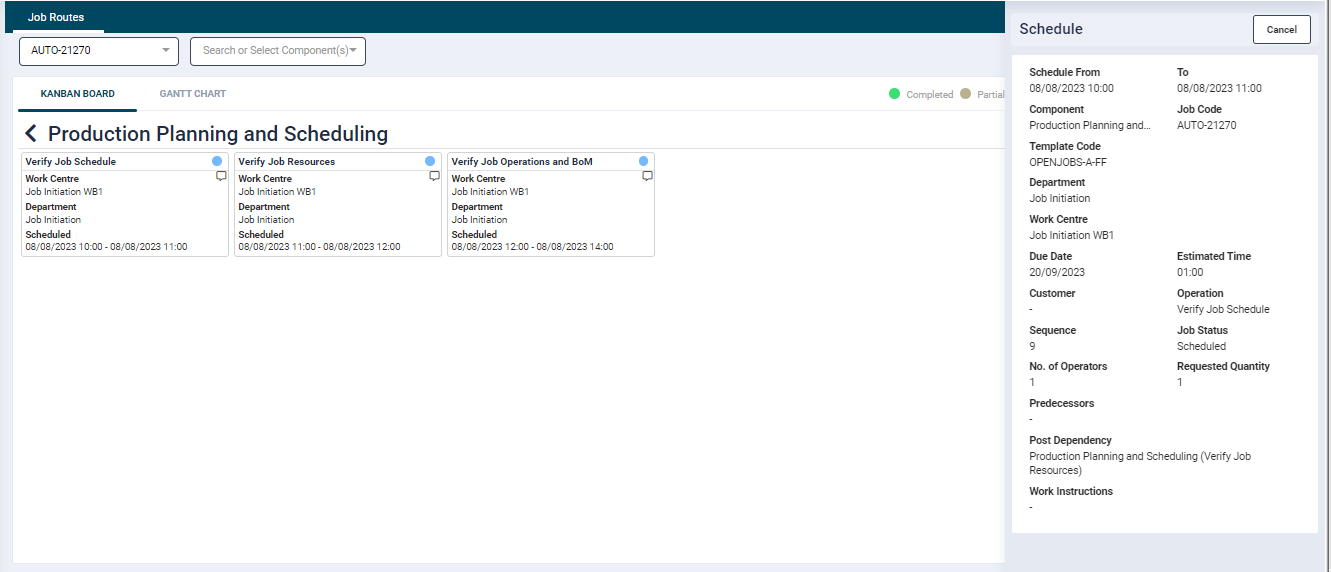
- The panel displays the following scheduling details:
- Schedule From and To time
- Component
- Job Code
- Template Code
- Department
- Work Centre
- Due Date
- Estimated Time
- Customer
- Operation
- Sequence
- Job Status
- No. of Operators
- Requested Quantity
- Predecessors
- Post Dependency
- Work Instructions
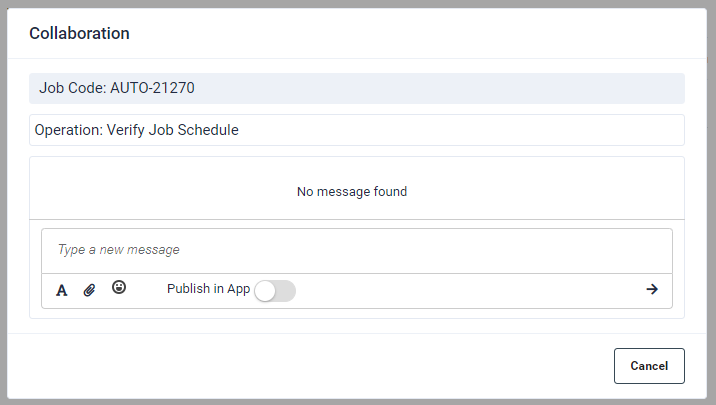
- The operation tile also features a collaboration tool which can be accessed by clicking the chat icon.