Job Templates
- In this section the user can create templates that can serve as a base for adding new jobs.
-
The listing page displays all jobs template, allow the user to Create, Update and delete a template.
- In this section the user can create templates that can serve as a base for adding new jobs.
- The listing page displays all jobs template, allow the user to Create, Update and delete a template.
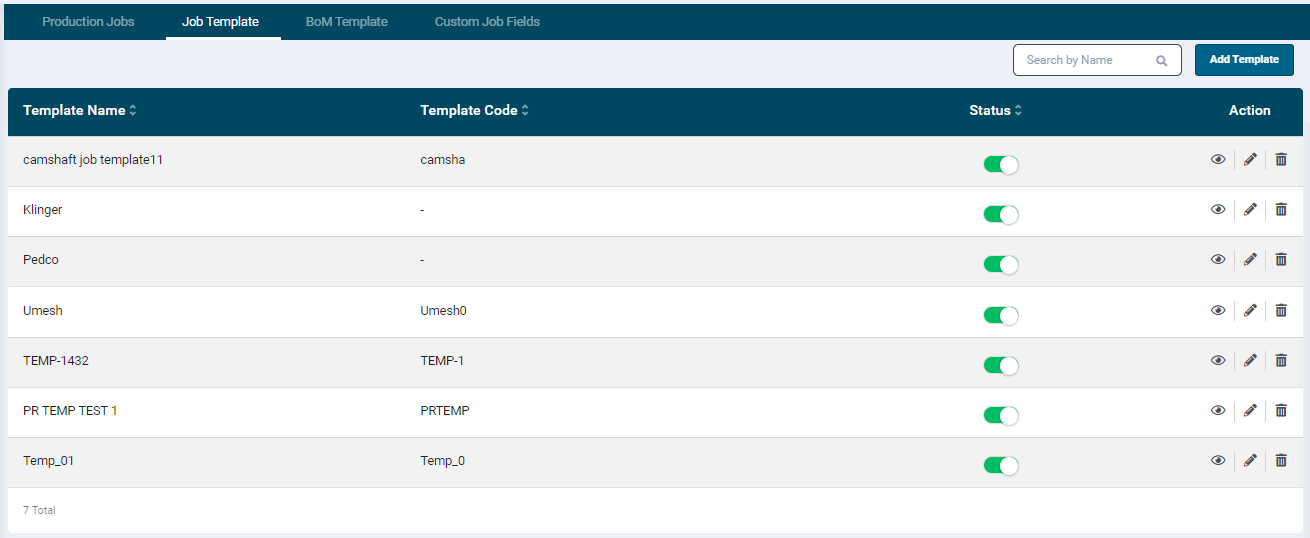
- To create a template, click the Add Template button at the top right-hand corner of the screen.
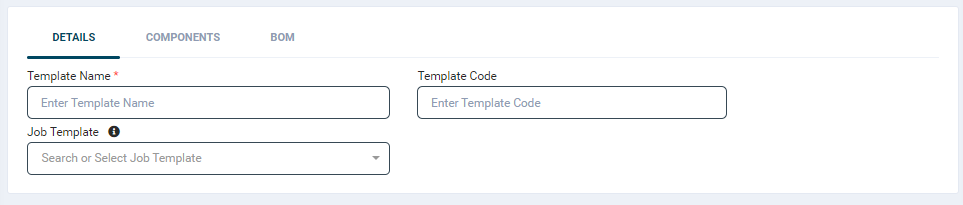
- The Template Details screen consists of 3 tabs: Details, Components and BoM
-
In the Details tab, provide input for the following fields.
- Template Name
- Template Code
- Job Template: To create a new template, you have the option to select an existing template as a basis if needed.
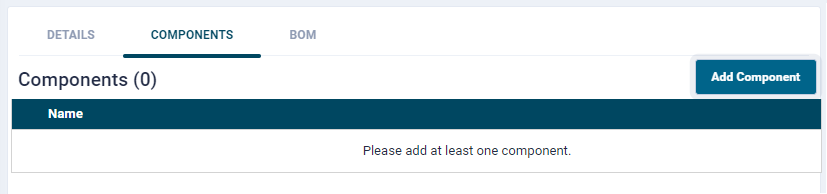
- To save a job template, it is mandatory to add at least one component.
-
Click the Component tab
-
Now click the Add Component button.
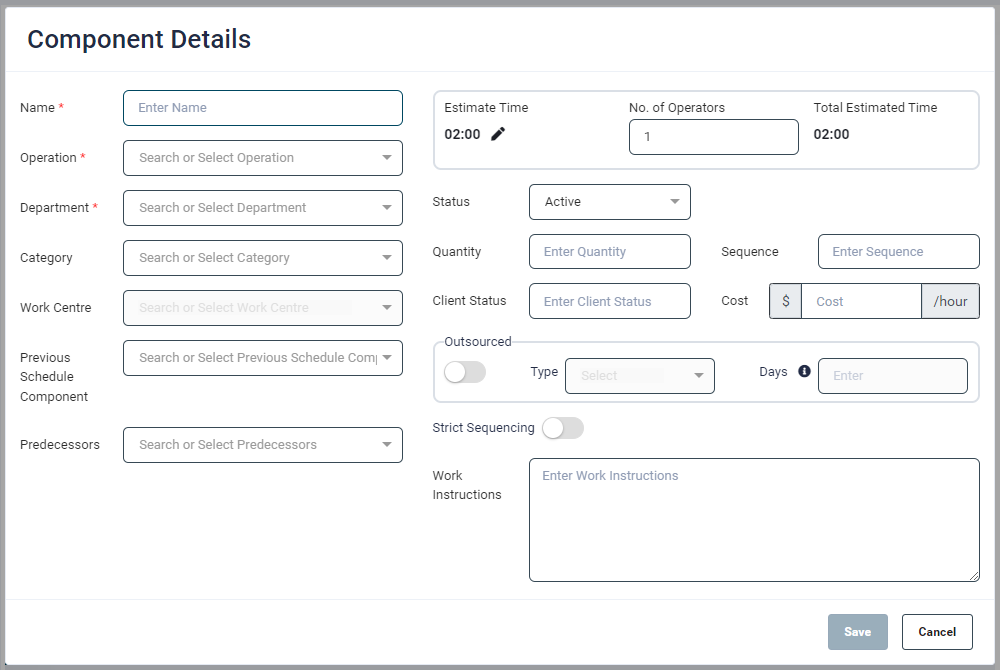
- A pop-up window will open for adding all the component details. For more information please refere to the Component Details section.
- User can configure as many components as required.
-
The BoM tab allows linking resources to the operation

- Click the BoM tab.
- Select a required BoM from teh dropdown field.
- Once the required data is added, click the Save button.
- On click, the template will get listed on the listing screen.
- To search a particular template, enter the key words name in the Search option, and select the required value from the dropdown list.
- The configured template be available in the Job creation screen.
- The user will be able to select the required template and create a new job with prefilled data based on the selected template.