EXO Integration
Pre-requisite
The first step is to set-up the integration service.
* Run IntergrationServiceSetup.msi
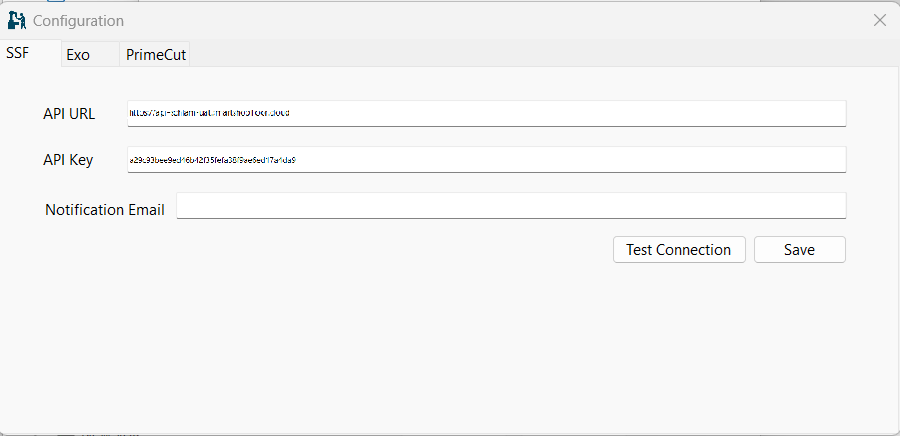
- An installation configuration window will open
- Add the required details
- The notification can be sent to multiple email addresses separated by semicolon (;).
- Close the configuration app
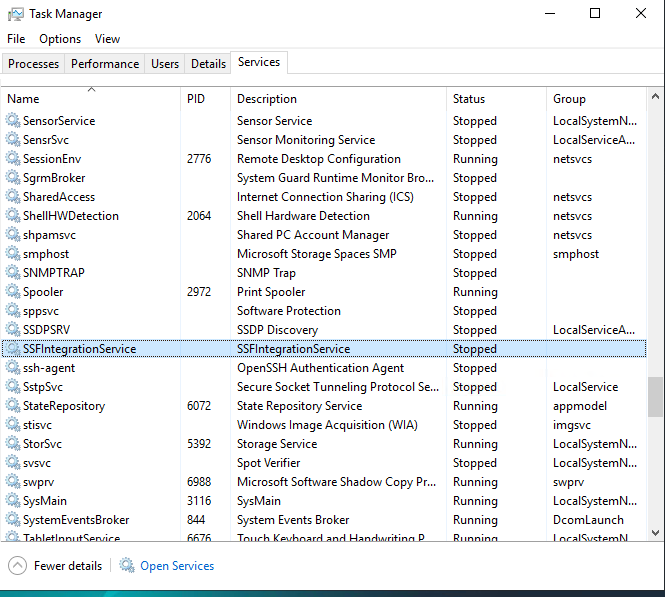
- Go to services, restart SSFIntegrationService or restart server as shown below.
Follow the below mentioned steps for integrating Exo.
Upload Bills of Materials (BoM)
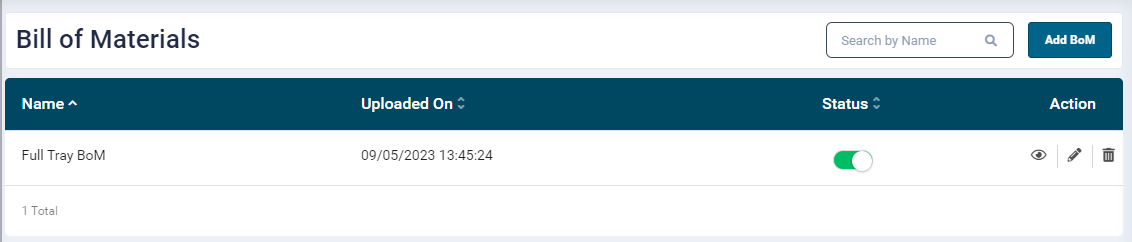
- Upload BoM from the Organisation → BoM section of the SmartShopFloor portal
Create Job Template
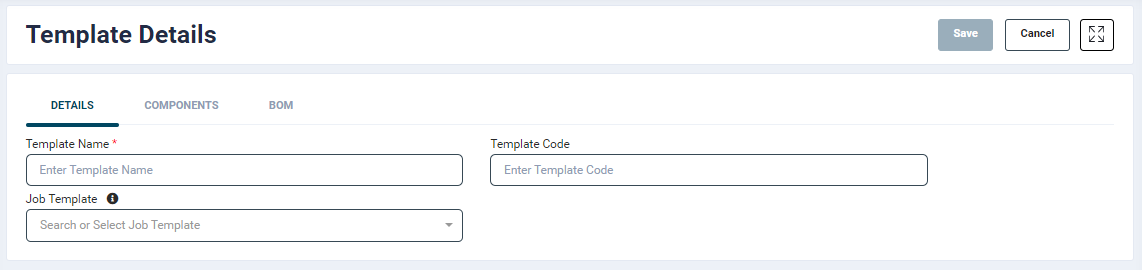
- Create a job template from Production Monitoring → Job Tempates section of the SmartShopFloor portal
- Template Code Matching: While creating the template provide a "Template code."
NOTE: Ensure that the Template code matches the EXO SmartShopFloor template field exactly. This ensures proper identification and mapping of the templates between the two systems.
- Select BoM: Go to the BoM tab in the Job Template creation page. Select the required BoM from a list of previously uploaded BoM files. All the fields available in the selected BoM file will be displayed on the screen.
Job Creation
Custom Job Fields
SmartShopFloor provides the ability to add customised fields in the Job Configuration section.
- Go to Organisation &→ Custom Job Fields from the left menu
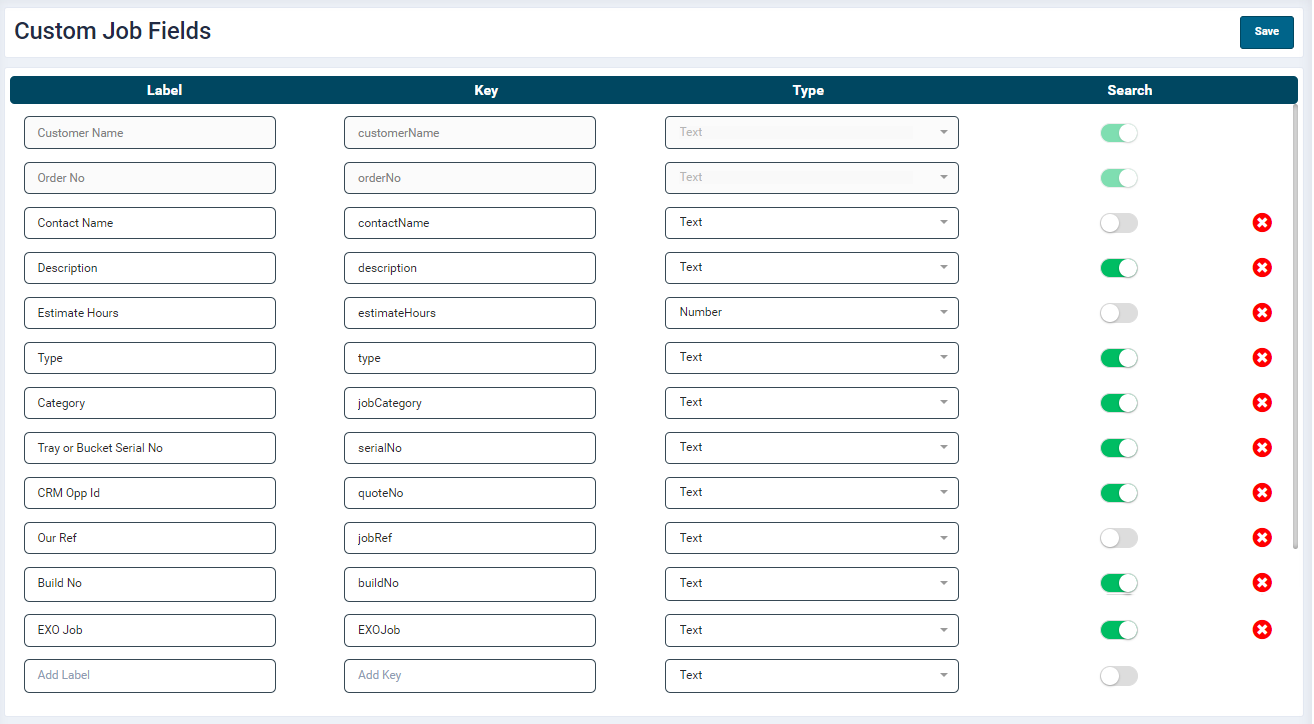
- Enter a Name in the Label text box for the new field.
- The Key is auto-generated. Do not modify this once it is saved.
- Select the field input type (Text or Number)
- Enabling the Search button will make the field available for search operation on the Job listing page.
NOTE: Newly added fields will be displayed only for new job configuration. Existing jobs will not display the new fields.
Job Configuration
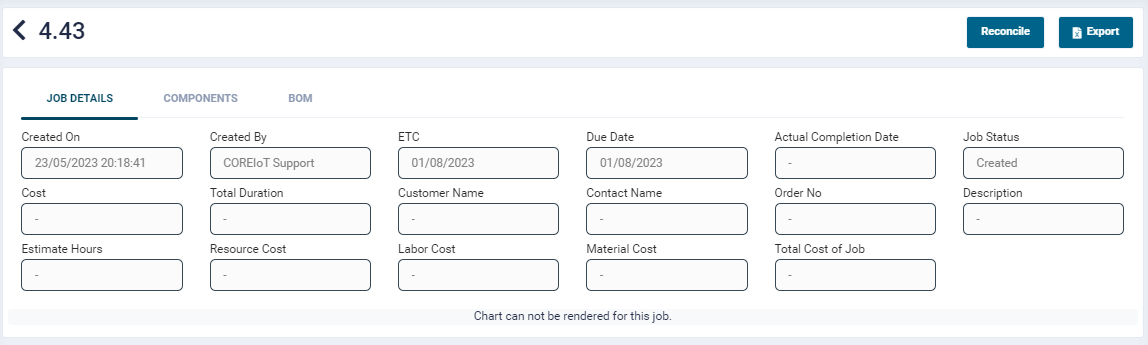
- JOB DETAILS Tab: All the custom fields will be displayed in this tab. Enter all the mandatory and required input.
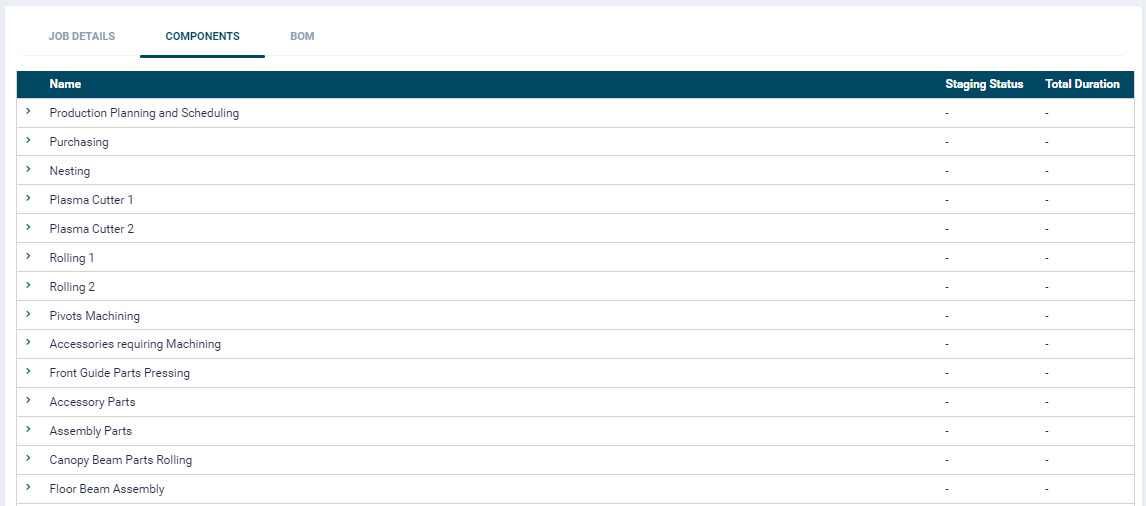
- COMPONENTS Tab: The components associated to the template code will get assigned to the job being created.
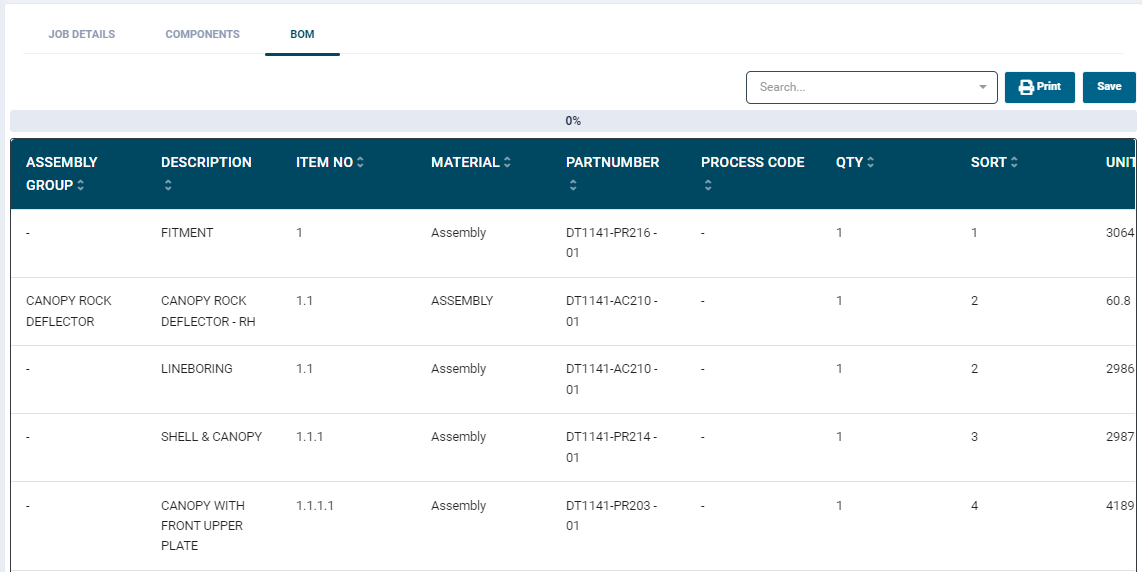
NOTE: The Job Code and Template Code are compulsory fields. By default, the priority for all job are set to 3.
Job Deletion
- If a job is deleted in the SmartShopFloor portal (production monitoring system), the integration service responsible for connecting EXO and SmartShopFloor will re-import that job.
- To remove job, uncheck the field "Pass Job to SSF" in EXO.
Configuration
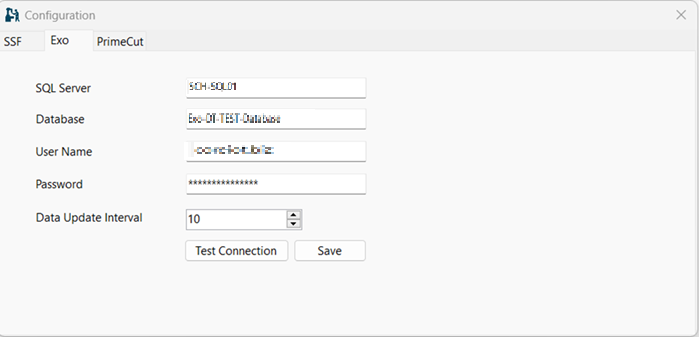
Provide the following input to configure EXO: * SQL server: Provide the sql server domain name or IP address *Database: EXO database name * UserName: Enter a user name * Password: Enter a password * Data Update Interval: Specify the interval at which you want to import the EXO data * Test Connection: Once all the input is provided, click the Test Connection to check if the configuration is working * Save: Click the Save button to save the configuration
NOTE: Once the configuration is changed/updated, restart the service "SSFIntegrationService"
Data Integration Frequency
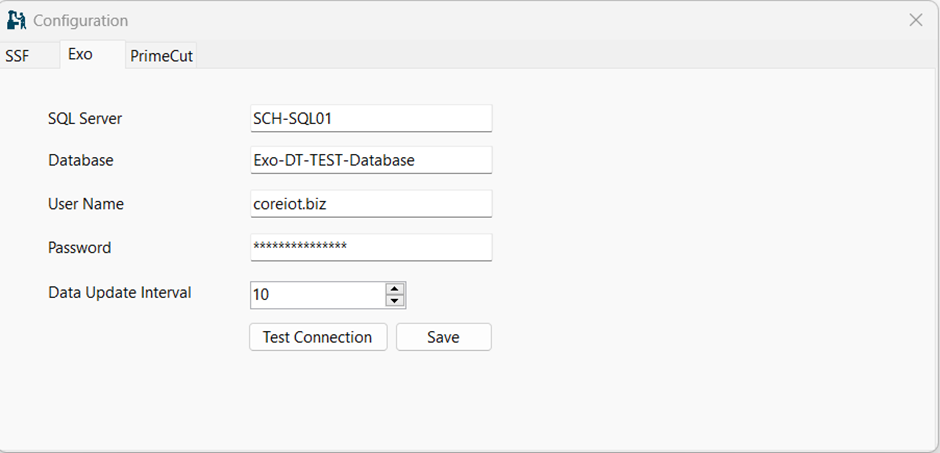
The integration service will fetch data from the EXO database at regular intervals of every 10 minutes. The EXO SQL detail and fetch data frequency can be changed from config utility, placed at “C:\Program files\COREIOT\Config“
Error Notification
- In the event where a required field is not passed, the service will send an email notification to an email addresses in config file.
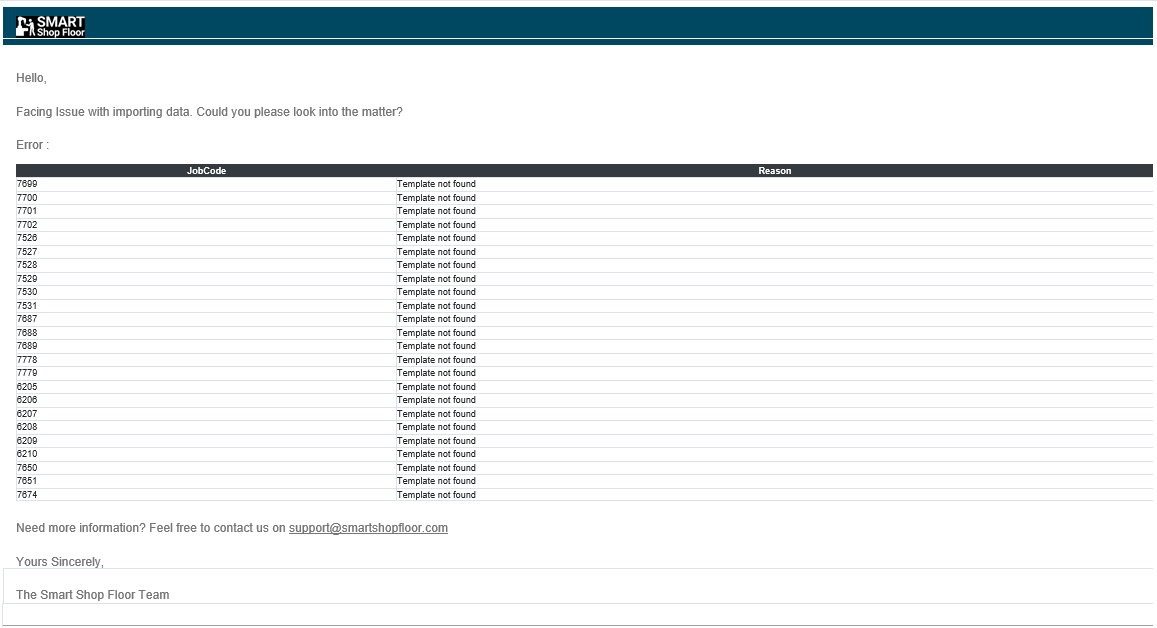
NOTE: The system will not send duplicate mails for the same error event. A subsequent error email will be sent only when there is an import failure after modifying the data in EXO or PrimeCut or the service is restarted.
Required Fields
The following fields are mandatory for Bill of Materials: * Job Code * Part Number *Item Number
| Error Message | Cause or Error |
|---|---|
| SmartShopFloor solution encountered an issue while importing data from EXO SQL Database | The SmartShopFloor service is unable to establish a connection with the EXO SQL Database. |
| SmartShopFloor solution encountered an issue while importing data from PrimeCut API. | The SmartShopFloor service is unable to establish a connection with the PrimeCut API. |
| Bill of Materials exists in PrimeCut but not imported or added to the SmartShopFloor portal. | The Bill of Materials was not imported from Excel to SmartShopFloor and added to PrimeCut. |
| Job Template is missing or not found in the SmartShopFloor portal. | The job added to EXO does not match the template in SmartShopFloor or the template does not exist. |
| The Part Number and Item Number combination is not found in the Bill of Materials | The "Part Number / Item Number" combination imported from PrimeCut is not found in the SmartShopFloor Bill of Materials. |
| Job template code is missing in the import file. | The import file is missing the job template code. |
| Job code is missing in the import file. | The import file is missing the job code. |
| Due date is missing in the import file. | The import file is missing the due date. |
| At least one of the required fields (Job Code, Part Number, Item Number) is missing. | During Bill of Materials import, if any of these required fields are missing then the import |
| Job is not configured in the SmartShopFloor portal. | The job is not configured in the SmartShopFloor portal. |
| Build Number is missing in EXO | The Build No field does not contain any values in EXO |
| Tray Bucket Serial Number is missing in EXO | The Tray Bucket Serial No field does not contain any values empty in EXO. |
| Job Number is missing in EXO | The Job No field does not contain any values in EXO |
EXO Field Mapping with SmartShopFloor
Following is the field mapping to ensure that data is correctly transferred and synchronised between EXO and SmartShopFloor.
| SQL Table Name | Field Name | SmartShopFloor Field Name |
|---|---|---|
| JOBCOST_HDR | JOBNO | JobCode |
| JOBCOST_HDR | Title | Description(Meta) |
| JOBCOST_HDR | DUEDATE | Due date |
| JJOBCOST_HDR | SERIALNO | job ref(Meta) |
| JOBCOST_HDR | X_CRMQUOTENO | quote no(Meta). |
| JOBCOST | HDRCUSTORDNO | order no(Meta) |
| JOBCOST_HDR | X_SSF_TEMPLATE | template code |
| JOBCOST_HDR | X_TRAY_BUCKET_SERIALNO | serial no(Meta) |
| JOB_CATEGORIES | CATDESC job | category(Meta) |
| JOB_TYPES | TYPEDESC | job type(Meta) |
| COMPANIES | COMPANYNAME | customer name(Meta) |
| JOBCOST_HDR | BUILD_NO | Build No(Meta) |
| JOBCOST_HDR | RAY_BUCKET_SERIALNO | EXO Job(Meta) |
NOTE: The Job Code in SmartShopFloor will be a combination of three fields from EXO, namely ‘Build No’, 'Tray/Bucket Serial No’ and ‘Job No' For example, DT1153–A1922–7256.