Digital Forms
The digital forms module allows users to create custom forms for operators to fill out on the Shop Floor Control app.
Typically forms are used for Safety, Maintenance, Quality, Inspection, Dispatch and Productivity.
The Digital Forms section will open you to the below screen:
- Name: Form Name
- Form Type: Type of form which will change where the form is saved and configuration
- Save Against: Where the form gets saved for viewing when completed
- Prestart: If the form needs to pop up before the start of working
- Action: Edit and Delete
Users can Add a new Form with the Add Forms button and Export this information with the Export button as Excel, Json and CSV.

The Add Form button will take you to the following configuration screen:
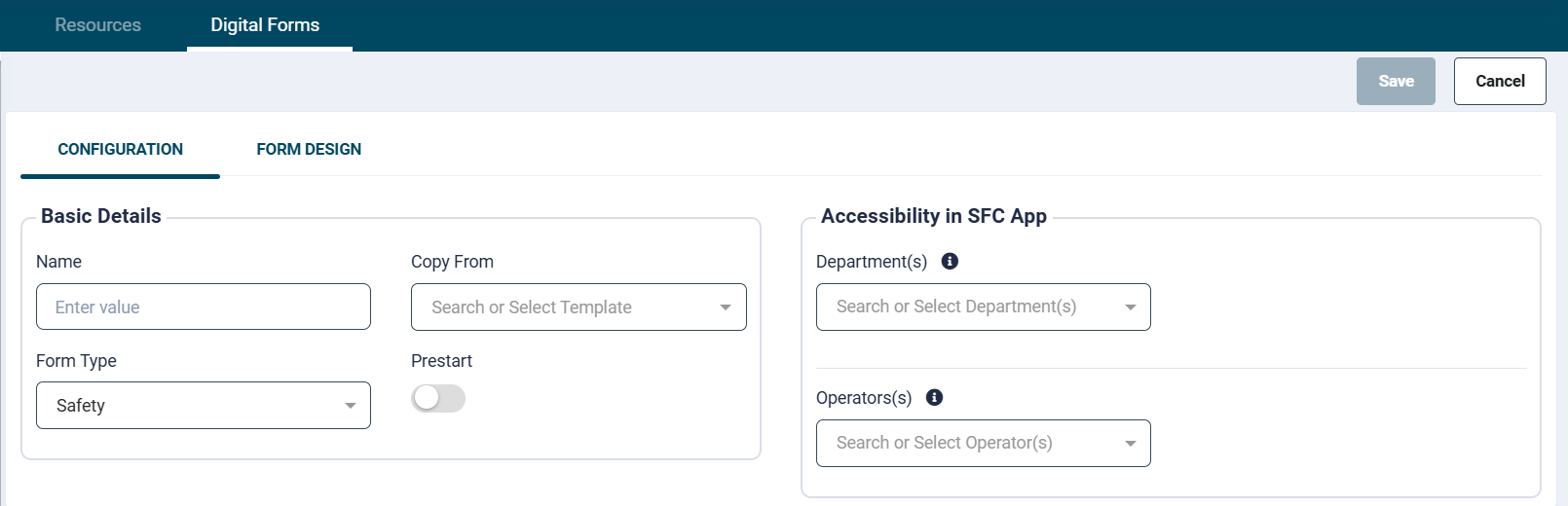
- In the Configuration there is Basic details that are used for form identification including:
- Name: Form name for reference
- Form Type:
- Safety: This is saved against the operator and typically used as a safety acknowledgment pre-start form. This will appear once the operator logs into the Shop Floor Control app if it is set up as a Prestart. If the Prestart is not toggled with a Safety Form Type then operators will have to navigate to the Forms section in the Tablet app to fill in the form
- Maintenance: This is saved against the machine/WorkCentre and is typically used as a maintenance record form. This can again be configured as a Prestart which will appear on signing into the allocated Work Centre which will be configurable on the right under Accessibility in SFC App
- Quality: This is saved against the Job and is used to maintain quality checks during the completion of certain operations. The quality form will pop up when an operator is trying to end the operation and will prompt operators to fill in the configured Form.
- Inspection: This is saved against the job and is used to maintain a record of job inspection details. This can be used as a pre job inspection form that is then sent to customers
- Dispatch Docket: This is saved against the job and is used to fill out a dispatch docket digitally instead of paper based. This can be filled out and sent to the customer along with the job over the customer portal or as part of an email.
- Productivity: This is saved against the operator and can be used to track productivity performance of operators. It can be saved and records kept of submitted forms.
-
Accessibility in SFC App
- This section will change depending on the Form Type but will allow users to configure where the Form will appear in the Shop Floor Control App.
Form Design
The Form Design section will allow users to create digital forms.
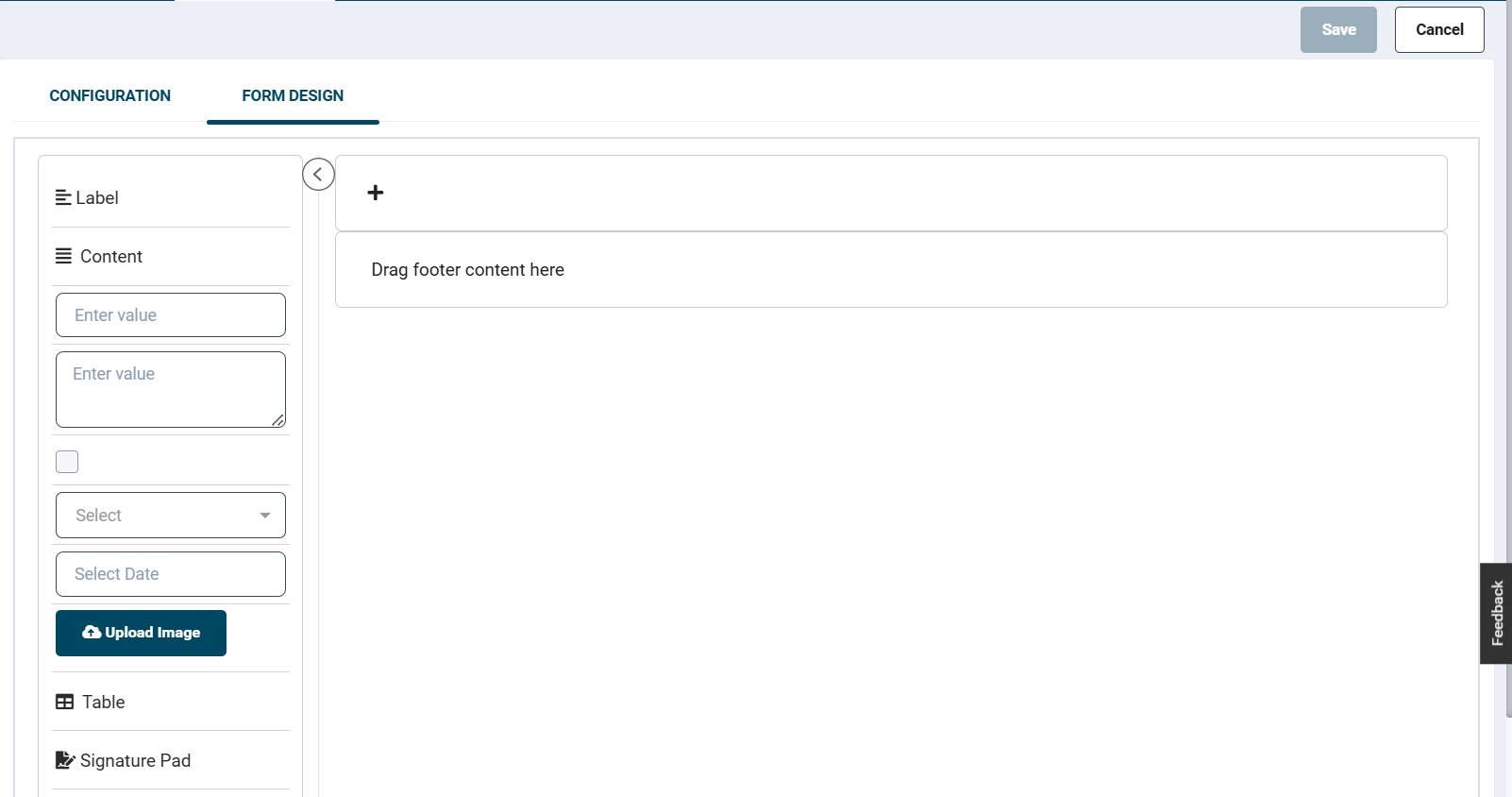
The left side allows users to select multiple options to assist in creating a digital form and these can be selected through simple drag and drop.
The options are as follows:
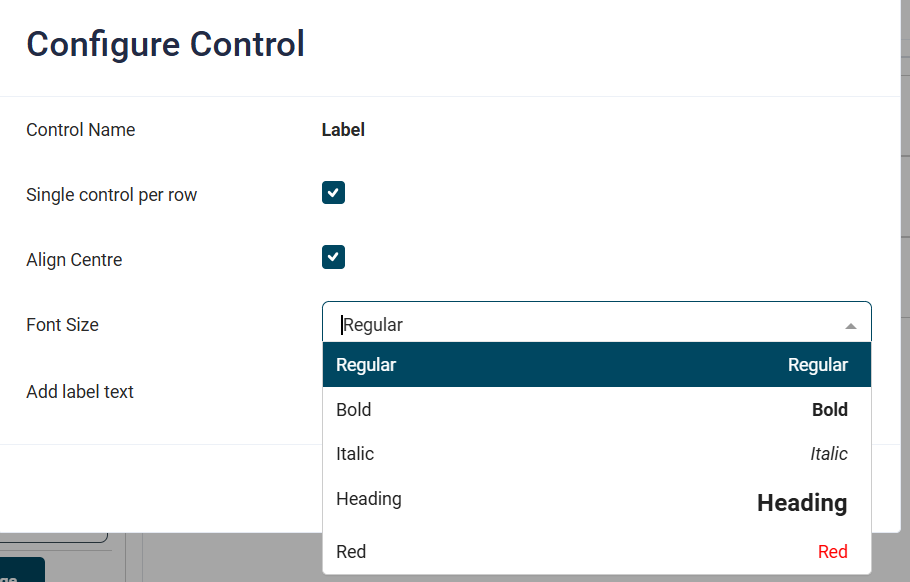
- Label: A label acts as a heading or title text that can be used to display information to the operator. The Label can be restricted to only show one control per row and can be aligned to the center. The Font style can also be changed before adding text
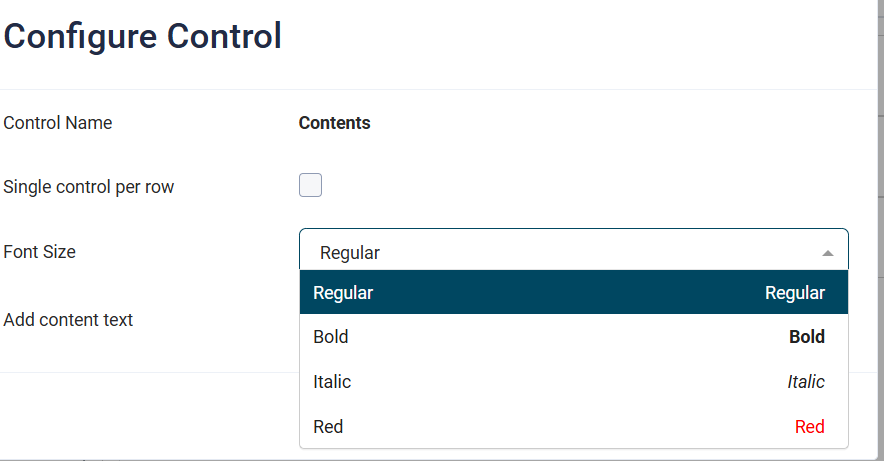
- Content: Allows users to enter a more detailed information section that typically acts as a prompt or instructions to the operator filling out the form. Font Style of the text can be changed as well as the option to make it the single control and aligned to center.
- Small text Box: The text box allows operators to enter text from the tablet app. Typically this is responding to a prompt given by the label. A label of the text box can be added and Font Style can be changed
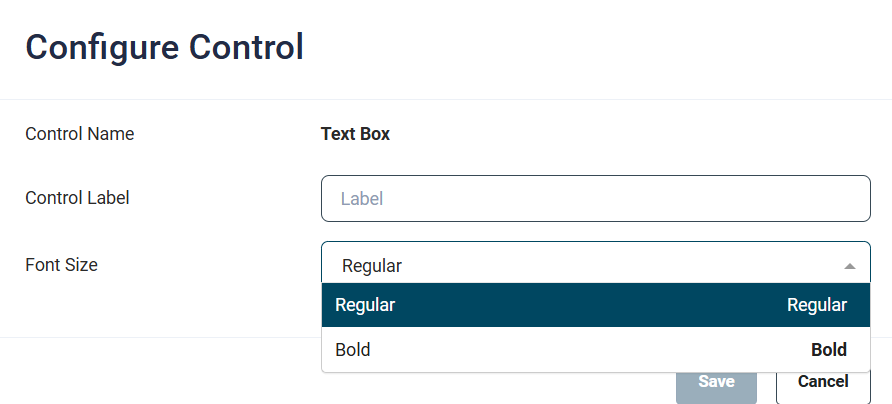
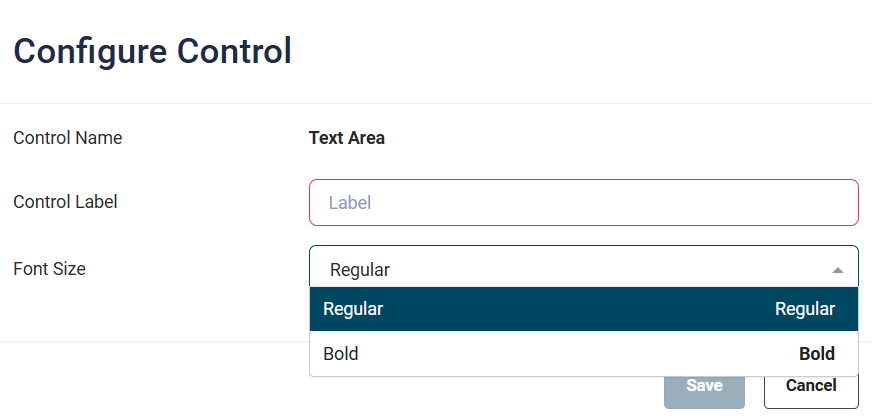
- Large Text Box: The Larger Text Box acts the same as the small text box but allows more characters to be entered by Operators and allows operators to enter text from the tablet app. Typically this is responding to a prompt given by the label. A label of the text box can be added and Font Style can be changed
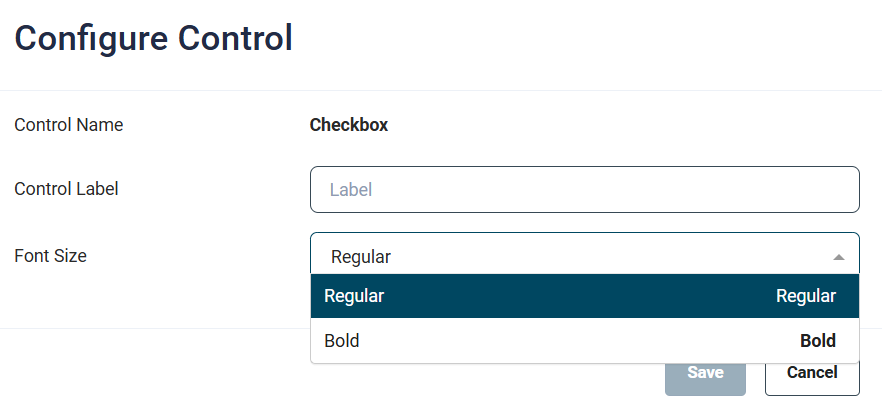
- Check Box: The Checkbox is a tick box that allows operators to check and uncheck the completion. It can also be paired with a label to give operators more direction what they are confirming. The Label text can be bold or regular text style
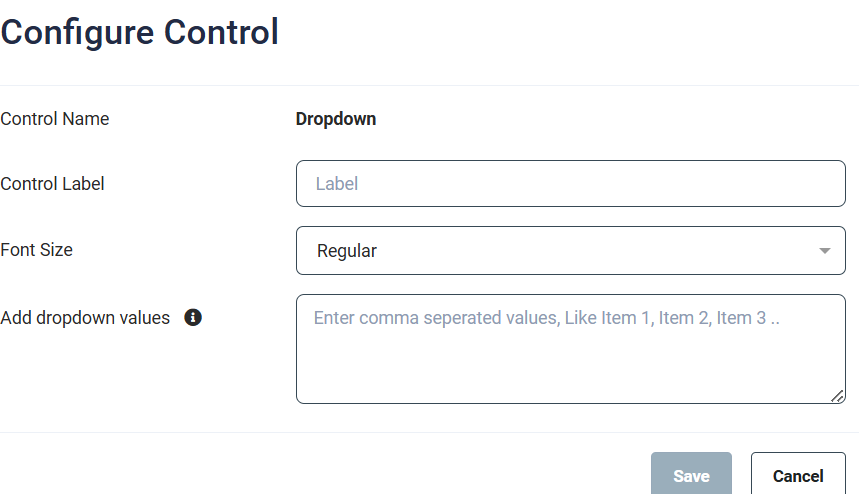
- Drop Down Selection: The Drop-down selection lets users enter drop down options that operators can select when filling out the form. Drop down values will need to be separated by commas and a label can be added to give more direction about the drop down function to operators when filling in the form.
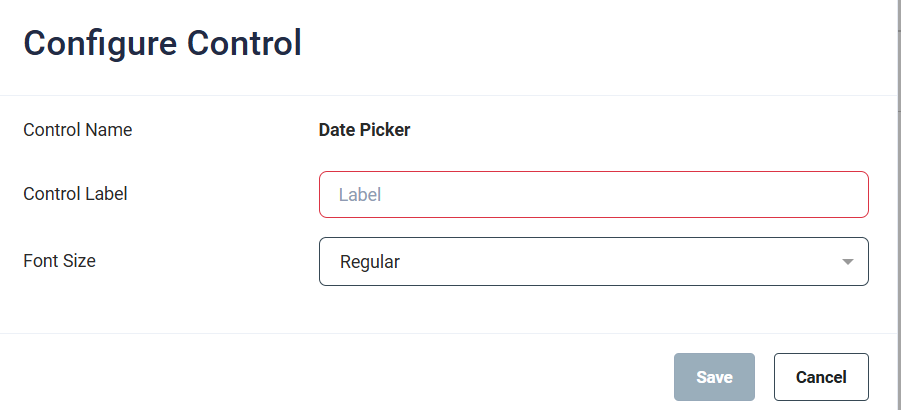
- Date Selection: The date selection allows operators to pick a date from a calendar. This can be paired with a label which gives operators more guide to the purpose of picking a date. The text can be bold or regular.
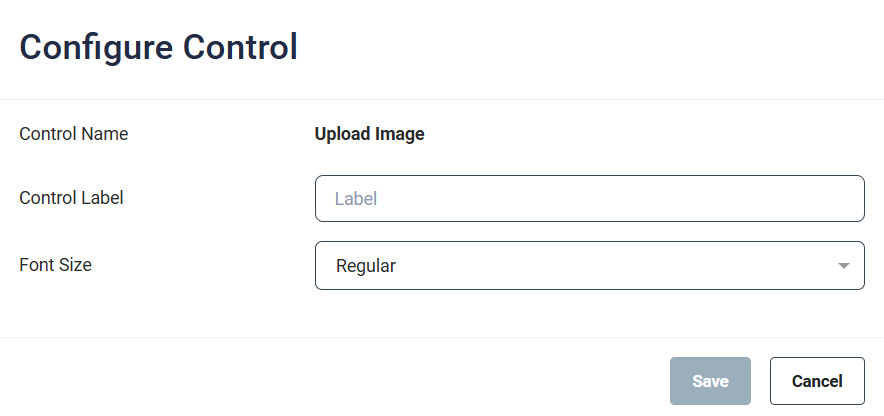
- File/Image Upload: The Upload Image allows operators to take a photo from the tablet or select a file already existing on the tablet/computer that is attached to the form. This can be paired with a label to give more direction for the function and this can be bold or regular text.
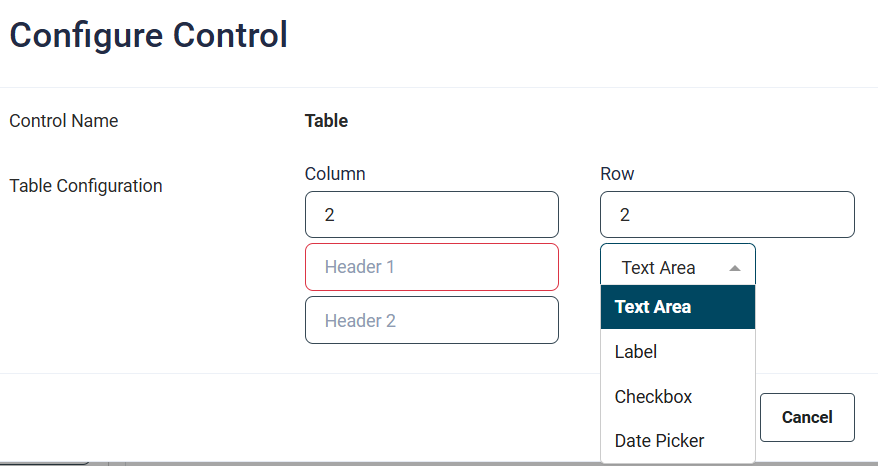
- Table Insert: The table insert allows users to separate information in the form. The table will allow you to select different functions specifically for the columns. You can have 7 columns and up to 50 rows with each column able to have its own function. The header will be the title row for each column.
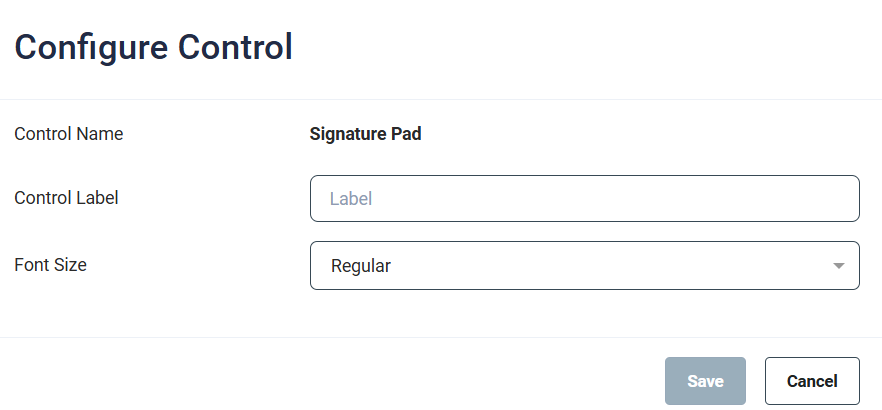
- Signature Pad: This gives operators the ability to put their signature against the digital form. This can be used in dispatch delivery forms or quality forms as completion confirmation from operators.
- The Footer can only be a Content function and will remain at the bottom of the digital form
- Users can drag four functions to any one row when creating the digital form and they will be spaced out evenly
- Once you have created the digital form you can click save. These forms can be edited after creation if changes are required.