Devices
- Devices are the physical entities that are attached to an asset or a location.
- They can also be simulated virtual entities that mock data of real devices and help in designing solutions without an actual need for a device.
- They monitor the asset and broadcast data via various communication channels.
- The data from devices are stored as time-series data sets in a specialised time-series database.
- The user can also bring in 3rd party API data which could act as devices if they have a unique identifier in them (like serial number, mac, etc.).
-
The user can perform the following actions on this data:
- Create visualisation in dashboards
- Configure workflows from which one can act on device data
- Create reports
- Manipulate and send to 3rd party using workflow studio
- Download history
-
Devices are of 2 types:
- Sensors: they detect or measure a physical property and record, indicate, or otherwise respond to it. They cannot automatically send their data to the platform. They require gateways.
- Gateways: they are physical devices or software programs that serve as the connection point between the cloud (platform) and controllers, sensors and intelligent devices.
-
Devices can be accessed from the left panel menu from "Configuation >> Gateways" and "Configuration >> Sensors".
Sensors / Standalone
- Sensors detect or measure a physical property and records, indicates, or otherwise responds to it.
- Sensors require gateways and cannot automatically send their data to the platform.
-
The Standalone sensors are the ones in which they can send their data directly to the platform via a communication channel and don't require any presence of gateways. They have an inbuilt Connectivity (LoRa) or Network connection (SIM Cards) to transmit data to the platform.
-
Sensor can further be of two types:
- Physical Sensors: Actual devices that are installed on the premises. These devices usually are mounted on one asset and are not mobile.
- Virtual Sensors: These are mobile app-based sensors / recorders which are installed on client mobile phones. Usually used in Underground Asset Tracking.
Sensor List
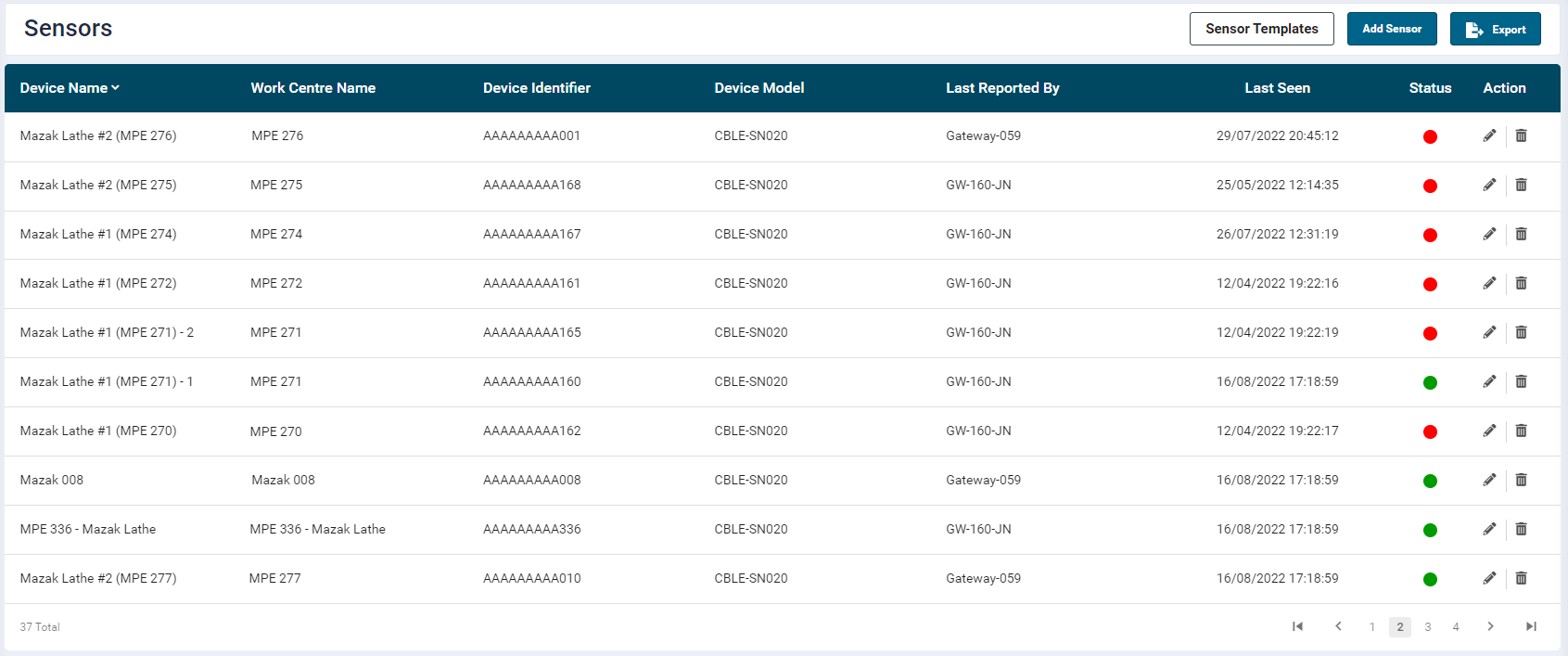
- Sensor listing is in a table format which is easy to understand and operate. This list updates every 1 minute.
- The table provides the following information is displayed:
- Device Name: the name of the device
- Work Centre Name: Name of the work centre which is assigned the device
- Device Identifier: unique identifier of the device
- Device Model: device model: either inbuilt or custom developed using device profiles
- Last Reported By: which gateway reported the last reading of the device
- Last Seen: when was it last recorded i.e. the date-time
- Status: whether the device is online, offline or running(in case of cut-off specified)
- Actions: Edit / Delete
- Sensor Templates: enables browsing and adding templates for sensor devices
- Add sensor: Add new sensors
- Export: Export sensor table in Excel, JSON and CSV format
- Pagination Options: navigate through the list in table
Adding a Sensor / Standalone
To add a new device, click on "Add" on the top right corner of the listing page of Sensors.
Sensor Details
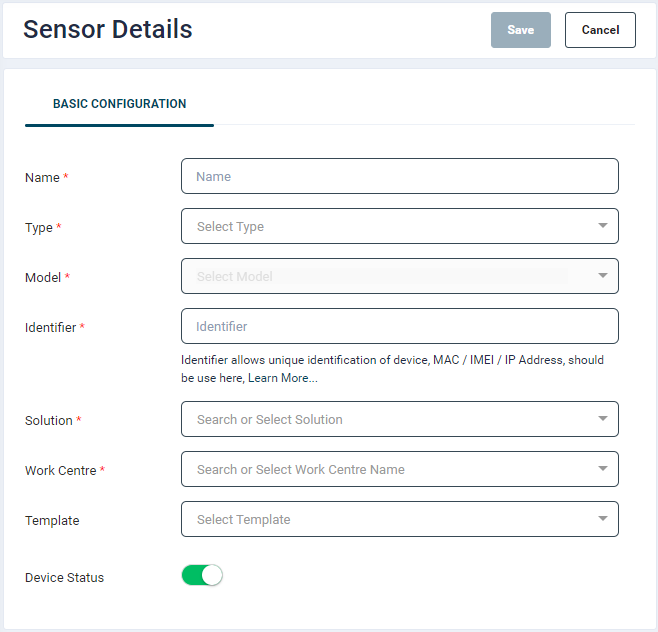
The sensor details screen has the following fields.
| Field | Details | Required | Example |
|---|---|---|---|
| Name | Name of the device | Yes | EngineTag01 |
| Type | Either "Sensor" or "Standalone" | Yes | |
| Model | Sensor model. Either inbuilt profiles or custom-developed profile model selection | Yes | CBLE-SN014 |
| Identifier | The unique attribute of a sensor by which it can be differentiated from others like MAC, Serial, IMEI, etc. | Yes | CBA012A22012 |
| Solution | The device belongs to which solutions. A device can belong to only one solution | Yes | Machine Utilisation |
| Work Centre | Specifies the work centre to which the device is linked. If not present one can type the work centre name and there will be an option to add work centre directly from this field. This new value gets added in the Inventory Module. | Yes | Work Centre 01 |
| Template | Does this device have any template attached to it? | No | Alternator |
| Device Status | Device monitoring status, can be turned off if data for the device is not required. | Yes |
Device Model
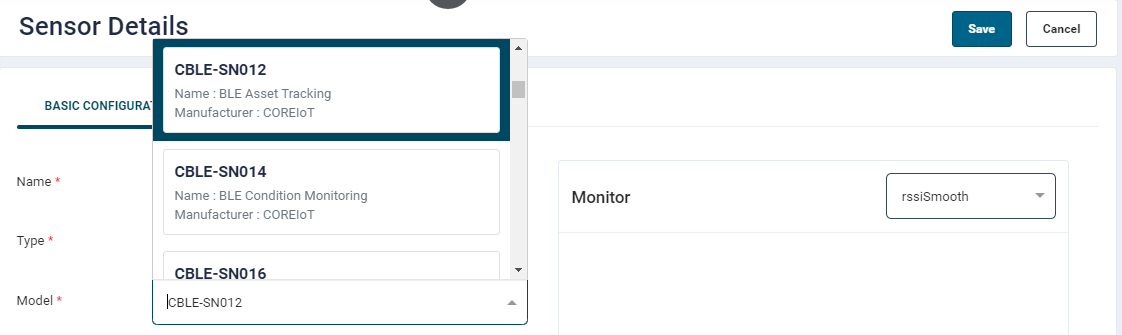
Clicking model will display a list of inbuilt and custom-developed models:
Adding Work Centre directly from the Device screen
If there is no work centre associated with the device, one can directly enter the name of the work centre to associate it with the device and Click "Add Work Centre [name]" as shown below:

This will automatically create an asset of the name that was entered, without any need of extra information. Further, one can find this asset and add metadata to it.
Template
- Templates let the user define key-value attributes for an artefact in ESP.
- Device Template can act as properties of that device which could include the metadata required for that device.
- On selection of template, its associated attributes will be displayed which the user can fill up as per its definition.
Running Cut Off
- This feature is only available in selected inbuilt device models like CBLE-SN014 which can track device vibrations and then based on it can declare the device running / utilised.
- In case the running cut off is specified in the device, a list will show an icon
 which indicates the device is running (above cut off vibration).
 - This feature is only helpful when the device data is coming in real-time.

Edit Sensor
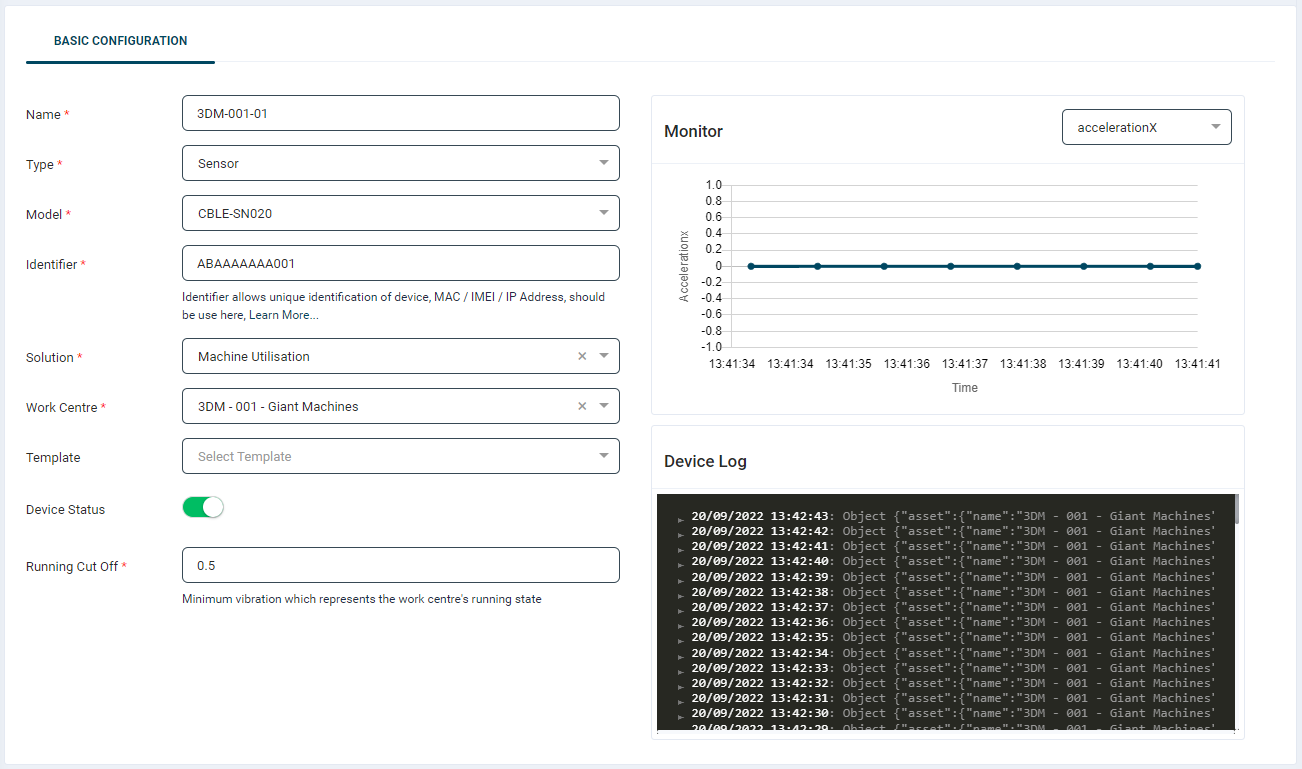
- Click the edit button on the sensor list to open the Sensor Details screen.
-
There are 3 main sections:
-
General data of sensor which can be edited
-
Monitor: Visualise attributes in real-time
-
Device Log: Real-time logs of incoming data from the device
-
Monitor Chart are only visible for sensor giving some numerical values in readings defined in the profile.
- Device log is visible to all.
Gateways
- Gateways detect the sensors in its vicinity and sends the data to the platform.
- Gateways can be shared between two solutions unlike sensors.
- Gateways can be of two types:
- Physical Gateways: Actual devices that are installed on the premises and have a connection established to the platform. These devices usually are installed on one location and are not mobile.
- Virtual Gateways: These are mobile app-based gateways which are installed on client mobile phones. These help client to go to remote places where installation of gateways is not possible. Client can use these apps as gateways to record and sync the data to the platform.
Gateway List
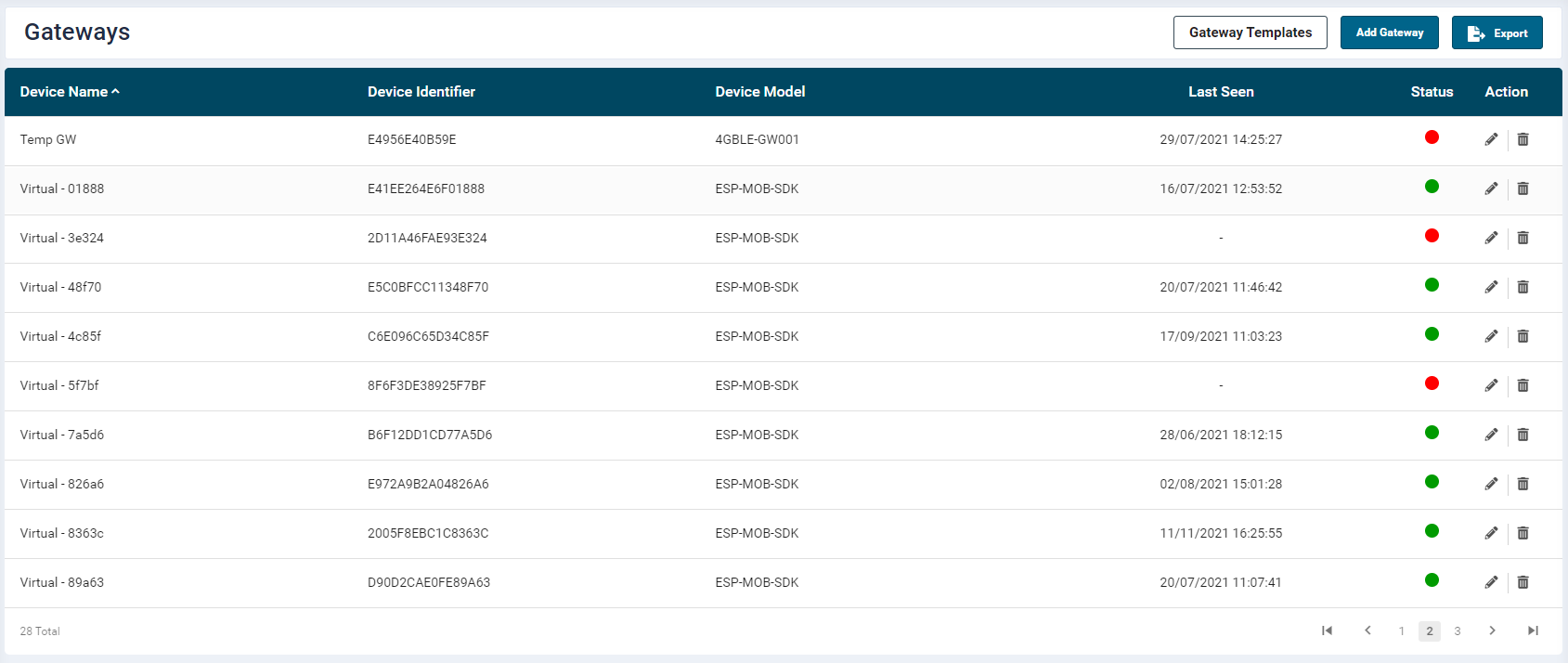
- Gateway listing is in a table format which is easy to understand and operate.
- This list updates every 1 minute.
-
On the gateway listing page, the following items are displayed in the workspace:
- Device Name: the name of the device
- Device Identifier: unique identifier of the device
- Model: device model, either inbuilt or custom developed using device profiles
- Last Seen: when was it last recorded i.e. the date-time
- Status: is it online, offline
- Actions: Edit / Delete
- Gateway Templates: browse and add templates for sensor devices
- Add Gateway
- Pagination Options: navigate through the list in table
Adding a Gateway
- To add a new gateway, click the "Add Gateway" button on the top right-hand side of the listing page.

Gateway Details
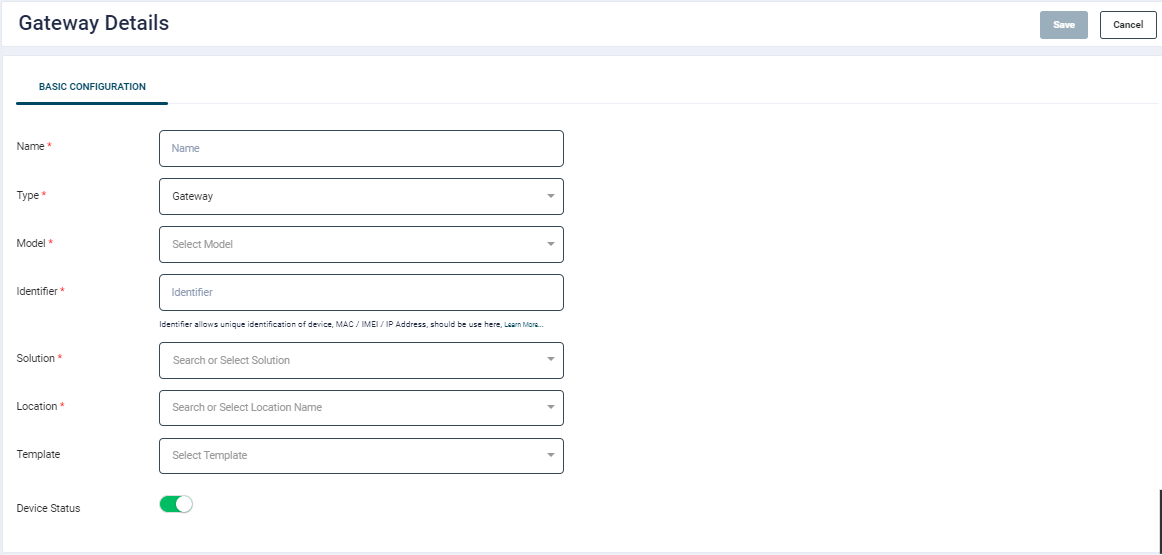
The gateway details screen has the following fields.
| Field | Details | Required | Example |
|---|---|---|---|
| Name | Name of the device | Yes | EngineTag01 |
| Type | Gateway | Yes | Sensor |
| Model | Gateway model- either inbuilt profiles or custom-developed profile model selection | Yes | CBLE-SN014 |
| Identifier | The unique attribute of a Gateway by which it can be differentiated from others like MAC, IP, IMEI, etc. | Yes | CBA012A22012 |
| Solution | The device belongs to which solutions. A gateway can belong to one or more solution | Yes | Machine Utilisation |
| Location | To which location is this device linked to. If not present one can Type the location name and there will be an option to add location directly from here. | Yes | Asset 01 |
| Template | Does this device have any template attached to it? | No | Alternator |
| Device Status | Device monitoring status. This can be turned off if data for the device is not required. | Yes |
Device Model
- Clicking on Model, will display a list of inbuilt and custom-developed models:
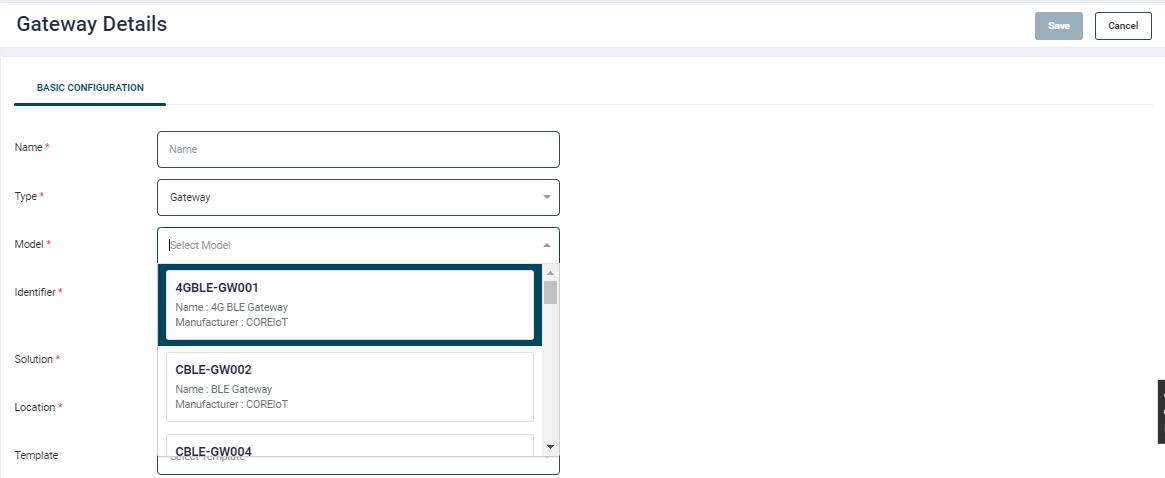
- Custom Models can be found at the bottom of the list. These are user defined device profiles.
Adding Location from the Device screen
- If there is no location associated with the device, one can directly enter the name of the required location and Click "Add Location[location name]" as shown below:

- This will automatically create a location as per the name entered without any need of extra information. Further, one can find this location and add metadata to it.
Template:
- Templates allows the user to define key-value attributes for an artefact in ESP.
- Device Template can act as properties of that device which could include the metadata required for that device.
- On selection of template its associated attributes will be displayed which the user can fill up as per its definition.
- For further details, please refer the the Device Templates section.
Edit Gateway
- Click the edit button on the gateway list to open the Details screen.
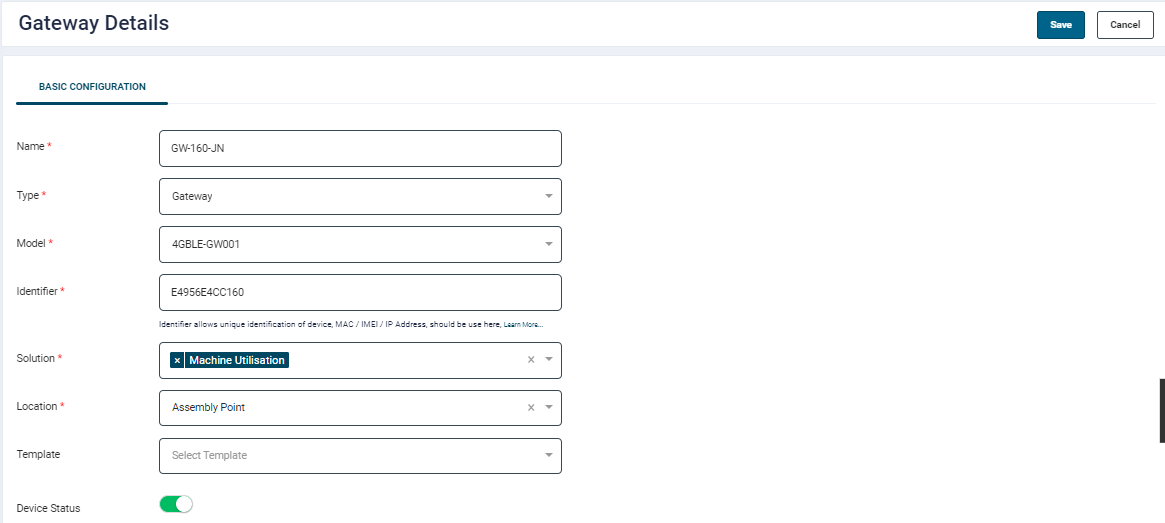
The user can edit the general data of the gateway.
For more information please refer the Gateway Setup and Installation section.
Deleting Device Sensor / Gateway
- When a device is deleted, all its data along with artefacts are deleted from the platform.
- If sync is enabled, the device data from central will also be deleted in next sync cycle along with the device.
The profiled data will be retained.