Department
Departments are the groups where operators and machines are assigned to complete certain operations. A workshop will be divided into key departments which all have their unique function and this configuration will allow you to group and filter data from operations, operators and machines under that department
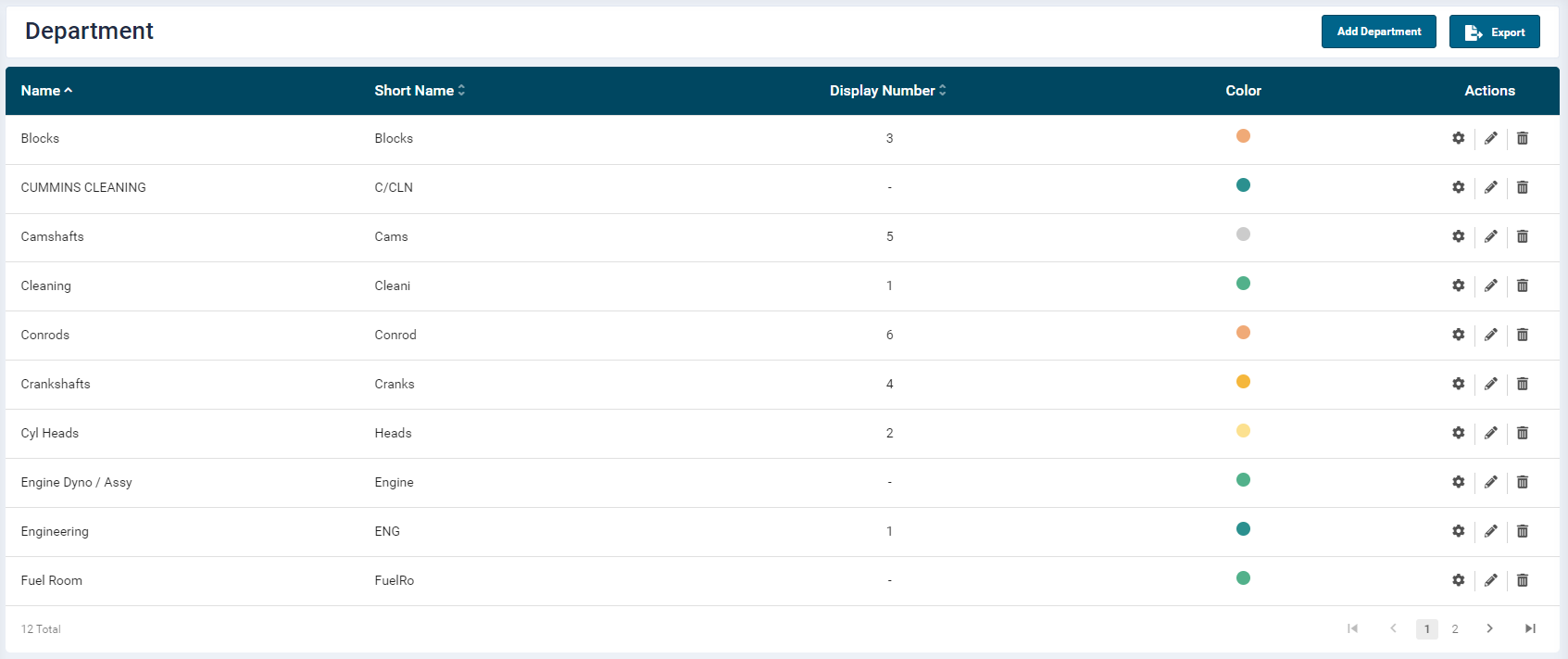
- To add a new Department, click the Add Department button on the top right-hand side of the screen.
Add New Department
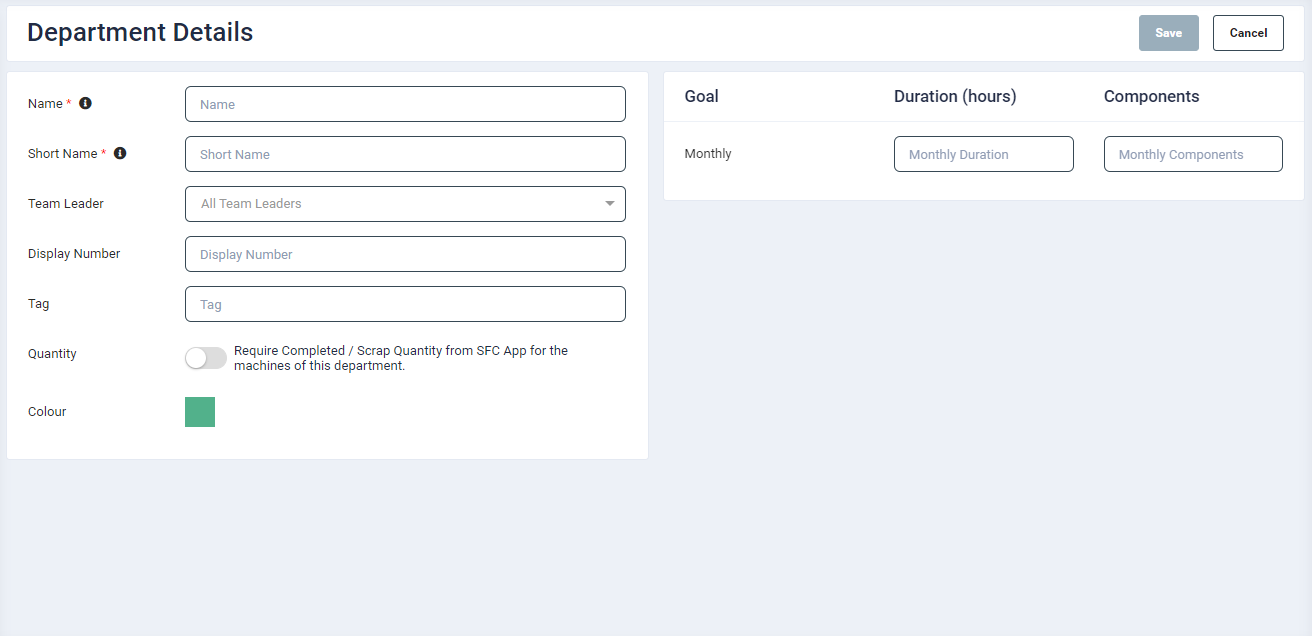
- In the Department Details page, provide the following input:
- Name: Provide a name for the department
- Short Name: Provide a short name for the department
- This will be the display name for the department
- Priority Number: Enter a priority number for the department
- This will act as the display sequence for pages such as the master schedule when displaying Workcentres or operators assigned to specific departments
- The highest priority is number 1 and this will always get displayed first when there are multiple departments
- Tag: Provide a short text which can be used to associate with the department
- Allowed Job: For a department, it is possible to schedule and work on a certain number of jobs either automatically or manually at a specific moment.
- This will restrict the number of jobs that can be scheduled at the same time. E.g., if this is set to 2, then only 2 jobs with operations in that department can be scheduled at the same time.
-
Colour: Assign a colour from the colour palette or provide a hex colour code and click Save. This colour will be displayed for the components that are assigned to this department
-
The Goals panel at the right-hand side of the screen allows you to enter goals on department level.
- Duration (hours): Enter a numeric value to specify the duration.
- Duration is the number of utilised hours calculated from tablet app interaction for this department
- Components: Enter a numeric value to specify the number of components.
- A target/goal number of completed components
- Duration (hours): Enter a numeric value to specify the duration.
Edit & Delete Department
The Action column allows the user to Edit or Delete a Department:
- Click on the Edit icon to update the department details.
- Click on the Delete icon to remove a department
Filter
-
To filter the data on the listing screen, search or enter a required value in the Department dropdown box.
-
The user can search configured operations by entering key letters in the Search text box on the top right-hand side of the screen.