Daily Work
- The daily work board provides the current view of the shop floor with the jobs in progress and upcoming jobs for the current day on all work centres and workbenches.
- It displays a list of work centres and Job components which are being worked on.
- The Expand or Collapse button on the top right-hand side of the screen allows the user to resize the screen.
Filters
- By default, work centres of the entire shop floor are listed. Select the required departments from the filter at the right-hand side of the screen.
- On selection of Department Category filter will be enabled for selection and it will list down all those categories which are associated with the Department selected
- To view specific data, enter a job code in the Search Job Code box.
- The display setup can be accessed from the filter at the right-hand side of the screen.
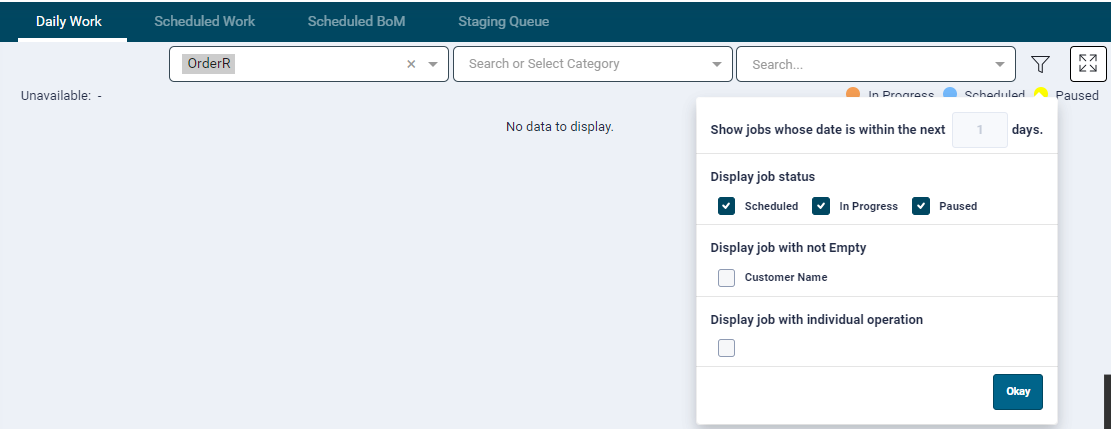
- The first field displays data based on job due date. By Default, the data for all jobs whose due date is less than current date + 1 day is displayed. This field can be extended to 14 days
- Display Job Status: This allows user to set up what columns the user wishes to see based on job status.
- Customer name: Selecting the customer’s name checkbox in a filter will only show jobs which have customer names against them.
- Display Job with individual Operation: Selecting the Checkbox will show all Operations of the same job individually and it will show all cards in ascending order according to the due by and priority P1 jobs will show first irrespective of Due by
- By default all the available items are selected. Unselect the check box to refine the data.
The due date text box in the filter is disabled.
- The status legends (In Progress, Scheduled, Paused)are provided below the filters.
- The Expand icon
 will display the data in full screen.
 - The Collapse icon
 will reset the screen to normal view.
Data Table
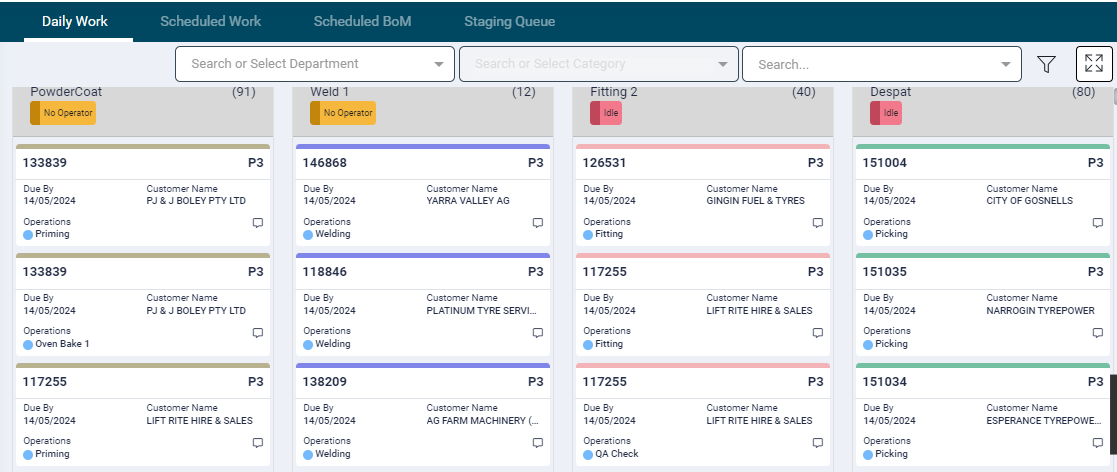
- In the data table, the first column lists the work centre name, it's Operational Status and the operator logged into that Work Centre
- The next row lists all the jobs in progress. The card would display the job code, component name, operation, status (In Progress, Scheduled, Paused, Missed Schedule) and the due date.
- The cards will be displayed in the order of their status starting with In progress, then paused, then missed schedule and then scheduled operation. These will be sorted by priority with P1 being the highest and changing colour to a black tile on the Daily work screen.
- Multiple operations of the same Job assigned to the same work centre and will be grouped together in a single card with the operation and their status listed on the card.
- If any employees are unavailable, their names will be displayed at the top left-hand side of the data table in a pink text.
Daily Work Details
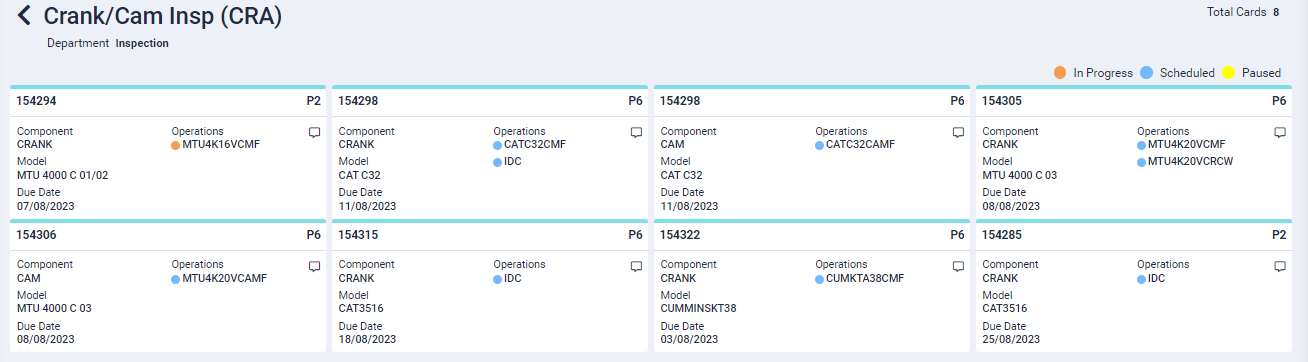
Clicking on the Work Centre name will open a details page, displaying the job cards of all the components assigned to that specific Work Centre.
The cards would display Component name or Customer Name as the case may be.