Andon Light Setup & Installation
1. Prerequisites
-
Setup your machine. Follow this guide. {Add here}
-
Complete Andon Bridge Setup guide.{Add link}
-
Install Hue Sync Mobile App.
2. Light Setup
For ease of setup only power on ONE new light at a time.
-
Open the Hue Sync Mobile App.
-
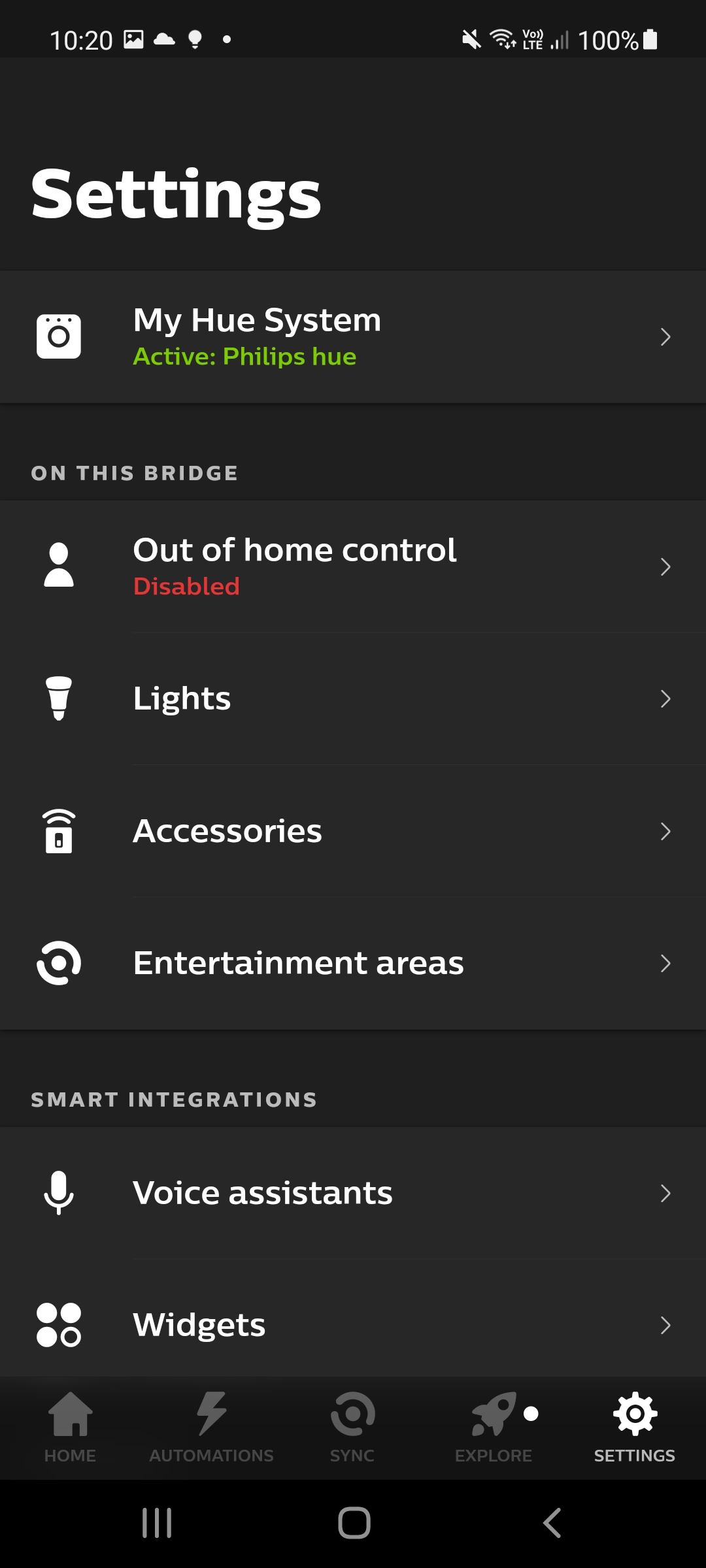
To add lights go to Settings, Lights and select the '+'.
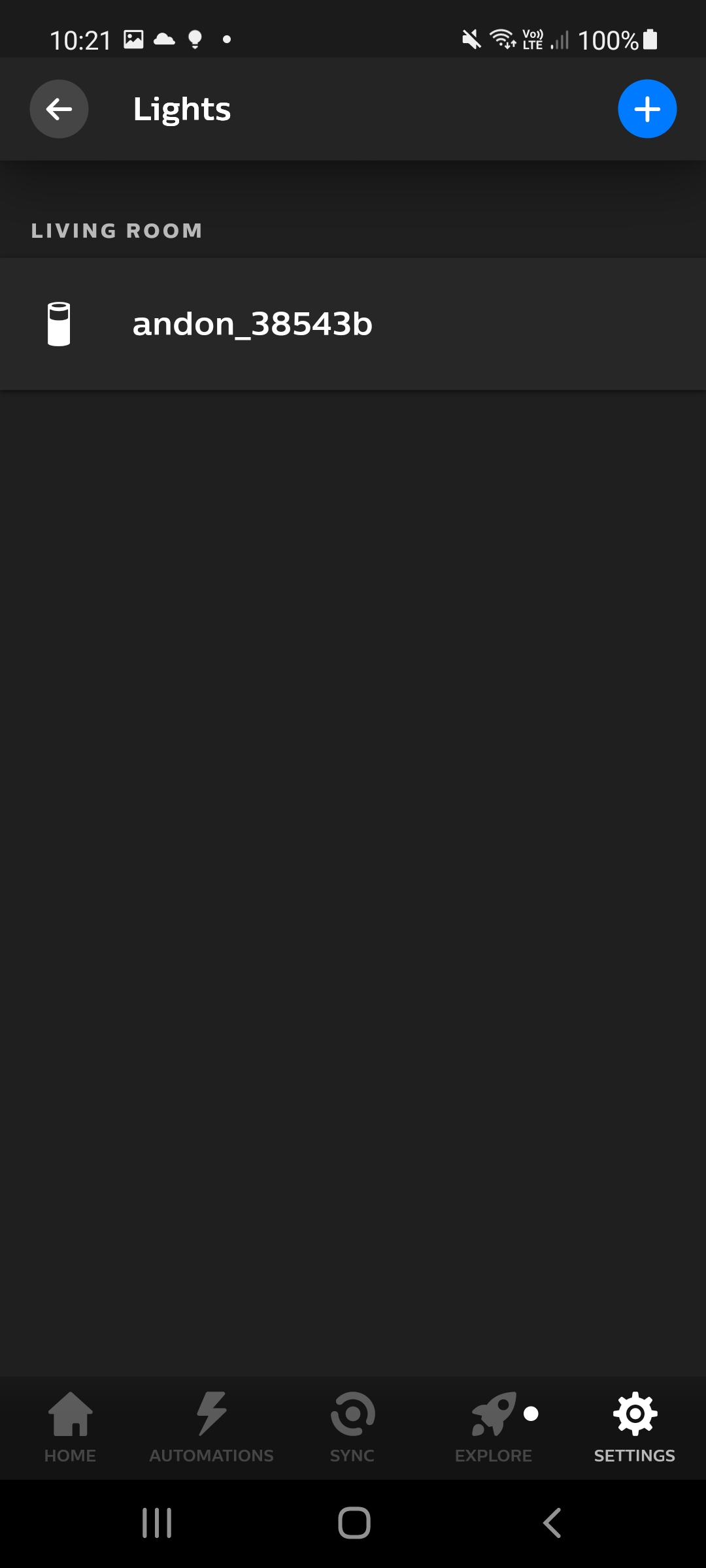
- Once found select 'Start configuration'.
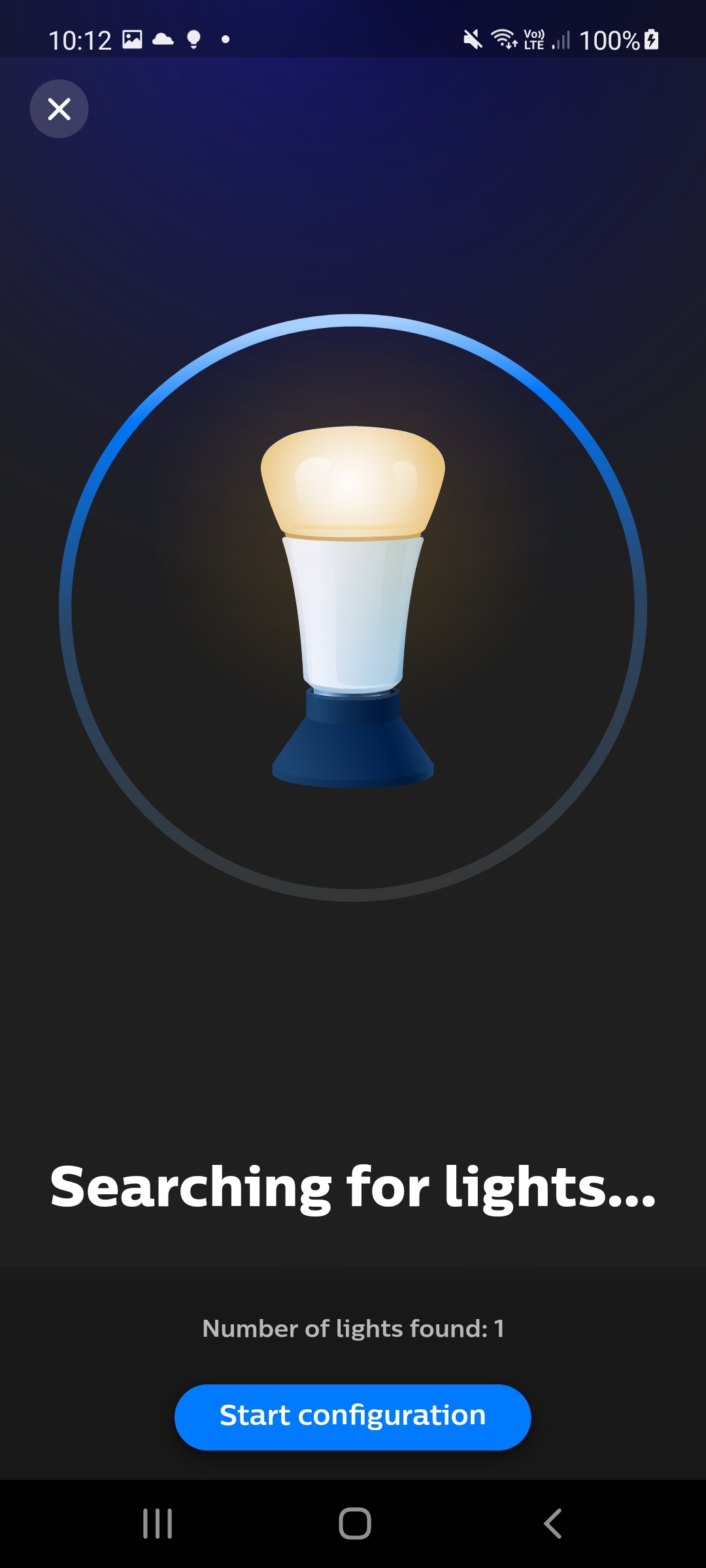
- To ensure it is the correct light move to the color wheel and adjust the color to ensure the correct light is changing color. If correct select the button under the wheel to name the light.
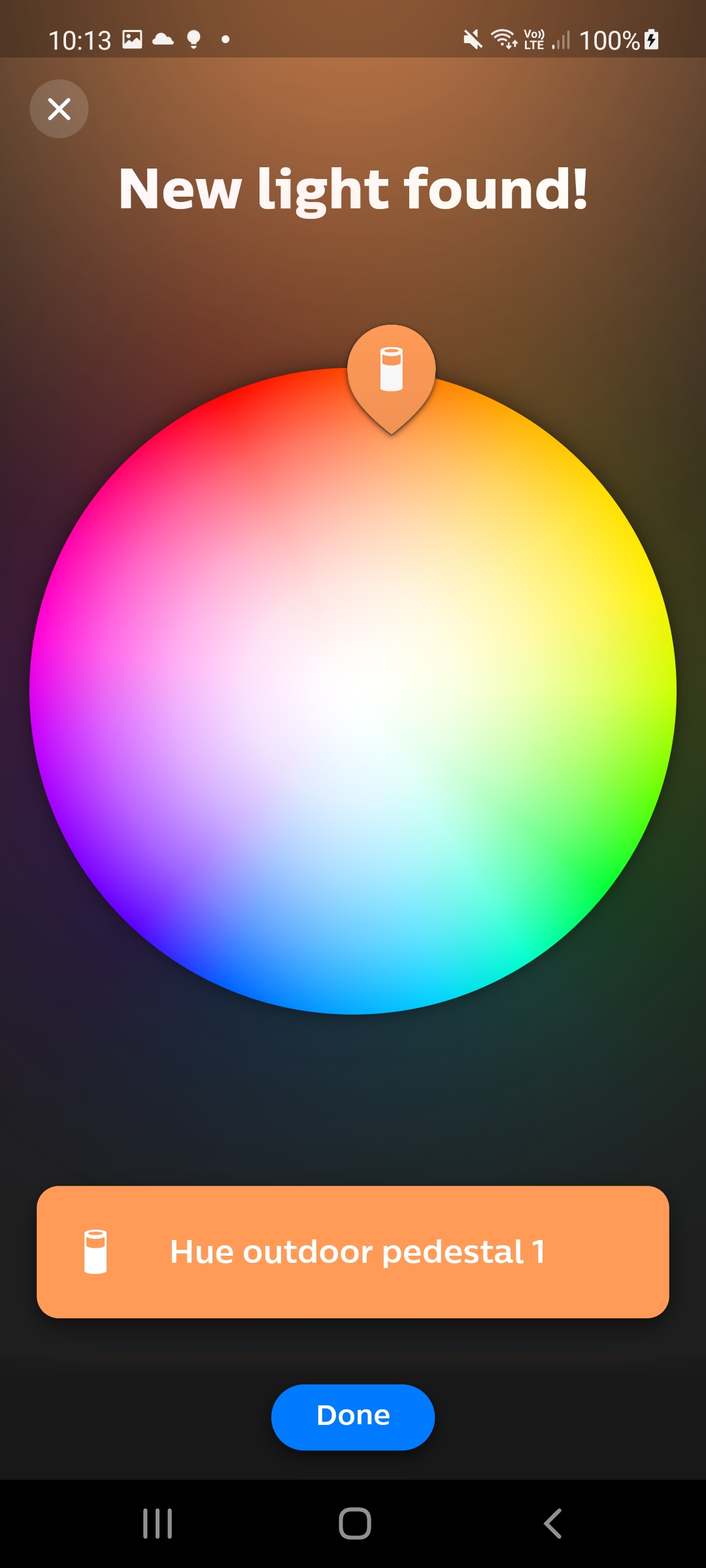
- It is recommended to name the light with the following format. andon_MACHINEID for example andon_lathe001
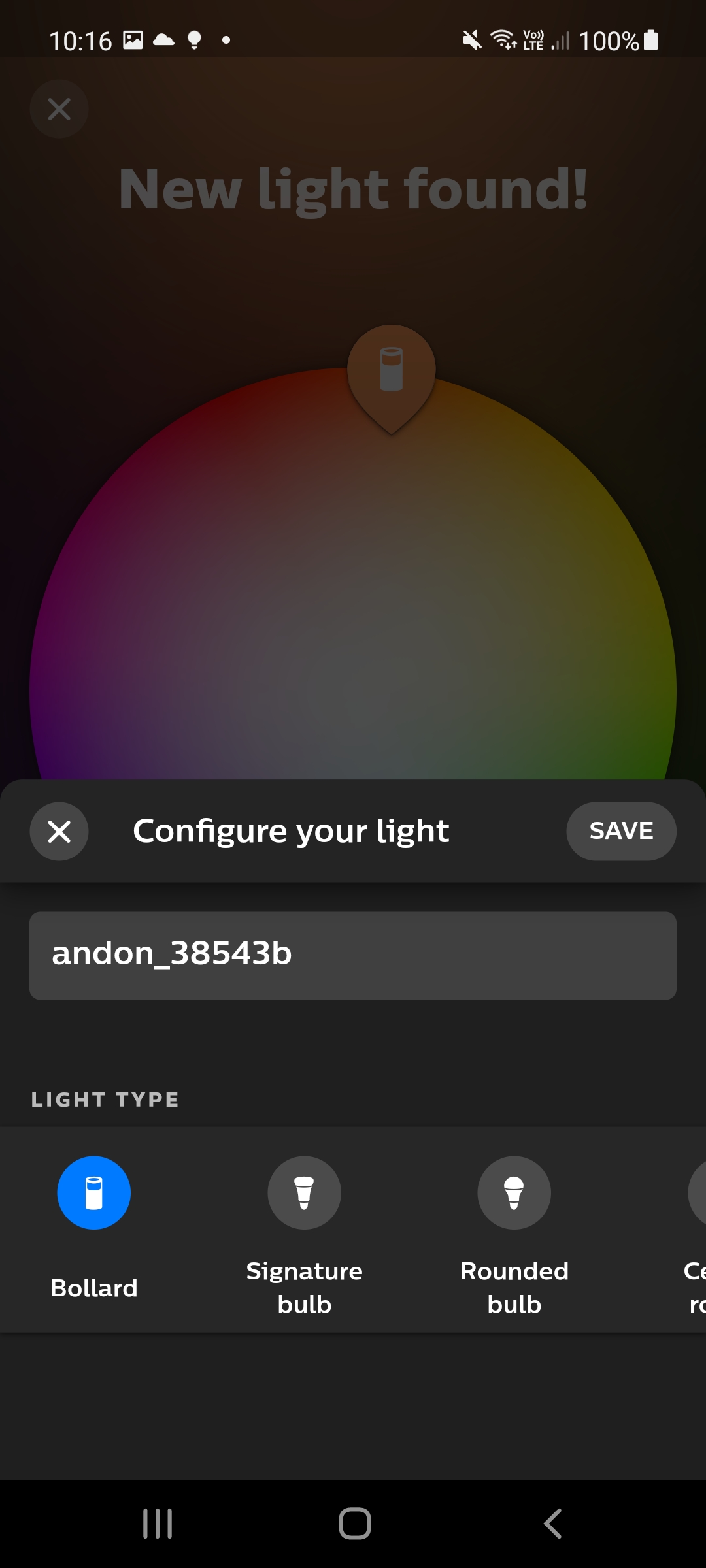
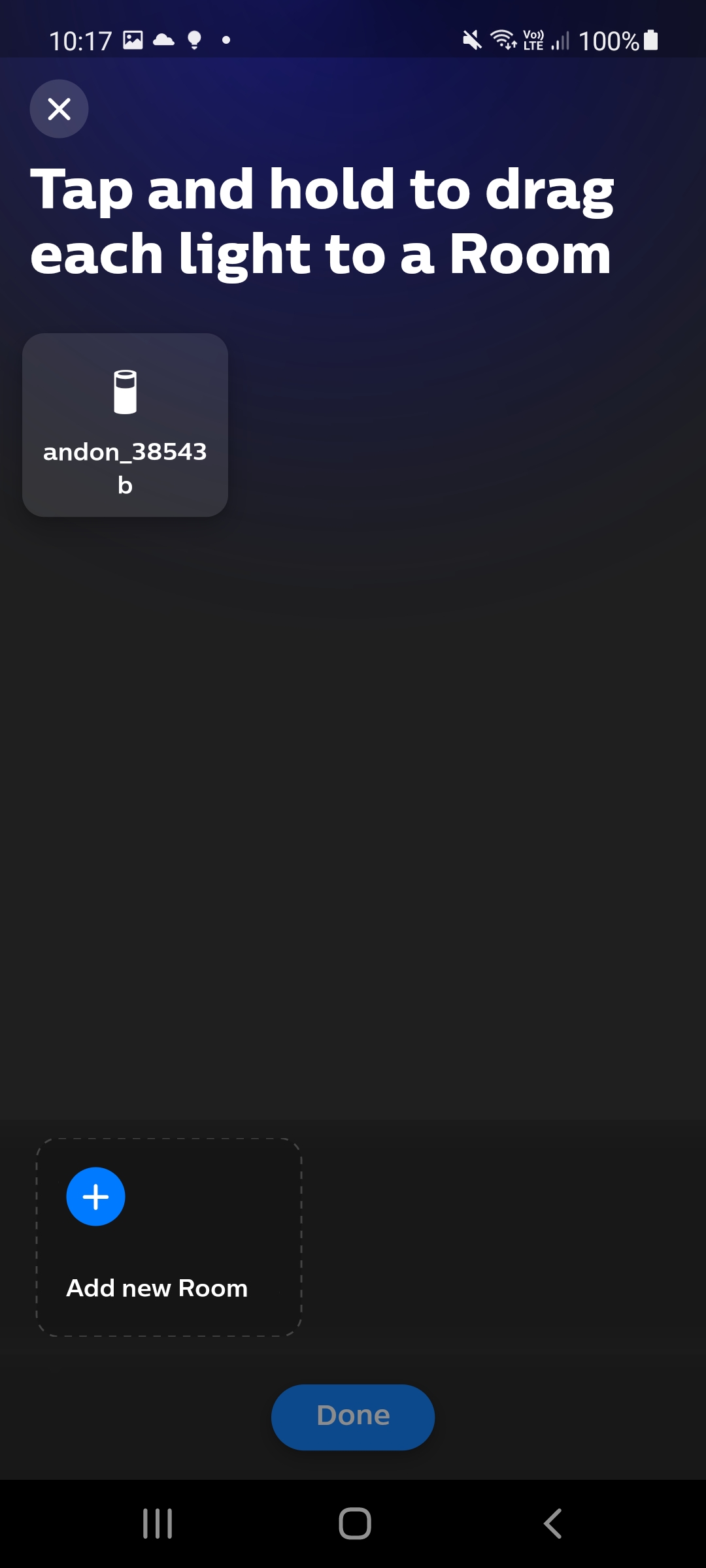
- A room is then needed to be configured so that light can be assigned to it. Select 'Add new Room'.
-
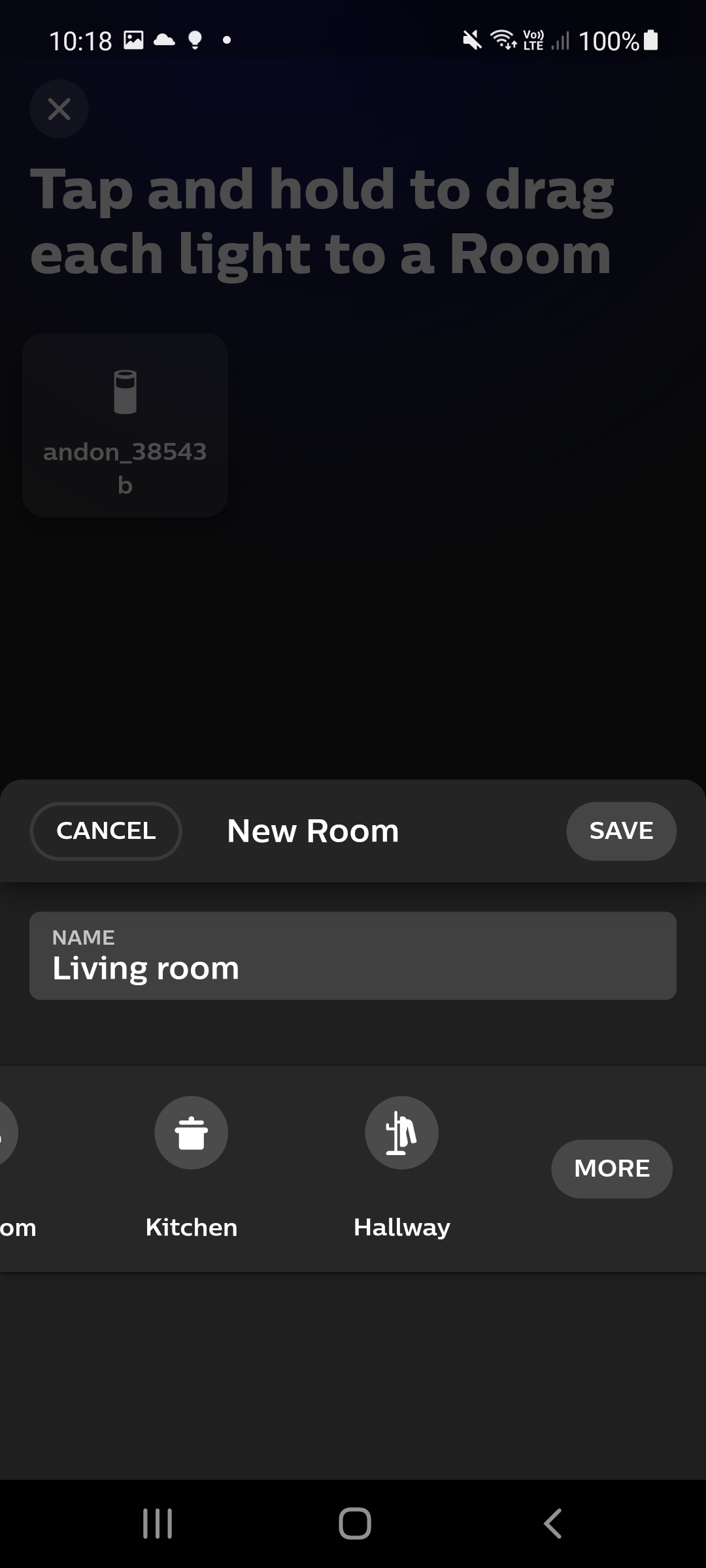
Name it 'Smart Shop Floor' and select save.
-
Drag the configured light onto the new room.
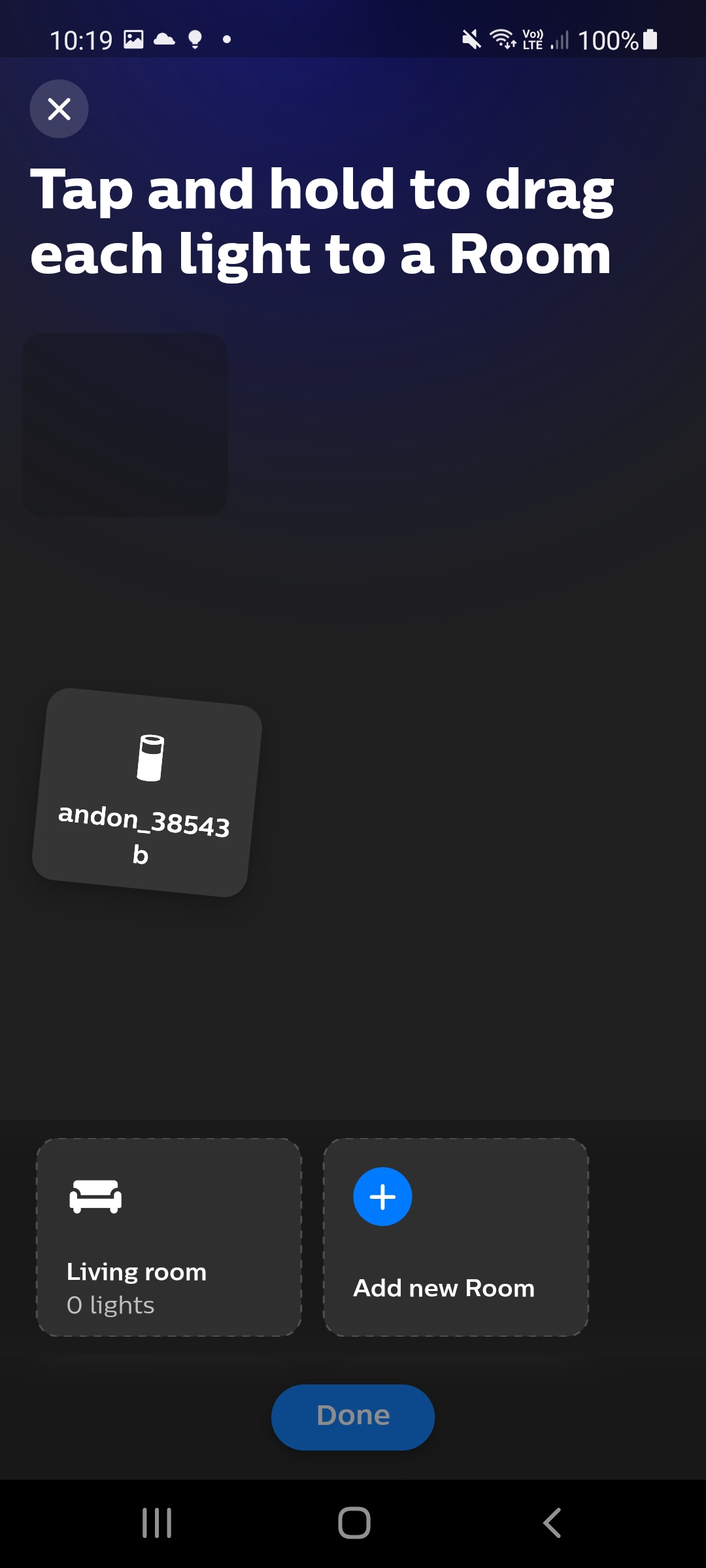
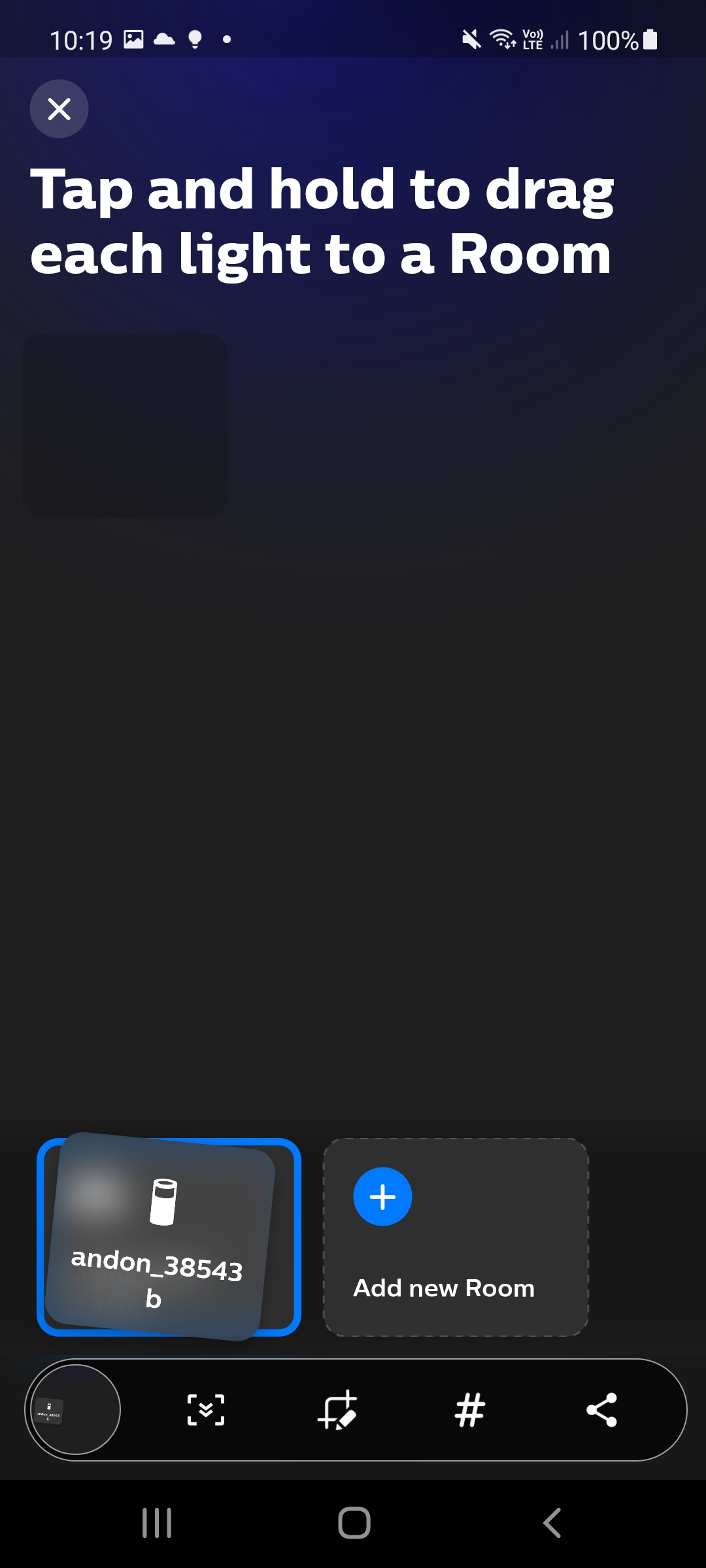
- Select 'Done'
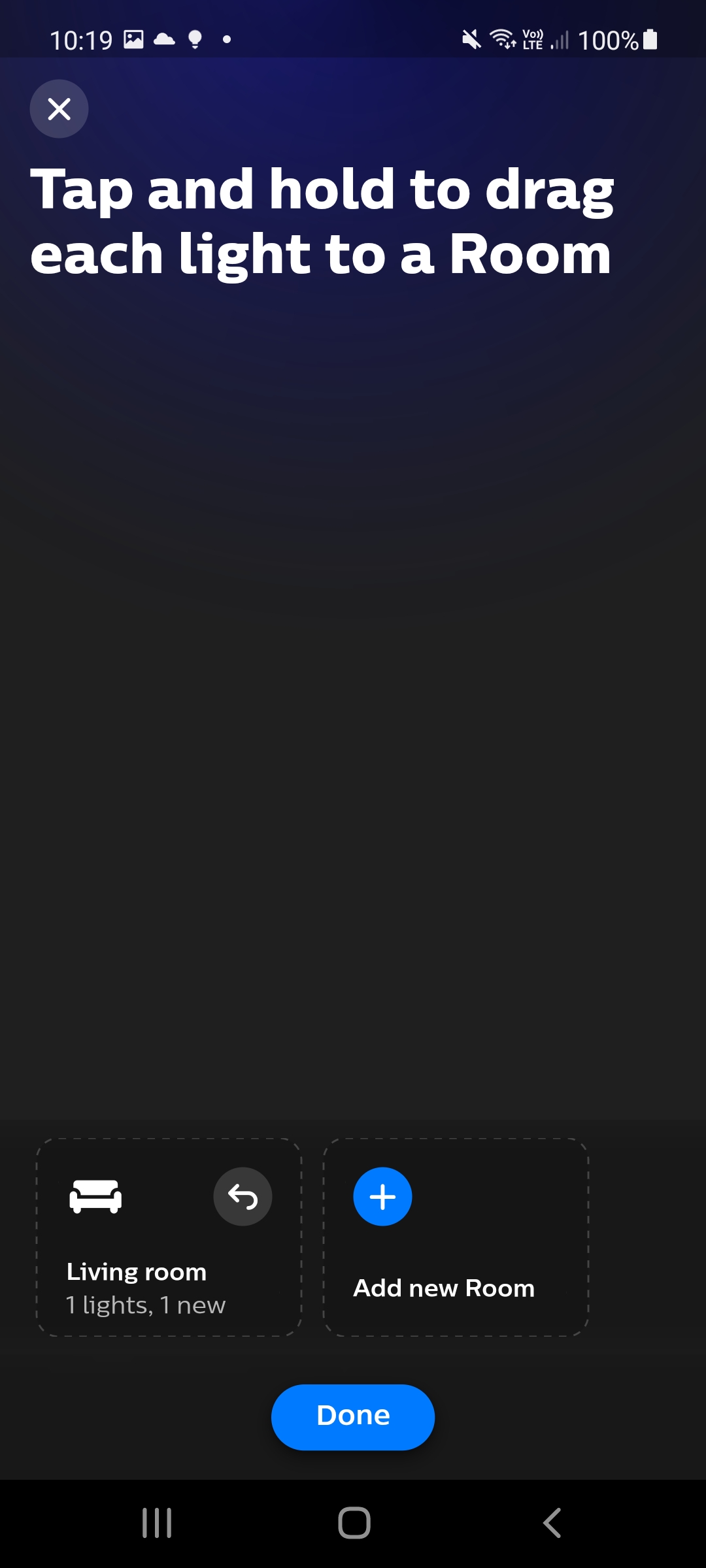
- To add more light repeat.
3. Color Guide
As long as the gateways and lights have been setup within the portal the lights should now be changing as per status of the assigned machine. The following base colors will be shown:
- Green- Machine is being utilised.

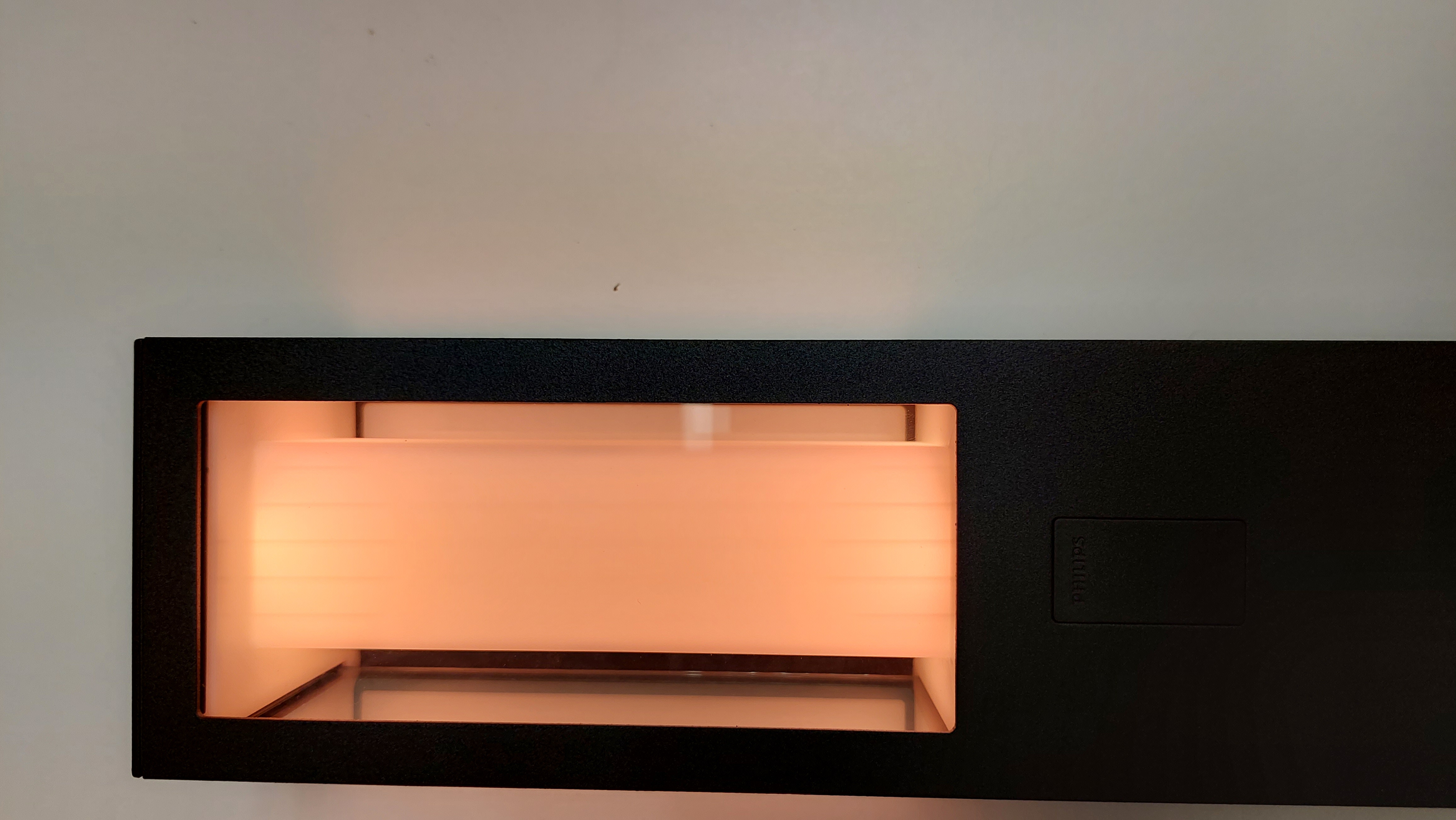
- Yellow/Orange- Machine is idle.
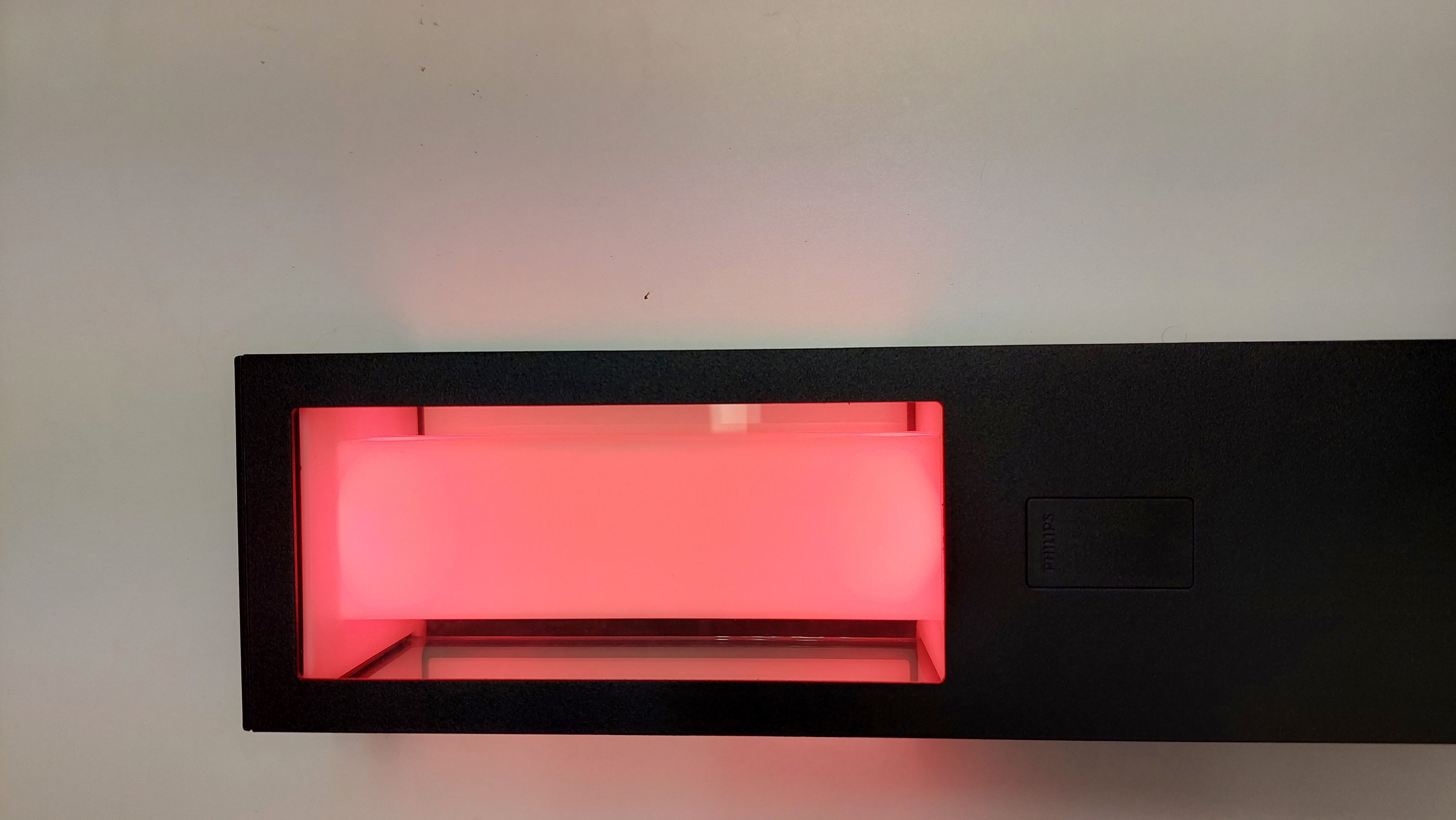
- Red- Machine is in a down status. Eg downtime status has been selected in the SSF app.
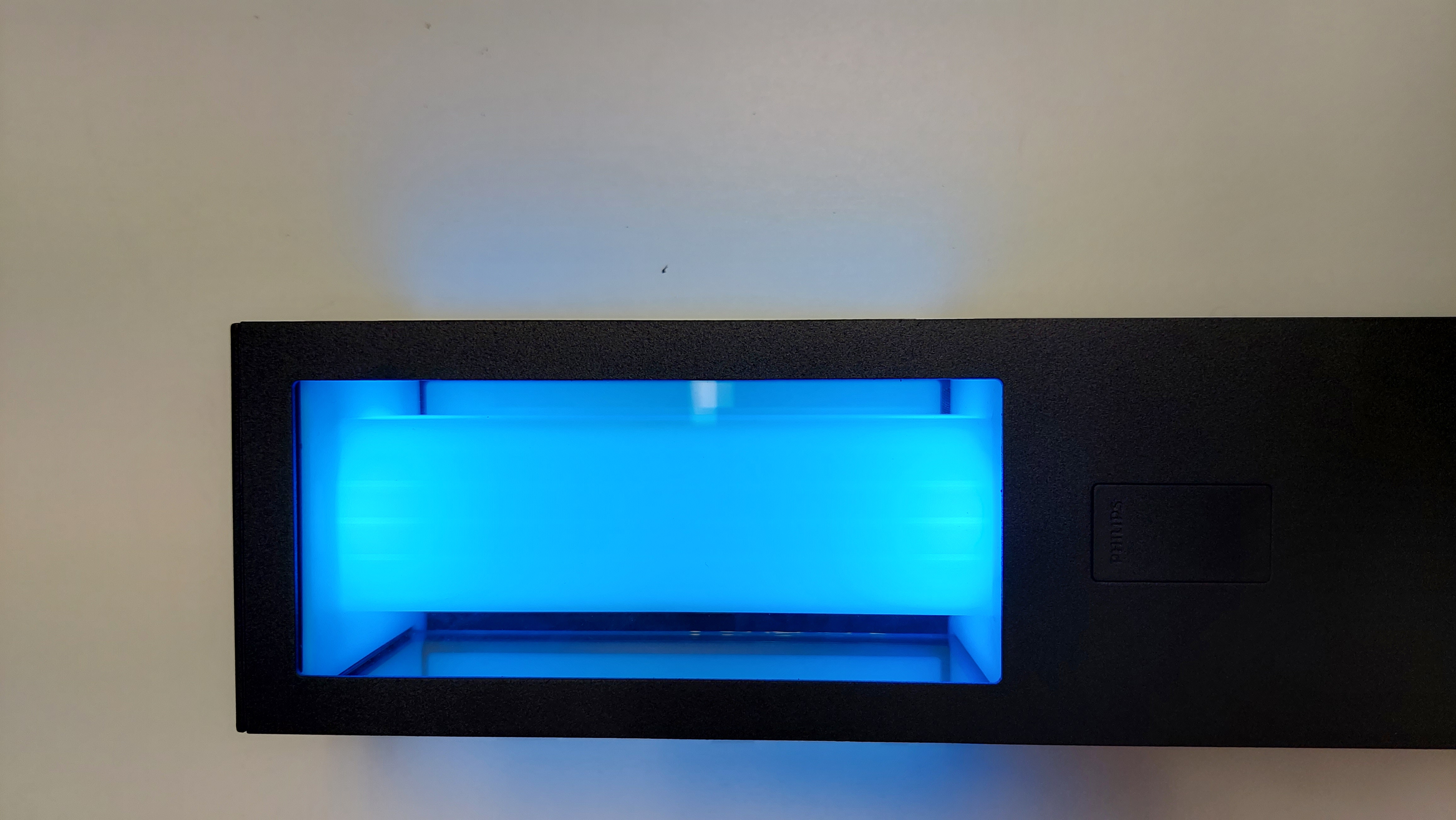
- Blue- Call for assistance has been selected on the Smart Shop Floor app.
Note:
When the gateway powers on and connects to the bridge the lights will flash white for ten seconds to confirm the connection.