# Hardware Guide
To ensure a higher level of performance we recommend the following:
-
1x Hue Bridge per open area.
-
1x Hue Bridge per every 30 lights.
1. Pre-Requirements
-
Setup your machine. Follow this guide {Add here}
-
Complete SSF gateway setup. {Add link}
-
Install Hue Sync Mobile App.
Note:
Choose a gateway that will be central to most andon lights that will be installed.
2. Bridge Setup
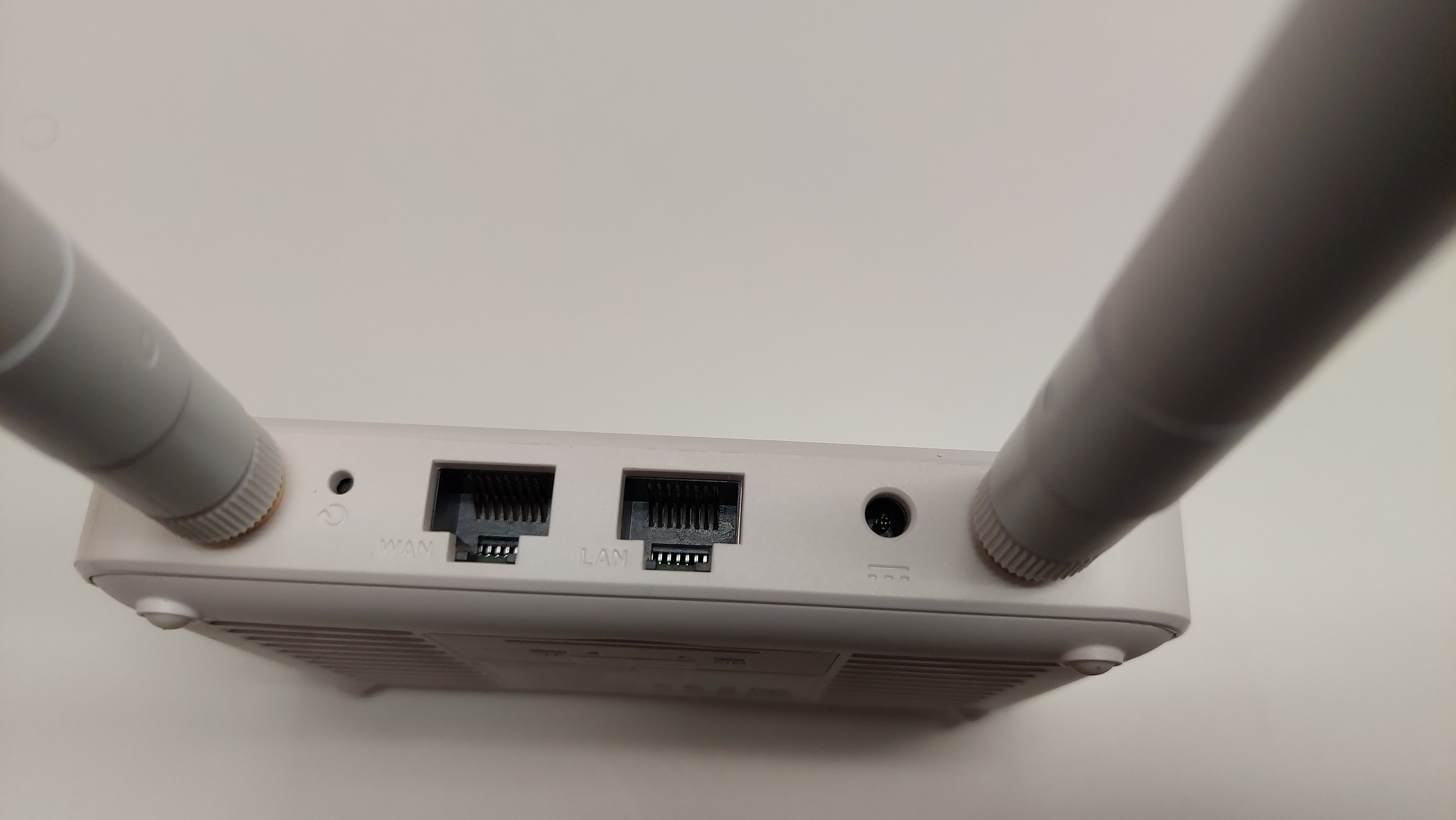
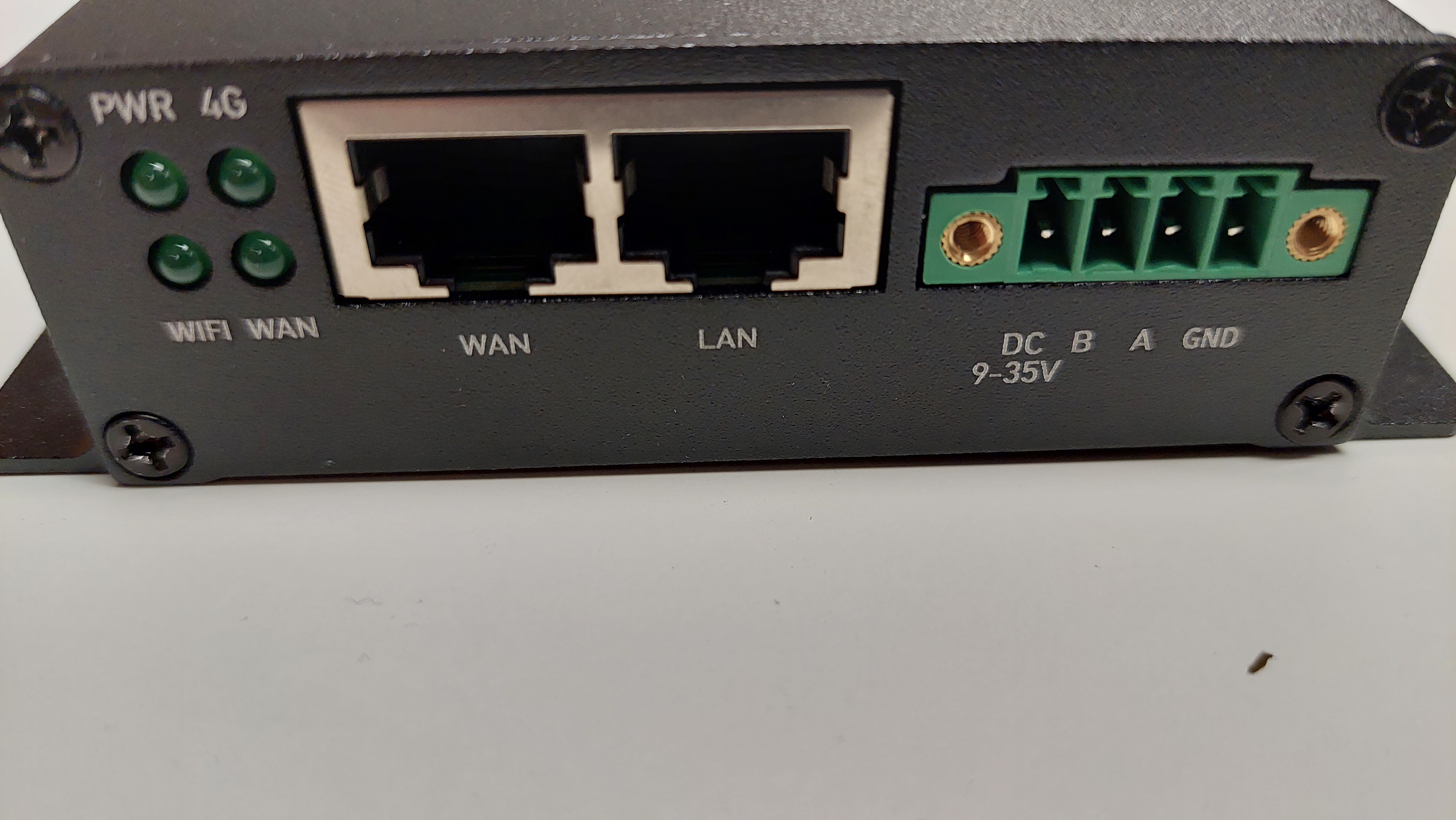
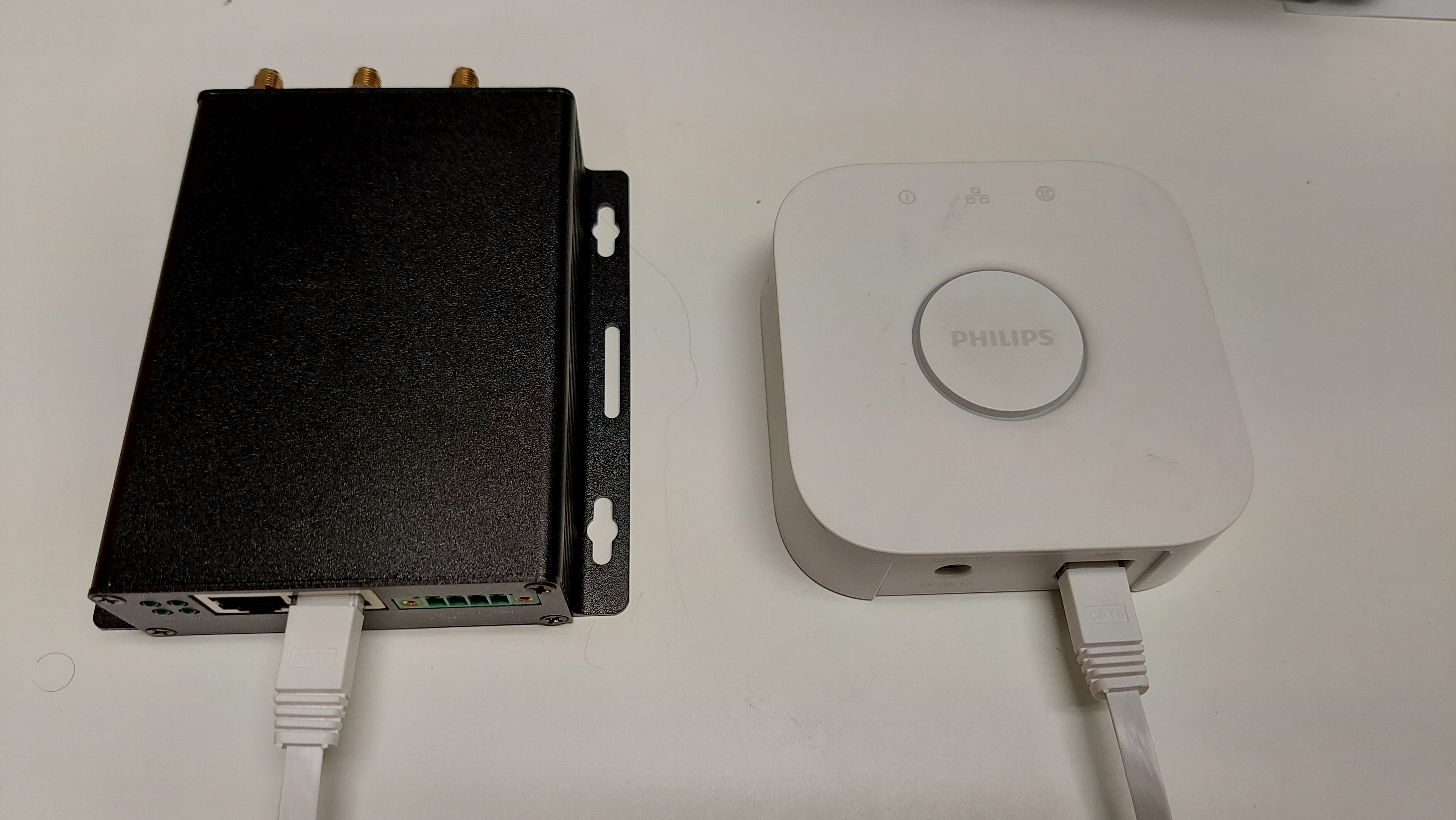
- Connect Hue Bridge to gateway LAN port.
![]9782776beb22352c22f4c71d1cde75ed9db9e5b6.jpg)
-
Power on controller.
-
Wait 5 minutes
-
Connect phone to gateway wifi. (Information found on Gateway setup guide)
-
Install Hue Sync Mobile App to setup gateway.
-
Open App.
-
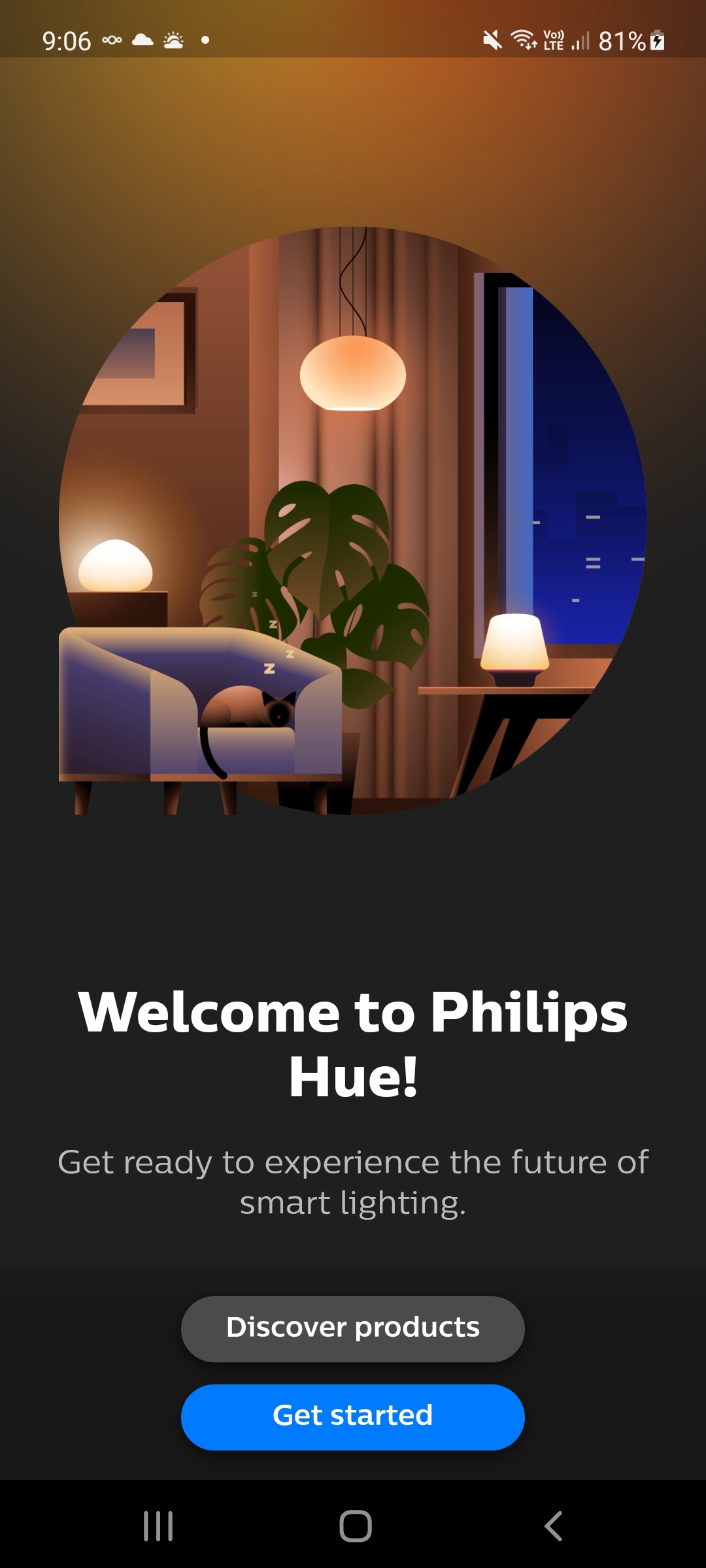
Click on 'Get Started', then 'Continue'.
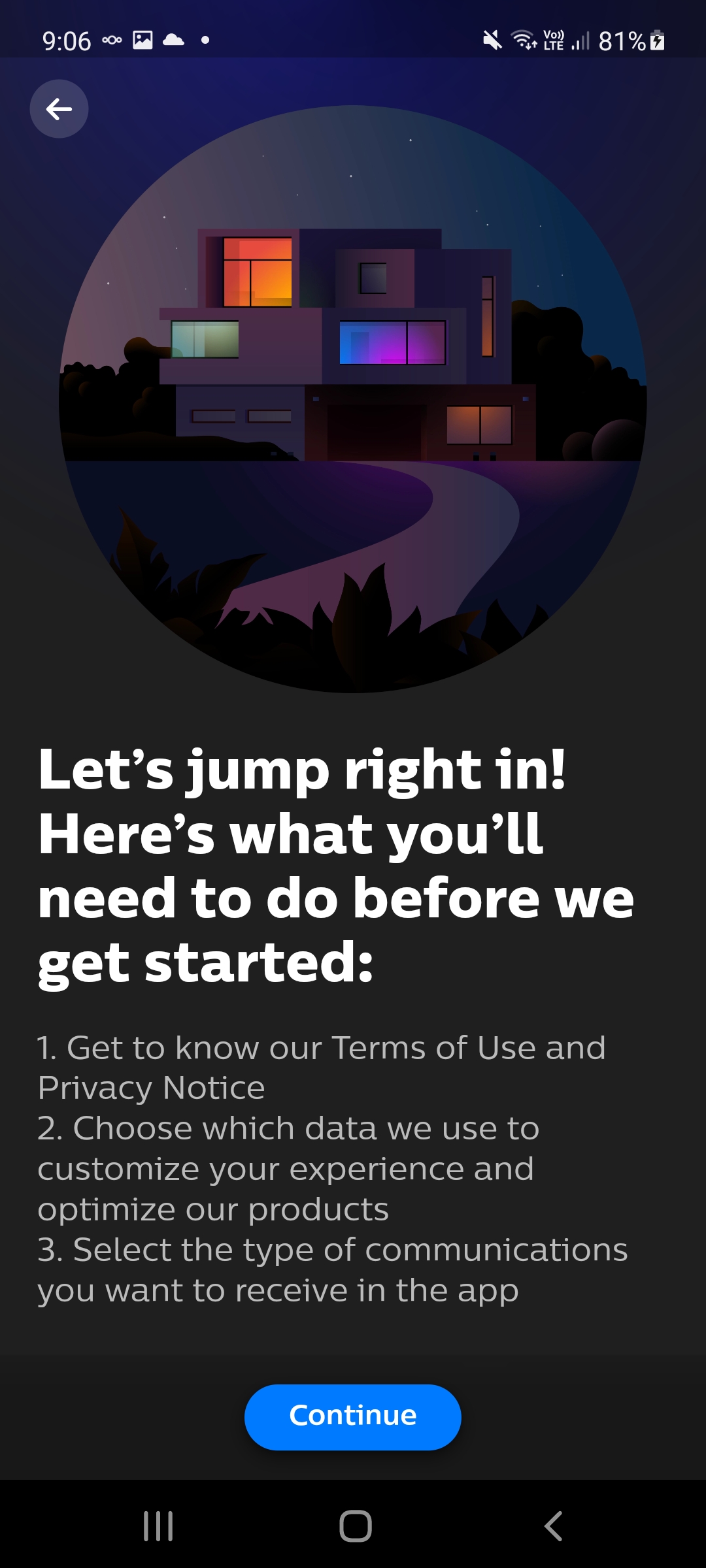
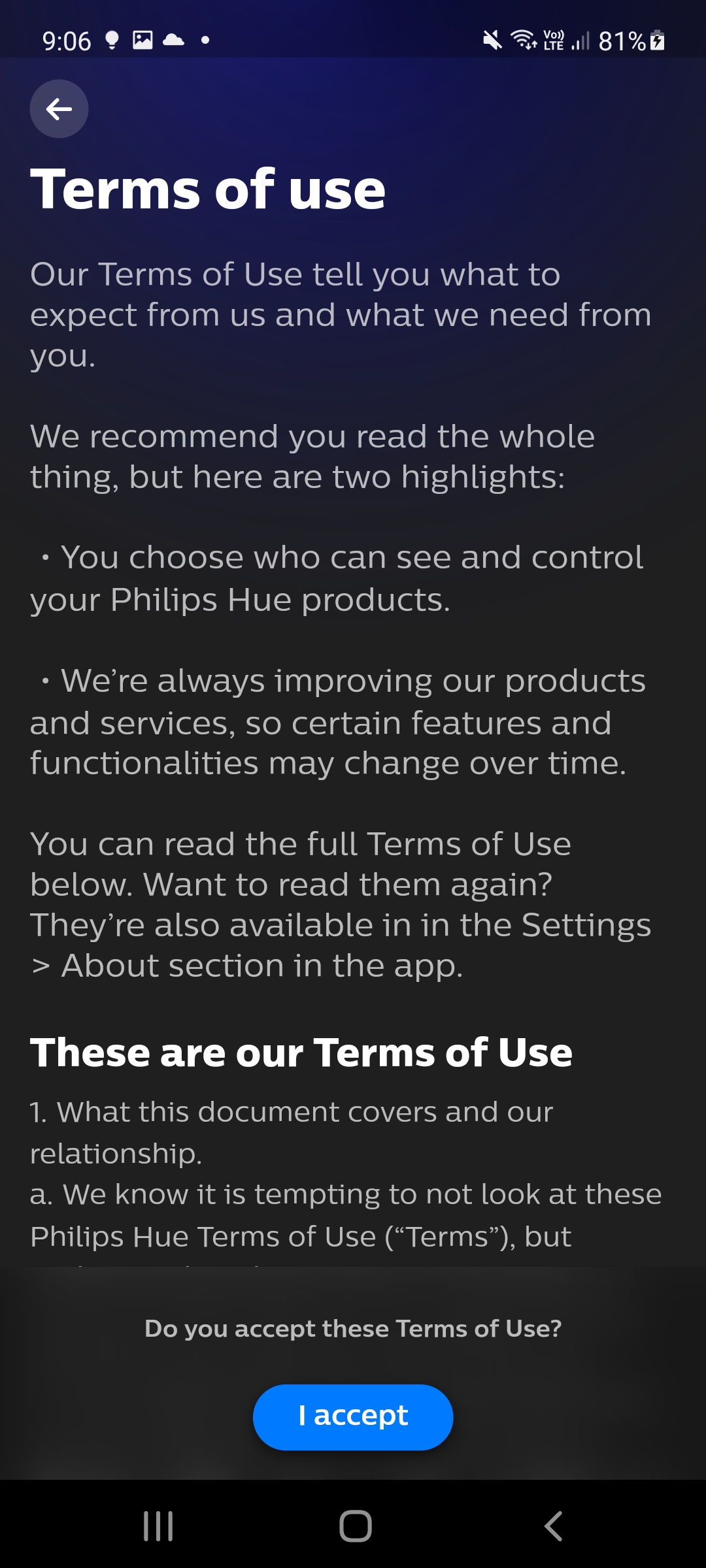
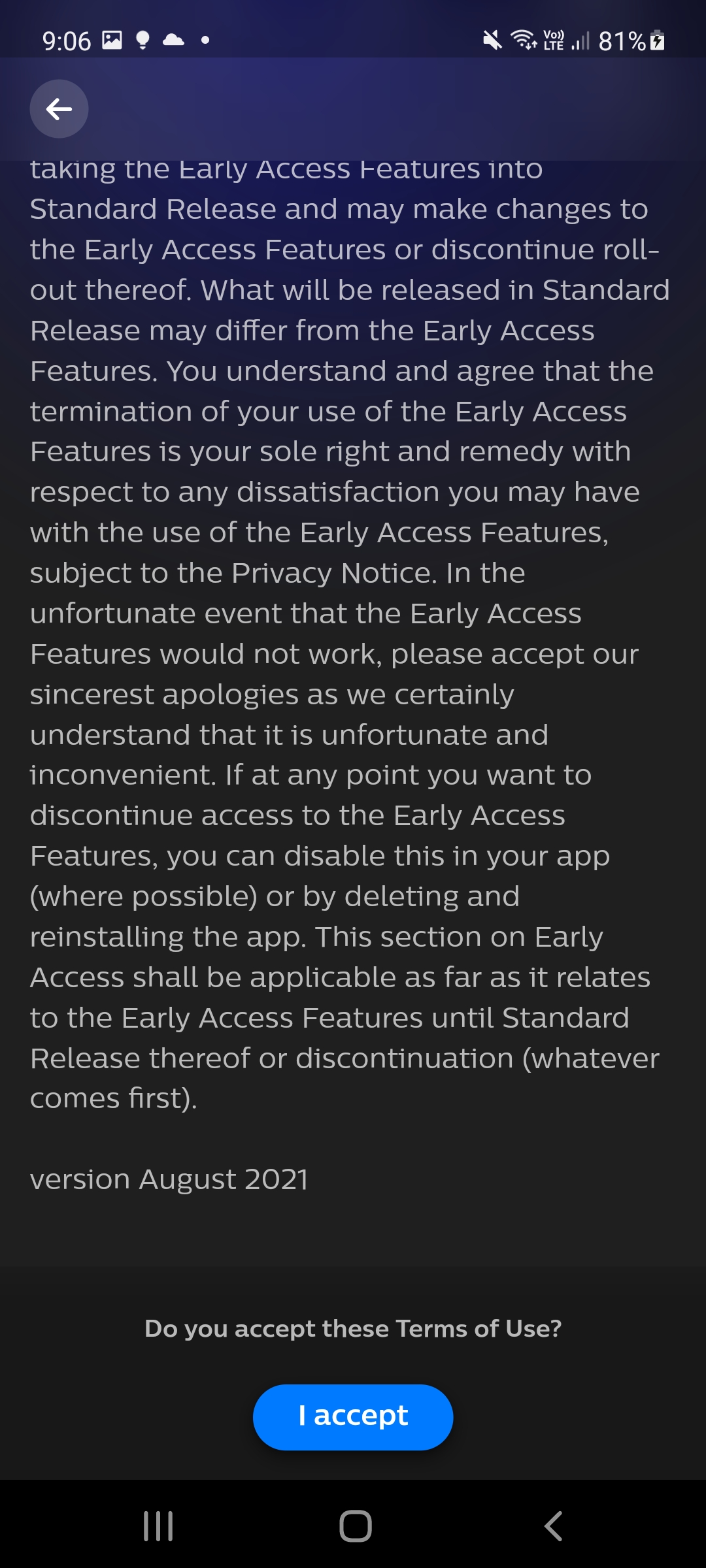
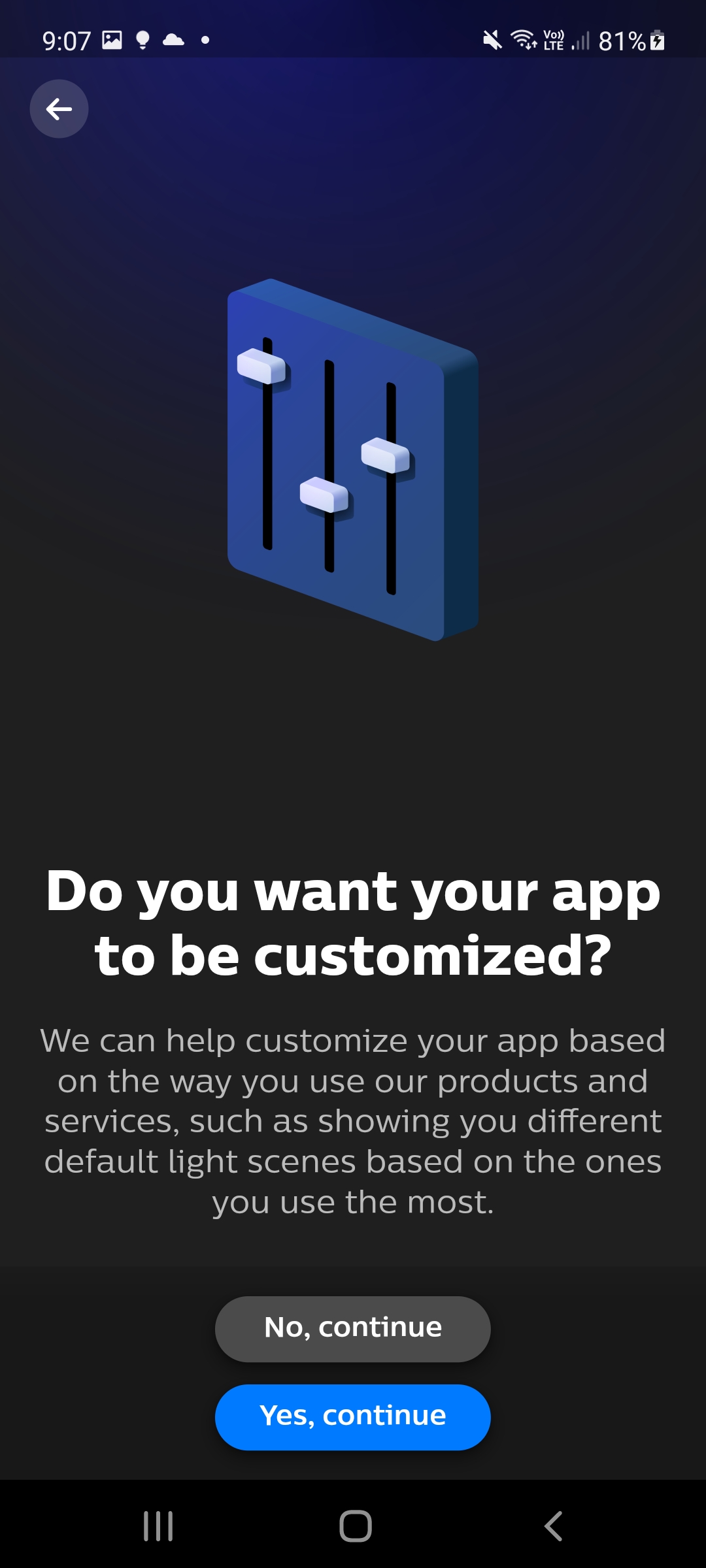
- Review terms of use and click on 'I accept', then 'Continue', then 'No, continue', then 'No, continue', then 'No, continue'
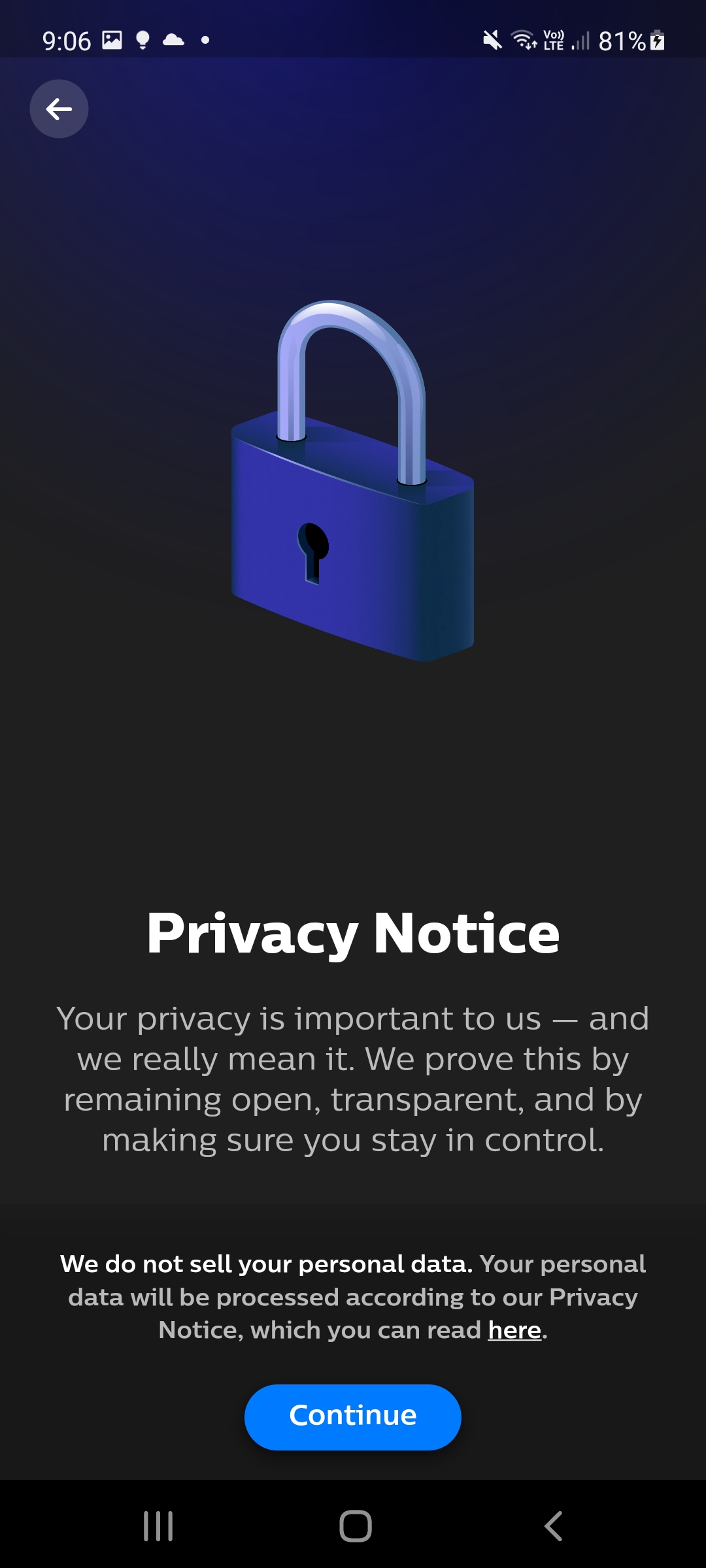
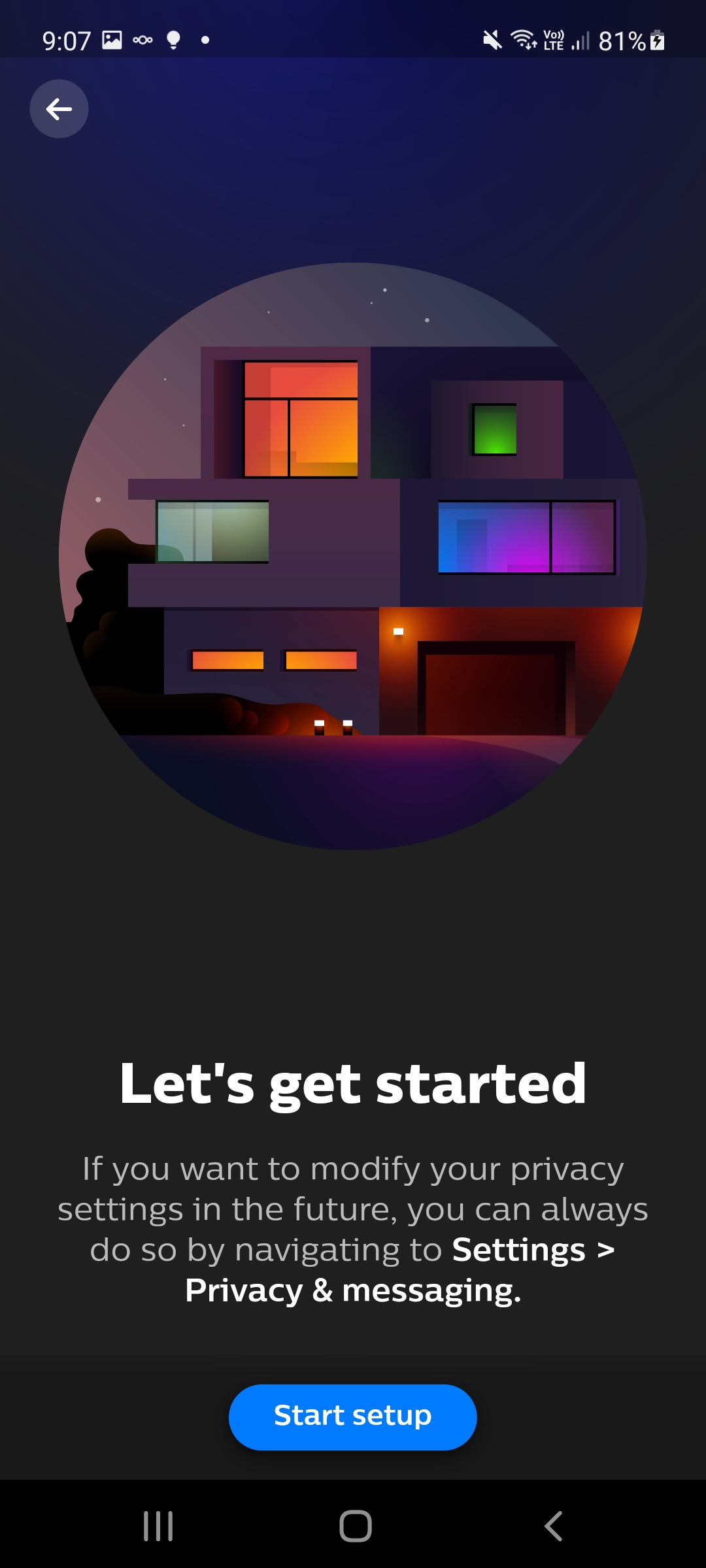
- Click on 'Start setup'
-
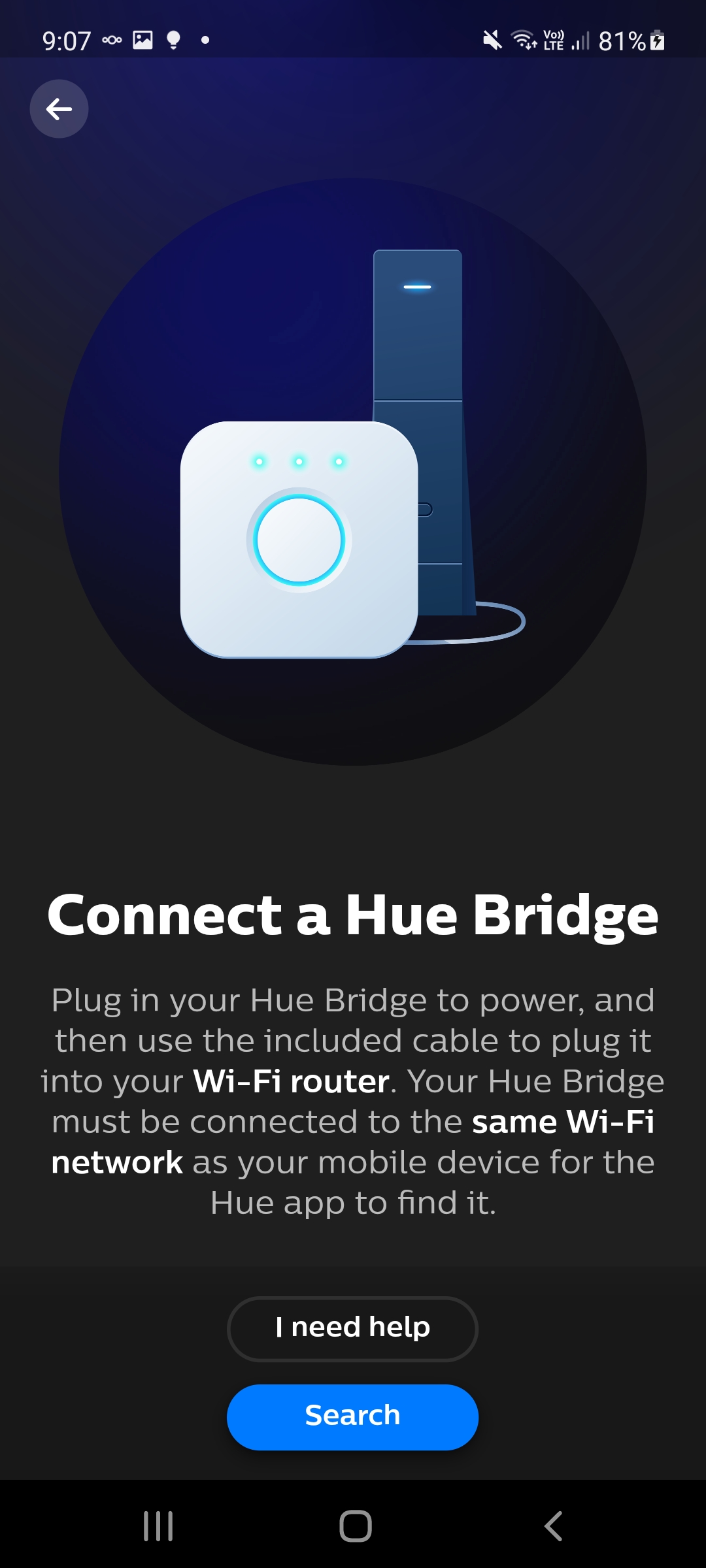
Select 'Search'
-
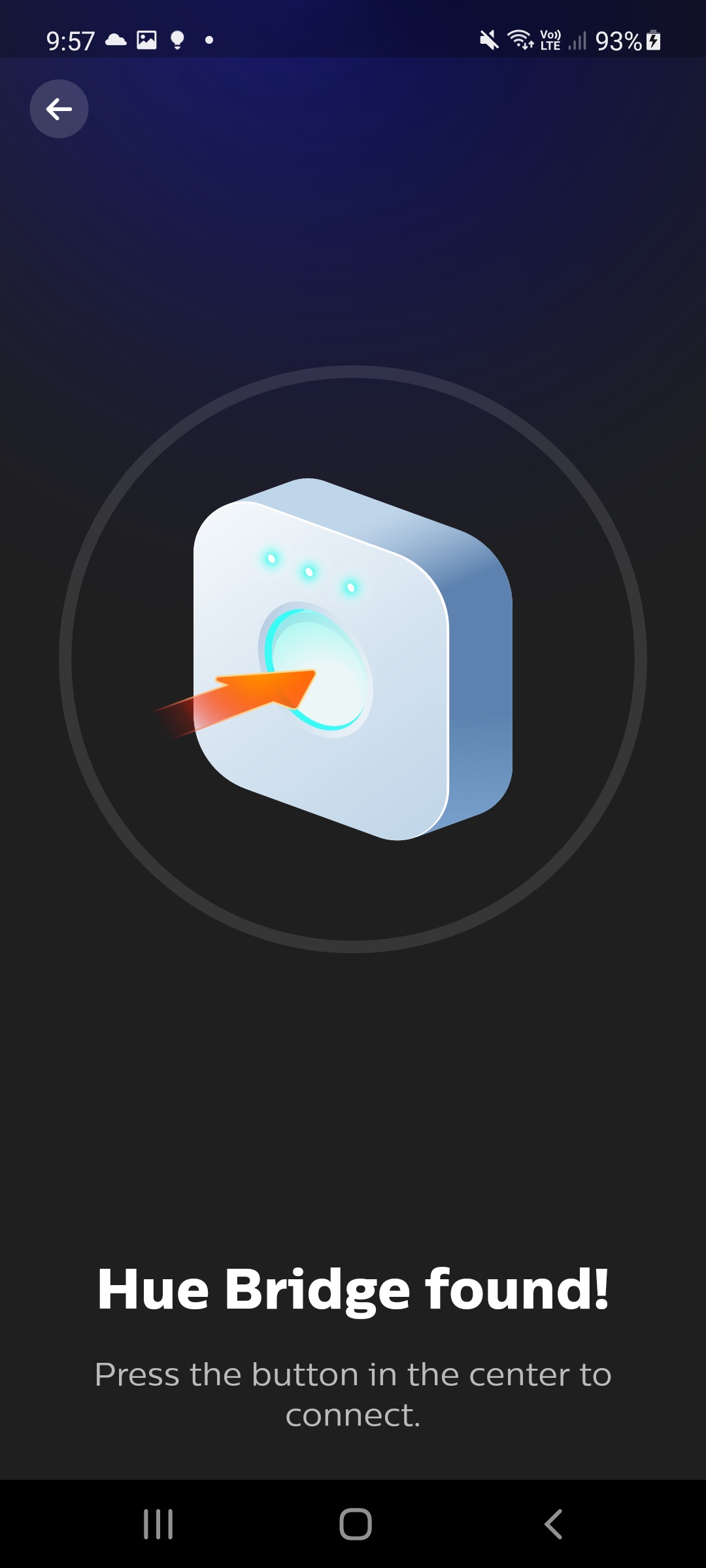
Press button on Hue Bridge when indicated to.
-
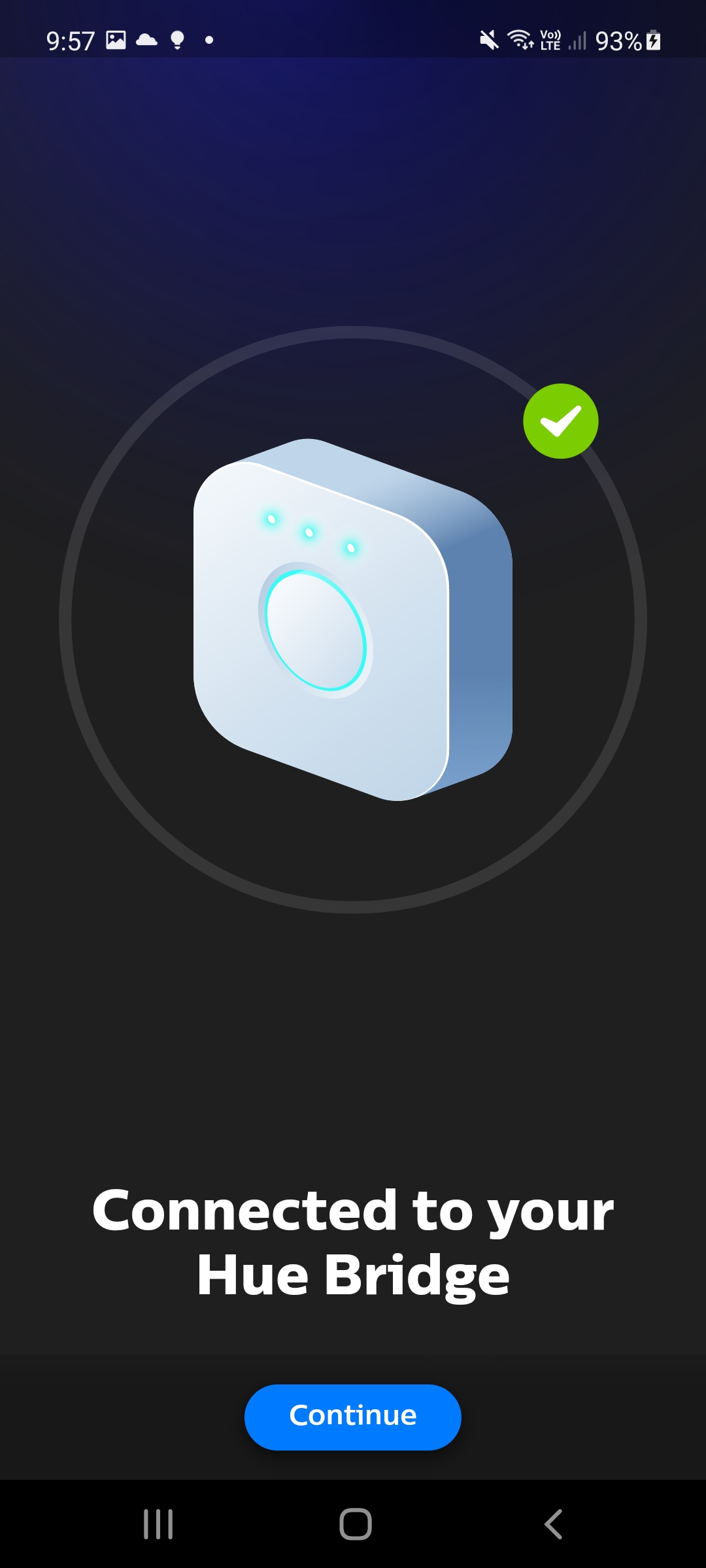
Select 'Continue'
-
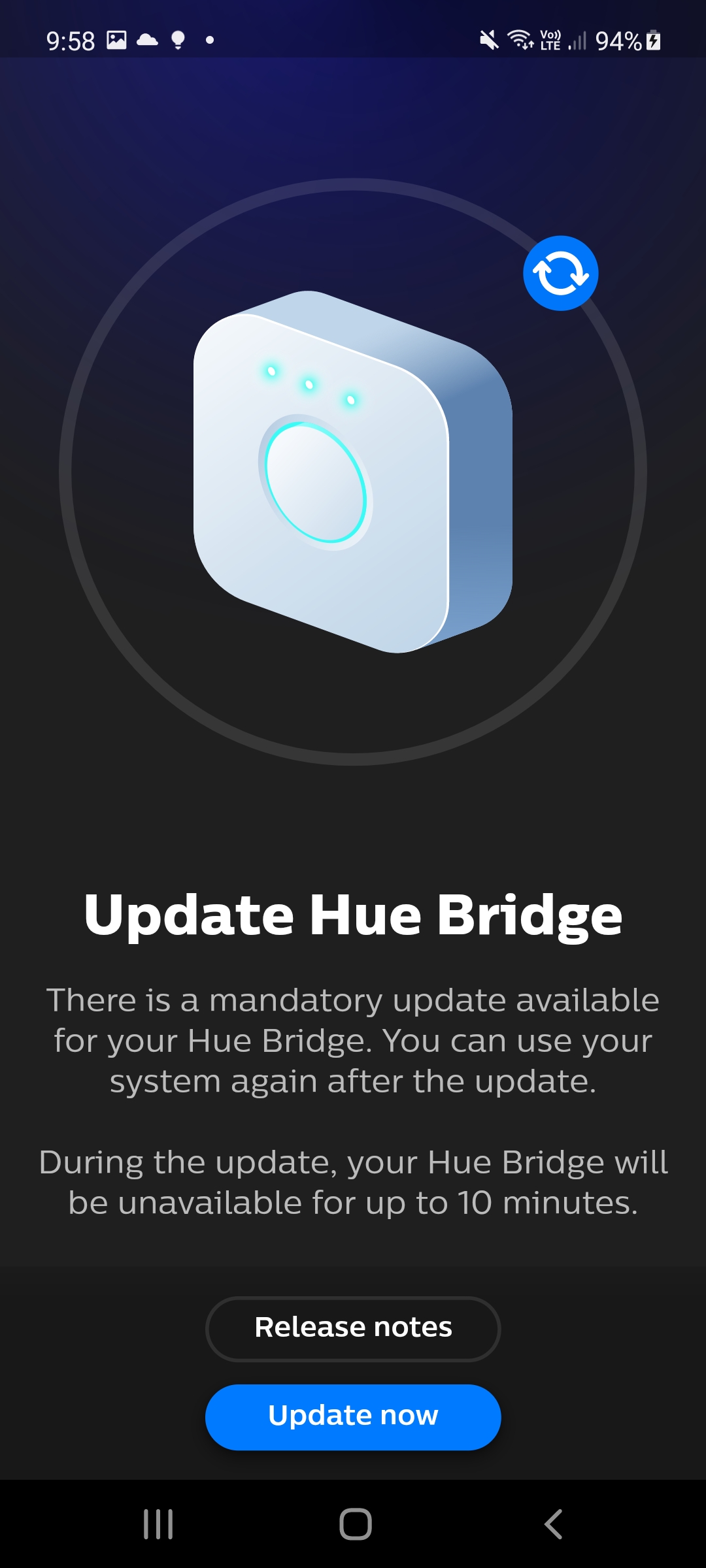
Select 'Update now' if prompted. Wait 10 minutes for Hue Bridge to update.
-
Turn on auto updates if prompted.
-
Once updated select 'Done'
-
Close the app.
-
Reopen the app and wait for it to reconnect to the gateway.
-
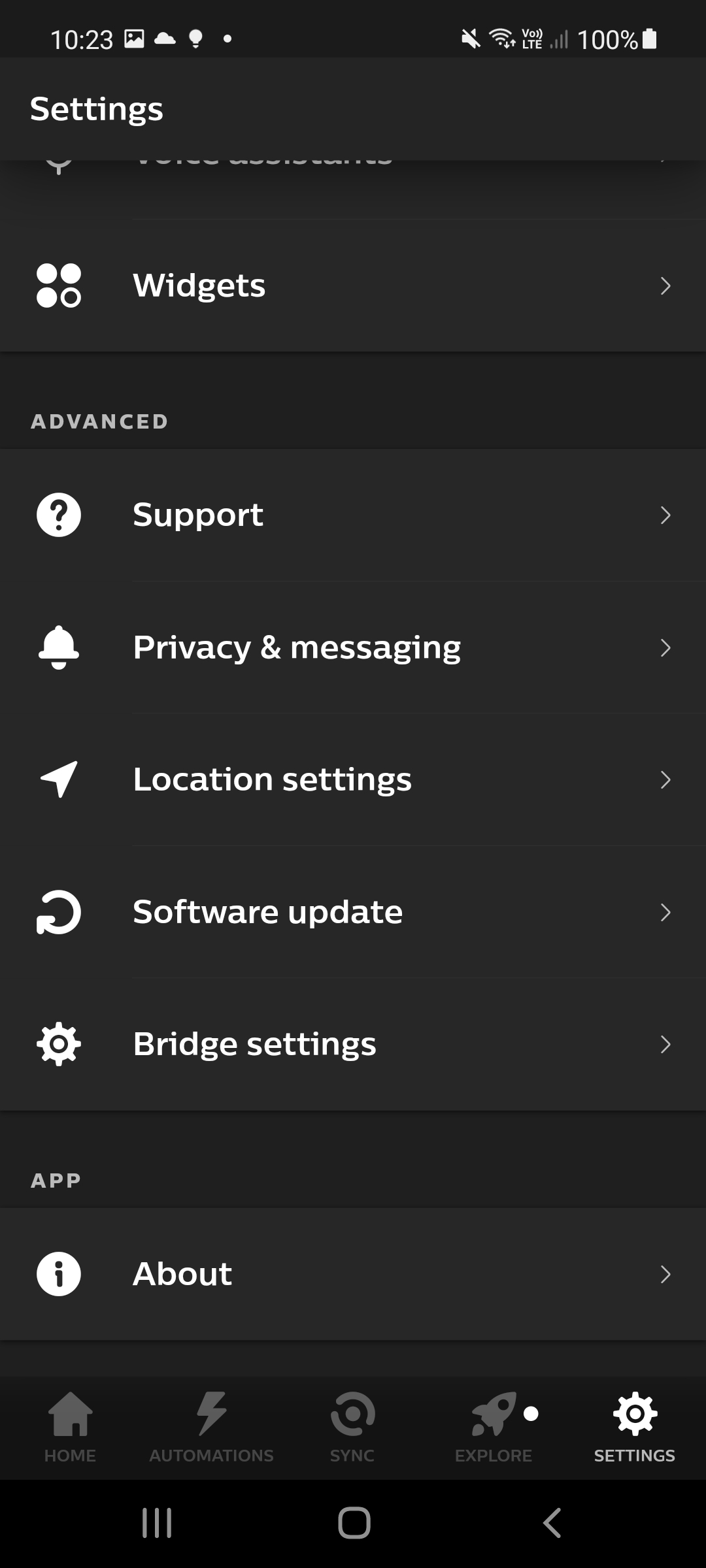
Go to Settings
-
Select 'Bridge Settings'
-
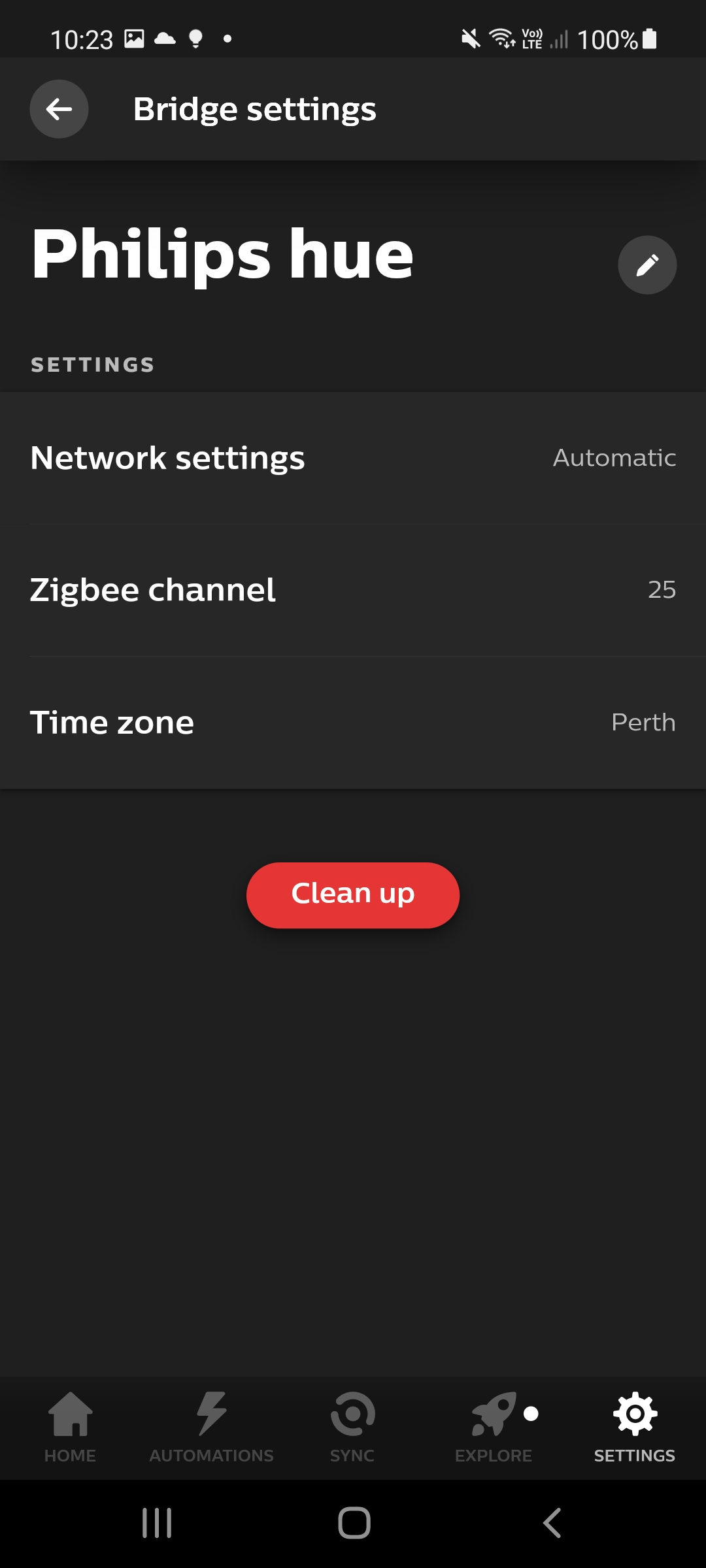
Select 'Network Settings'
-
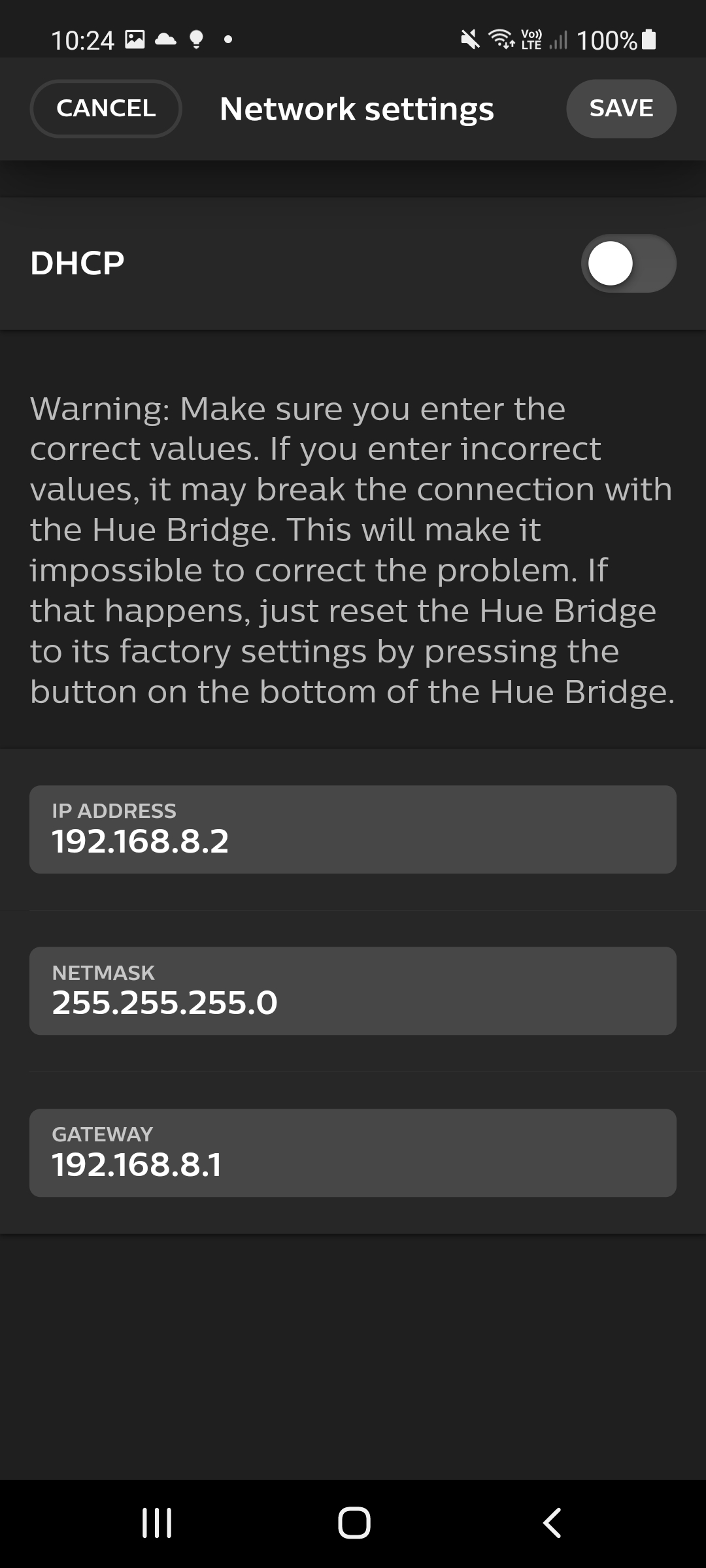
Untoggle 'DHCP'

-
Change 'IP ADDRESS' to 192.168.8.2
-
Select 'SAVE'
-
Close the app.
-
Wait 5 minutes.
-
Reopen the app.
-
The app should now be connected ot the bridge again.
3. Connect Bridge to gateway
Once the bridge IP has been changed to 192.168.8.2.
-
Restart the gateway.
-
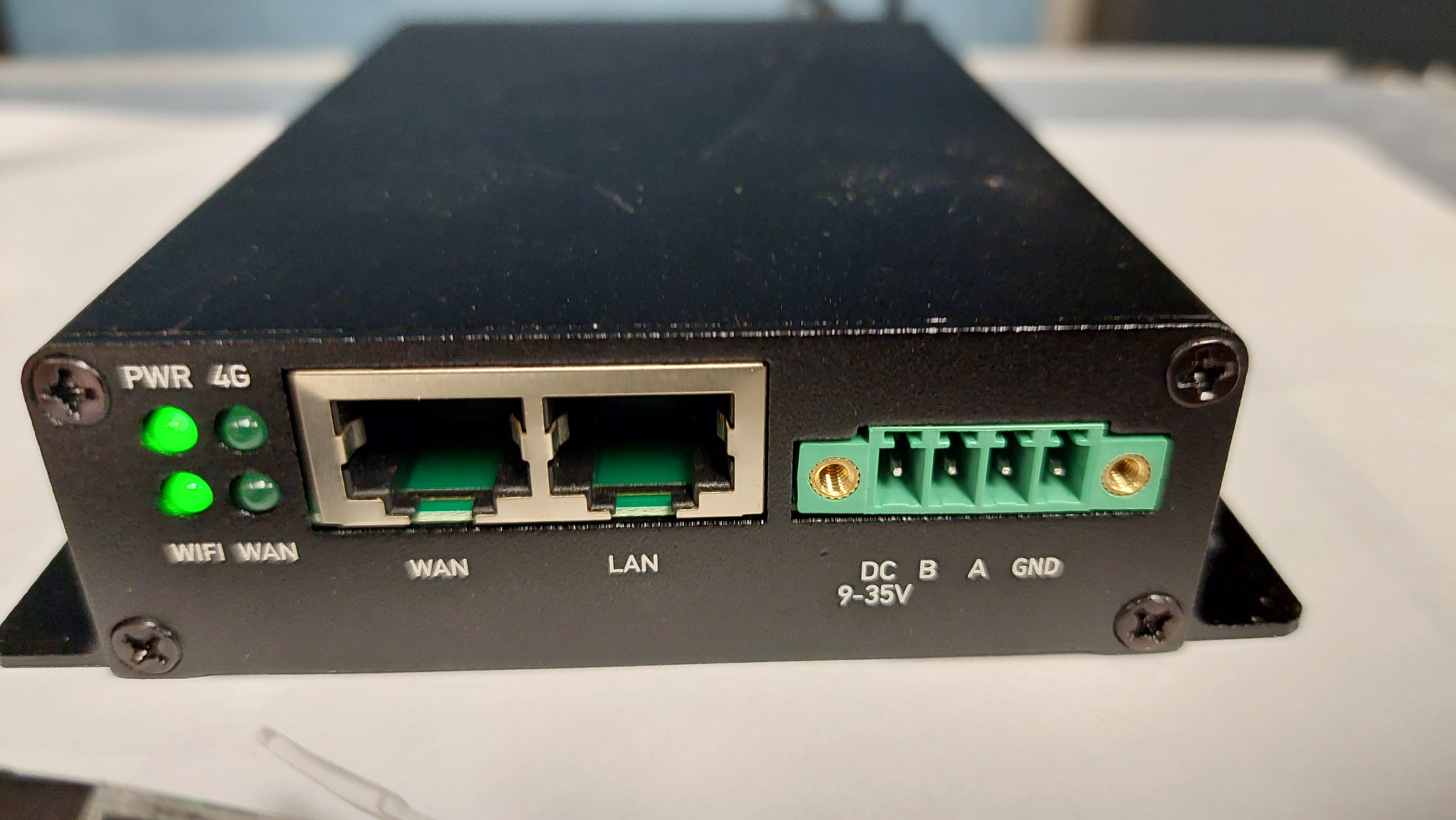
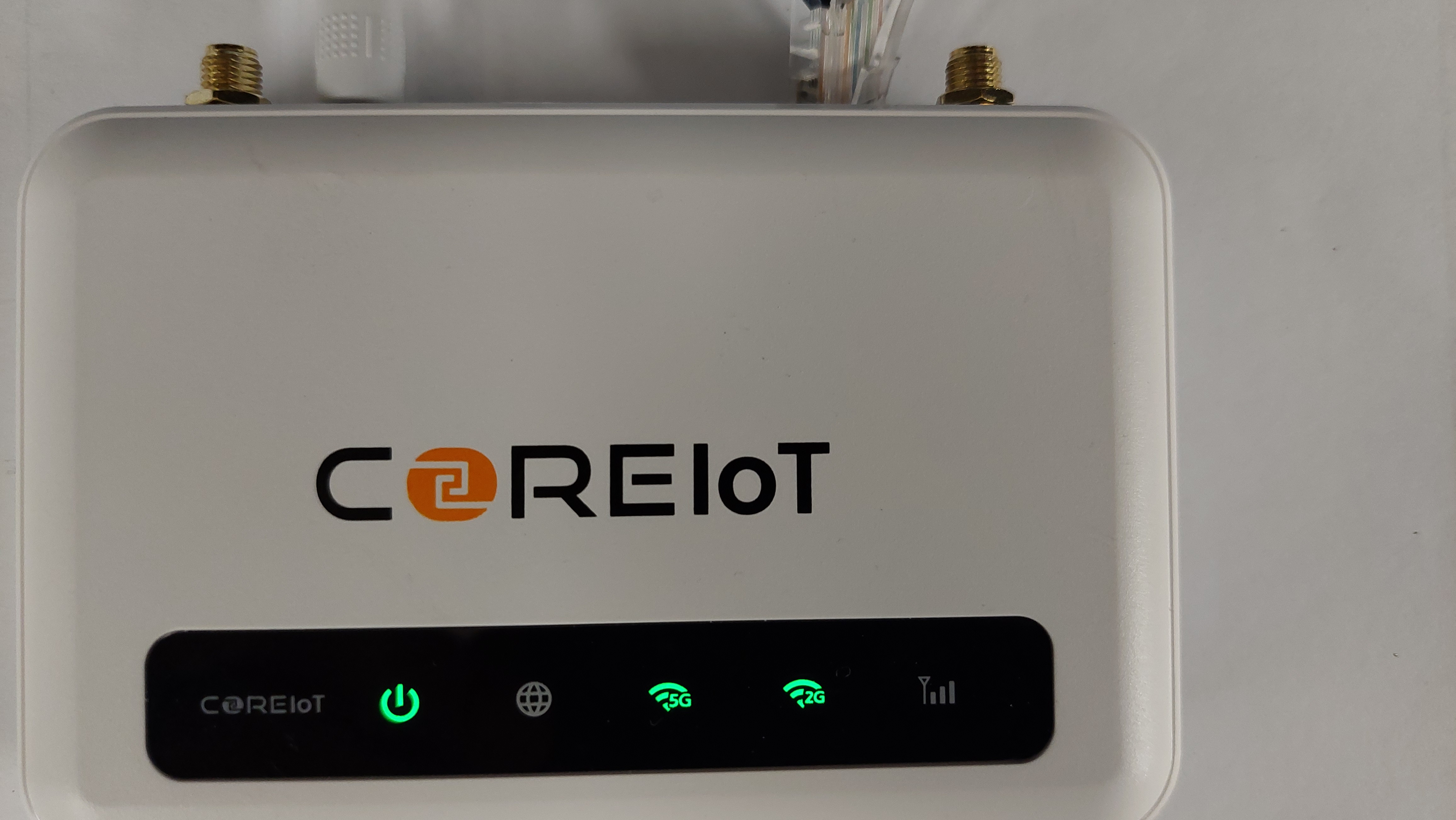
Wait for the WiFi lights to come on.
- Press the button on the bridge. {Crop image to circle area}
-
Wait 20 seconds.
-
Repeat steps 3 and 4 until the lights flash white for ten seconds. This flashing indicates the connection has been made and will be repeated every reboot of the gateway/hue bridge.